Announcing SSO and SCIM: Enterprise Identity for CalendarBridge Organizations
Sign your whole team in through Okta, Microsoft Entra, Google Workspace, or JumpCloud — and let your directory provision and deprovision CalendarBridge users automatically.
If you manage CalendarBridge for a team, two of your most-requested features just landed: single sign-on over SAML 2.0 or OIDC, and SCIM directory sync for automatic user provisioning. Together they plug CalendarBridge straight into the identity stack you already run — so joining the company means having CalendarBridge, and leaving it means losing access, with no manual steps in between.
Single sign-on, your way: SAML 2.0 or OIDC
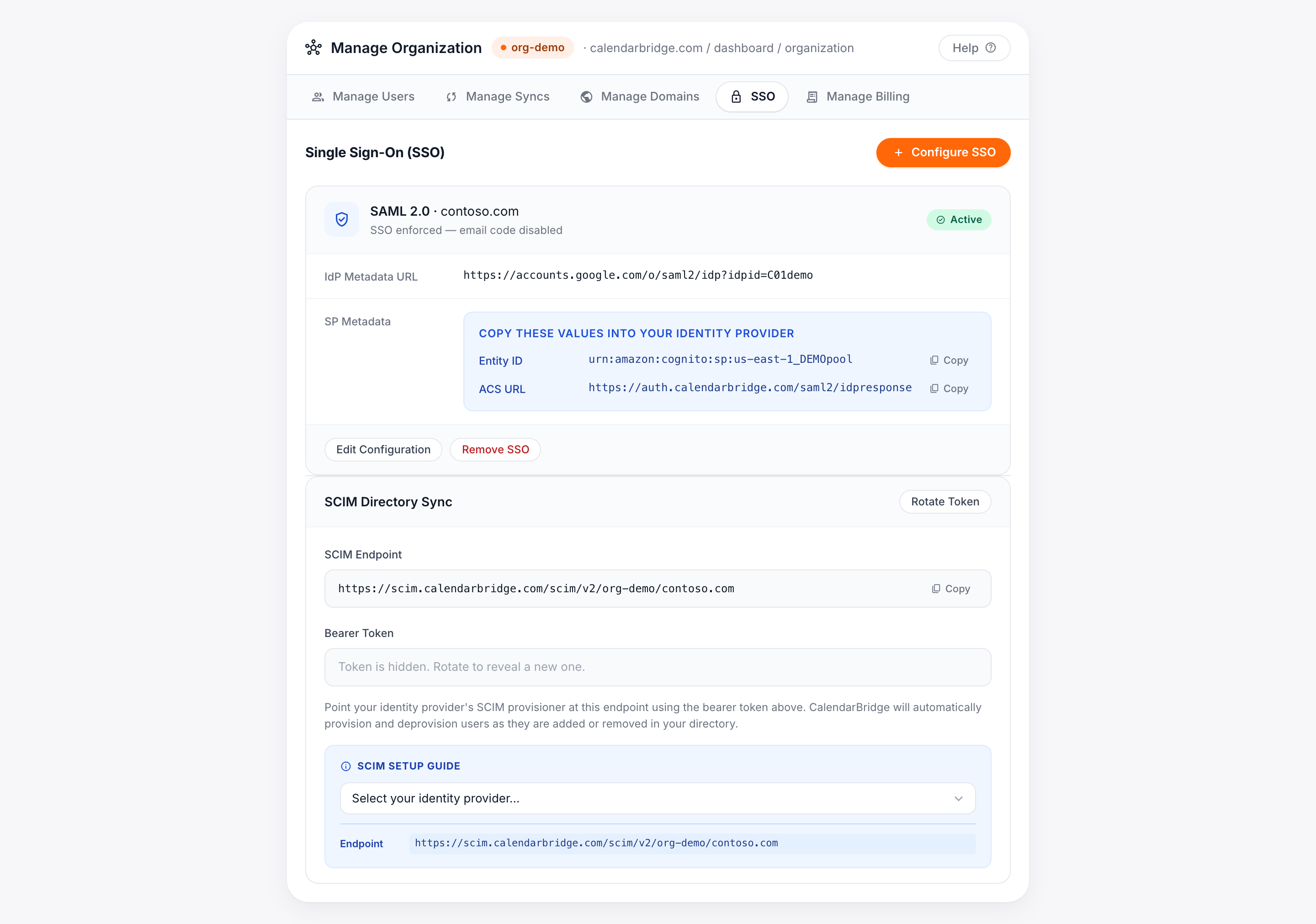
Until now, organization members signed in to CalendarBridge with magic-link email codes. That works fine for individuals, but IT teams want logins to flow through the identity provider they already control — with its MFA, session policies, and audit trail. SSO does exactly that: users on your domain sign in through your IdP instead, and you can enforce it organization-wide.
Configuration lives in the Manage Organization dashboard, under the new SSO tab. Each configuration is scoped to one of your organization's authorized domains, and you choose the protocol per domain: SAML 2.0 or OIDC — whichever your identity provider speaks best.
Guided setup for the IdPs you actually use
SSO setup usually means a scavenger hunt across two admin consoles. We've flattened it into one guided form. Pick your identity provider — Google Workspace, Okta, Azure AD / Microsoft Entra, or JumpCloud (plus a generic option for anything else) — and the form shows a step-by-step guide for that provider's console, the exact service-provider values to paste in (Entity ID and ACS URL for SAML, callback URL for OIDC), and the required attribute mappings, each with a one-click copy button.
Then hand CalendarBridge your side of the exchange: for SAML, the IdP metadata as a URL or an uploaded XML file; for OIDC, the discovery URL, client ID, and client secret. Save, and the configuration card tracks its status from pending to active.
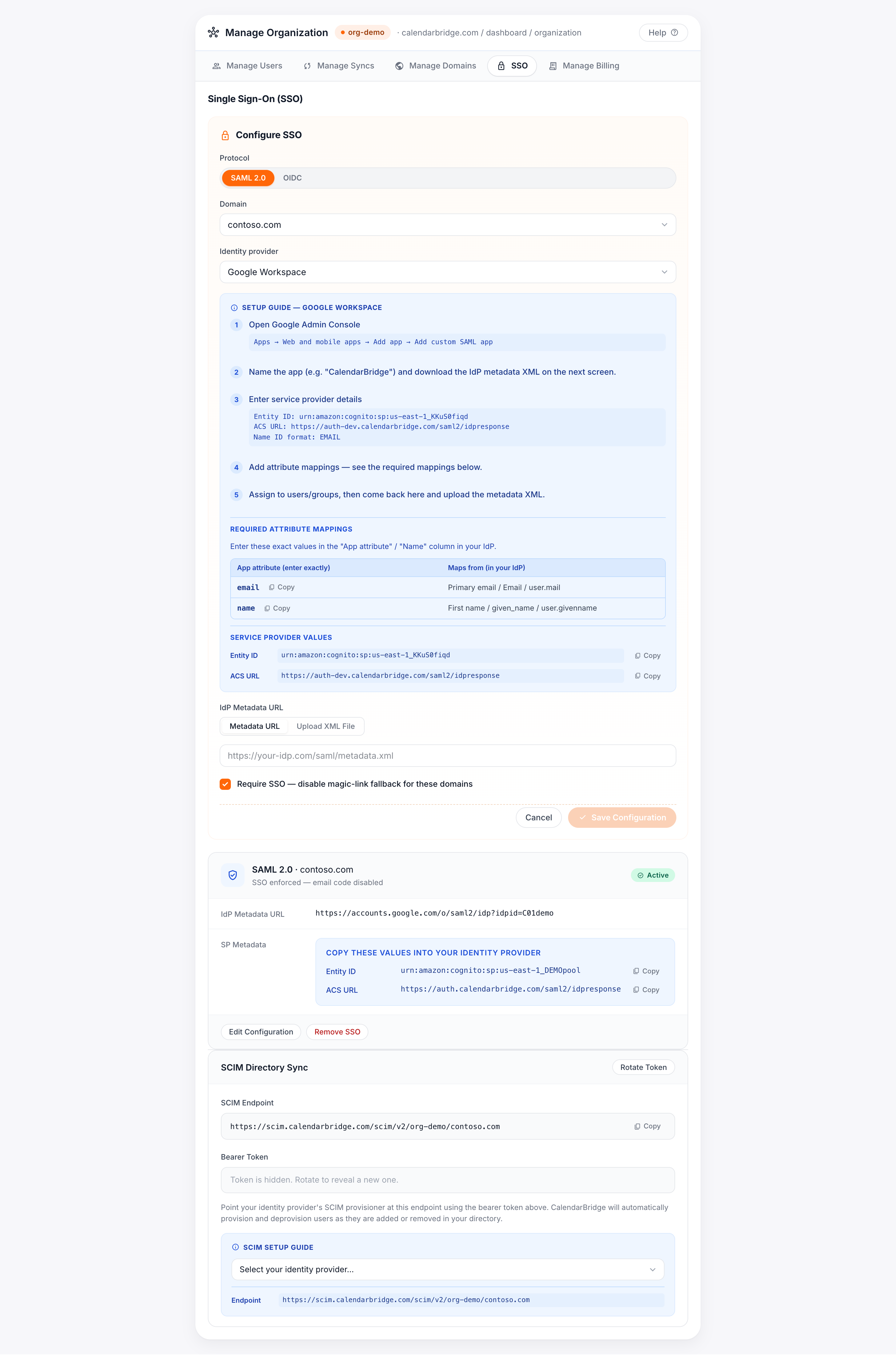
Enforcement is your call. A checkbox on the form — "Require SSO — disable magic-link fallback for these domains" — turns SSO from an option into the rule. Verify your configuration works end to end before switching it on; once enforced, email-code login is disabled for those domains.
SCIM: your directory is the source of truth
SSO answers "how do people sign in?" SCIM answers the harder operational question: "who has an account at all?" Once SSO is active, the SCIM Directory Sync section gives you a SCIM v2 endpoint and a bearer token. Point your identity provider's provisioner at it, and CalendarBridge automatically provisions users as they're added to your directory — and deprovisions them the moment they're removed.
That closes the offboarding gap that keeps IT auditors up at night: when someone leaves the company, their CalendarBridge access ends with their directory account, not whenever somebody remembers to clean up seats.
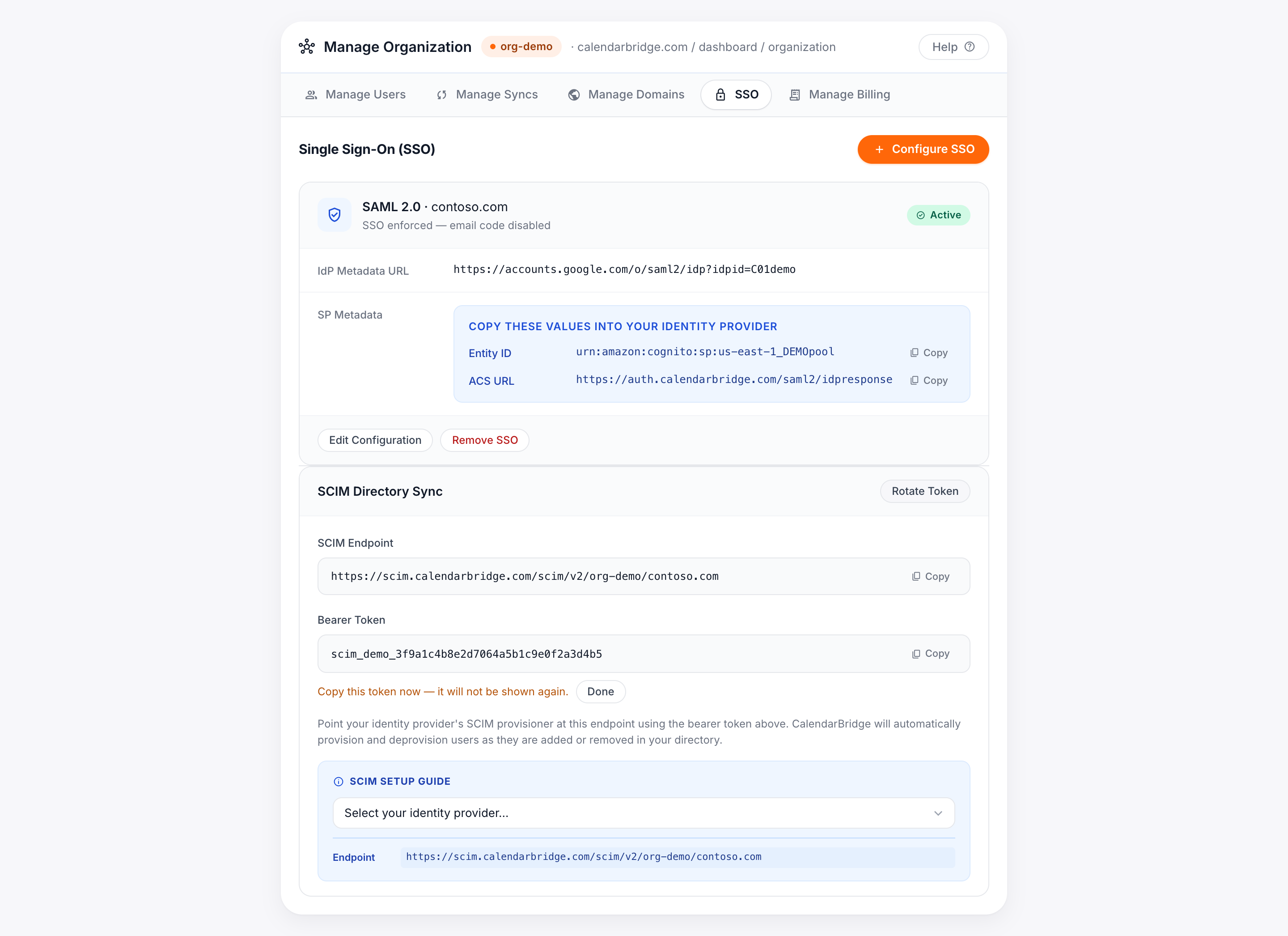
Token hygiene, built in. The bearer token is shown once when rotated, then hidden for good. Rotating issues a new token and immediately invalidates the old one — so rotate on your schedule, not just after an incident.
Getting started
- Verify a domain. SSO configurations attach to your organization's authorized domains, managed in the Manage Domains tab.
- Configure SSO. In the SSO tab, click Configure SSO, pick your protocol and provider, and follow the guide.
- Test, then enforce. Sign in through your IdP, confirm it works, then enable "Require SSO" to retire magic-link fallback for those domains.
- Turn on SCIM. Wire your IdP's provisioner to the SCIM endpoint and token. If SCIM isn't enabled on your account yet, contact support@calendarbridge.com and we'll switch it on.
SSO and SCIM are available now for CalendarBridge organizations. If your security team has a vendor questionnaire, this should shorten it considerably.
Bring CalendarBridge into your identity stack
SAML 2.0, OIDC, and SCIM provisioning for your whole organization — with calendar sync and scheduling your team already loves.
Start Free Trial