Bring Your Own AI Agent to CalendarBridge
Connect Claude, ChatGPT, Cursor, and any other MCP-compatible assistant straight to your calendars, schedulers, and syncs. You bring the AI. We bring the calendar.
We built CalendarBridge to make your calendars work together — syncing across Google, Microsoft, and iCloud, sharing availability with booking links, and even booking meetings from your inbox with the AI Scheduling Assistant. Today we're going one step further: with Bring Your Own Agent, the AI you already use can connect to your CalendarBridge account and manage your calendar for you.
What is it?
Bring Your Own Agent is a hosted MCP (Model Context Protocol) server. MCP is an open standard that lets AI assistants securely connect to outside tools. Because CalendarBridge speaks MCP, any MCP-capable client — Claude.ai, Claude Desktop, Claude Code, ChatGPT, Cursor, and more — can connect to your account and act on your calendars on your behalf.
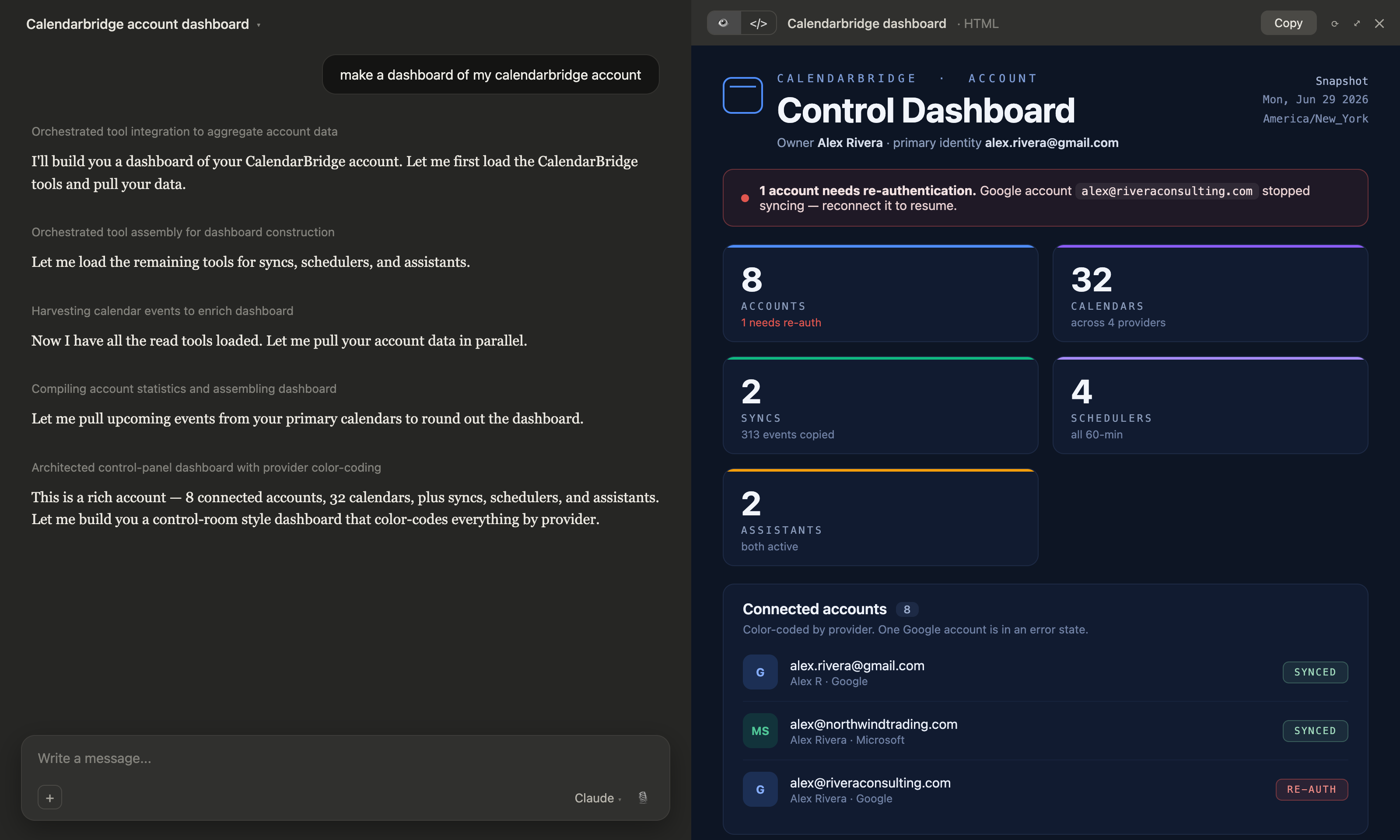
What does that look like in practice? Ask your agent for a birds-eye view and it can pull your accounts, calendars, syncs, schedulers, and assistant conversations in one go — and then do something with them, like build you a live status dashboard:
What your agent can do
Once connected, your agent can:
- Manage calendars and events — read your schedule across every connected calendar, and create, move, or cancel events.
- Set up syncs — create one-way or two-way syncs between calendars, with full control over how events appear.
- Create and manage schedulers — spin up booking links with your availability and meeting length, then hand you the URL.
- Handle connected accounts — see which accounts are connected and which need re-authentication.
- Drive your AI Scheduling Assistant — start a new scheduling email or reply within an existing conversation, all from your agent.
It works across Google, Microsoft 365 / Outlook, and iCloud — the same calendars CalendarBridge already syncs.
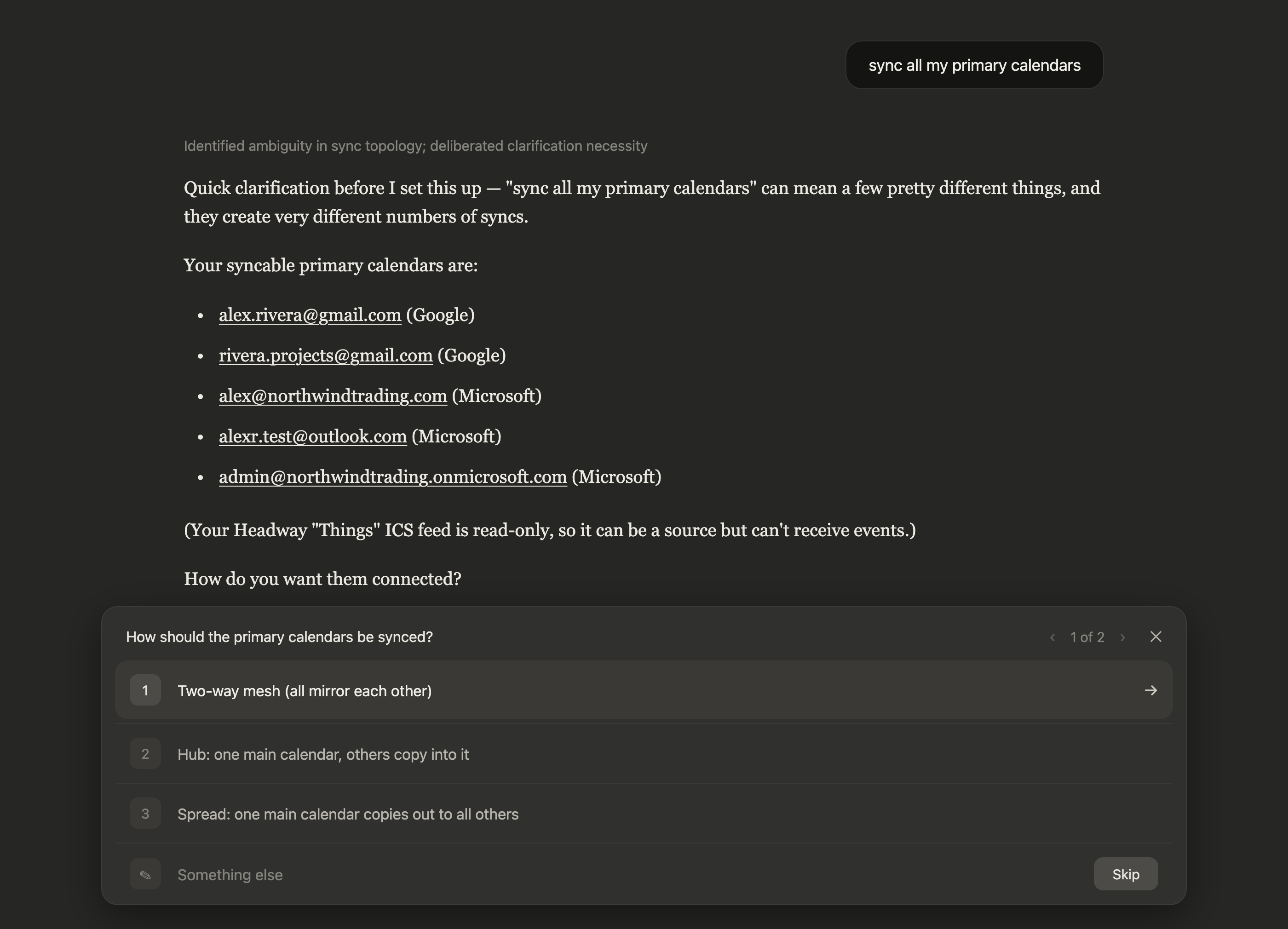
And because your agent understands what it's doing, it asks the right questions instead of guessing. Tell it to "sync all my primary calendars" and it will notice that's ambiguous — a full mesh, a hub, or a one-to-many spread are very different setups — and check before creating anything:
Your agent, meet your assistant
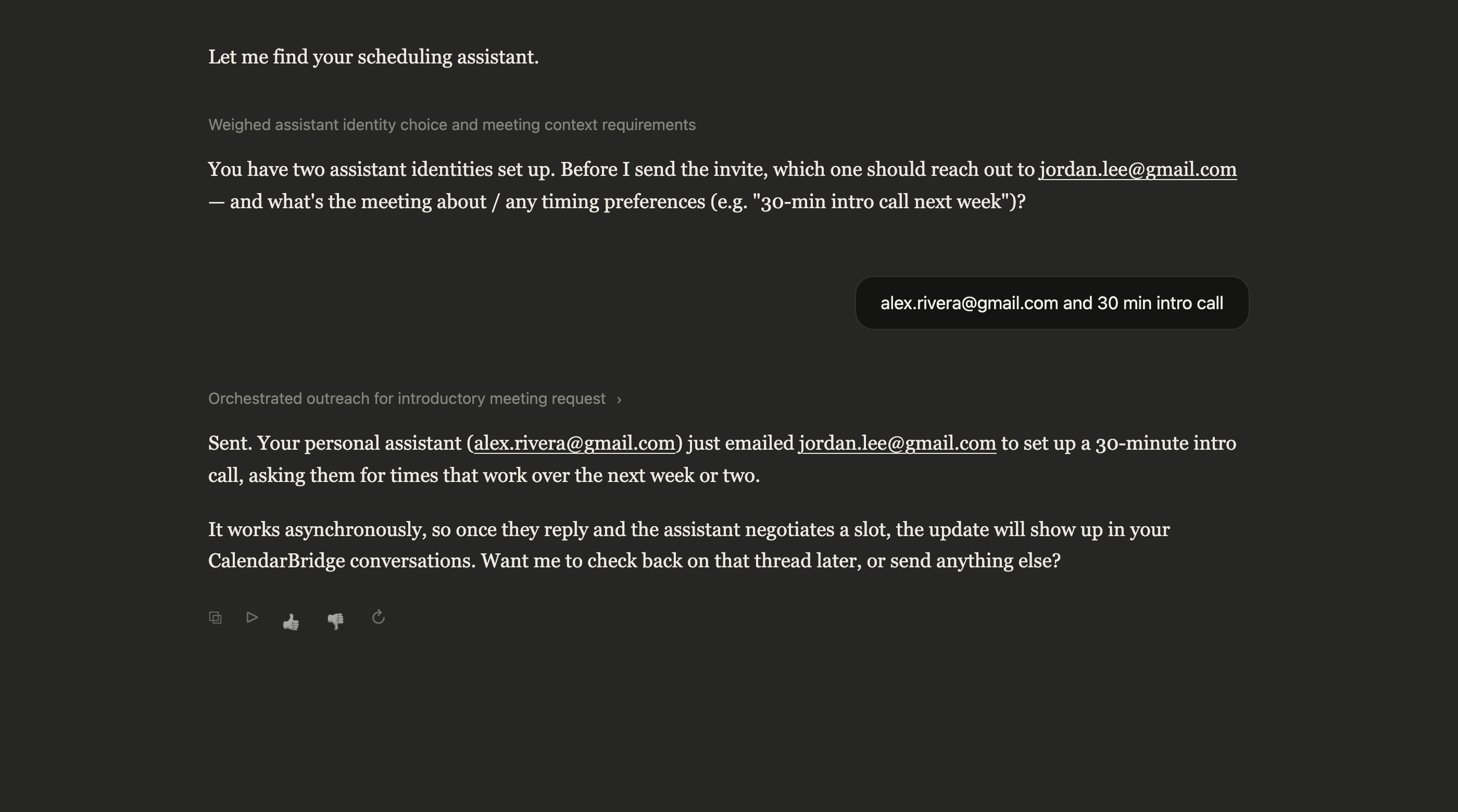
The AI Scheduling Assistant has always been able to negotiate meeting times over email. Now your agent can drive it. Ask Claude to set up a call with someone, and it will hand the outreach to your assistant, which emails them, negotiates a time, and books the meeting — asynchronously, while you do something else.
How it works
There's no API key to copy and no config file to wrangle. Connecting uses the standard OAuth 2.1 sign-in flow:
- Open the AI Assistant → Bring Your Own Agent (MCP) tab in your dashboard and copy your Server URL.
- Add it as a custom connector / remote MCP server in your client — we include step-by-step guides for Claude, ChatGPT, Cursor, Codex, and others.
- Sign in to CalendarBridge in your browser and choose exactly what the agent can access.
That's it. Your agent is connected.
Permissions you control
Every connection is scoped and revocable. On the consent screen you decide what to grant — read your calendar, create events, manage schedulers, manage syncs, read your accounts, or send through your assistant. Connect more than one agent, each with its own permissions, and revoke any of them in one click from the Connected agents list.
Because it's OAuth, there's no long-lived secret to leak, and your agent only ever acts as you, within the permissions you allow.
Tip: Grant the full set of scopes up front. Clients like Claude already ask for your confirmation before each action, so you keep a human in the loop either way — and an agent with write access can actually finish the job instead of stopping to ask you to reconnect with more permissions.
Try it
Once connected, just ask:
- "What's on my calendar this week?"
- "Create a 1-hour design review tomorrow at 2pm and invite alex@example.com."
- "Set up a one-way sync from my work calendar to my personal calendar, showing events as busy."
- "Create a 30-minute scheduler for weekday afternoons and give me the link."
- "Ask my scheduling assistant to find time with Sam next week."
Availability
Connecting an agent is available on every plan, including Basic. Performing actions through your agent requires an active CalendarBridge subscription. The feature is in preview — you'll find it under AI Assistant → Bring Your Own Agent (MCP) in your dashboard.
You bring the AI. We bring the calendar.
Copy your Server URL from the dashboard and connect your favorite AI assistant in under a minute.
Start Free Trial