Your AI Assistant, On Your Own Email Domain
Give your scheduling assistant a name and an address that belong to your business — like Ava <ava@ai.yourcompany.com> — with guided setup right from the dashboard.
Your AI scheduling assistant already books meetings, answers availability questions, and follows up over email. Starting today, it can do all of that from your domain: Pro users and organization admins can give their assistant a custom email address and From name, so every message your assistant sends looks like it came from your team — because it did.
Why a custom address matters
Until now, every assistant replied from a shared CalendarBridge address. That works, but the polish of an executive assistant comes from the details: when a client gets a scheduling email from Ava <ava@ai.yourcompany.com>, it reads like a member of your staff — not a third-party tool. Recipients see your name, your domain, and replies flow straight back to your assistant.
Under the hood, your address is fully authenticated: CalendarBridge provisions DKIM signing for your subdomain, sets up SPF-aligned outbound routing, and configures inbound delivery so replies to your assistant's address reach it instantly. Deliverability best practices, without you touching a mail server.
Setting it up takes about five minutes
Open your assistant configuration from the AI Assistant page (click Customize Email on the assistant's card, or Edit). At the top of the edit page you'll find the new Customize From Email & Name panel.
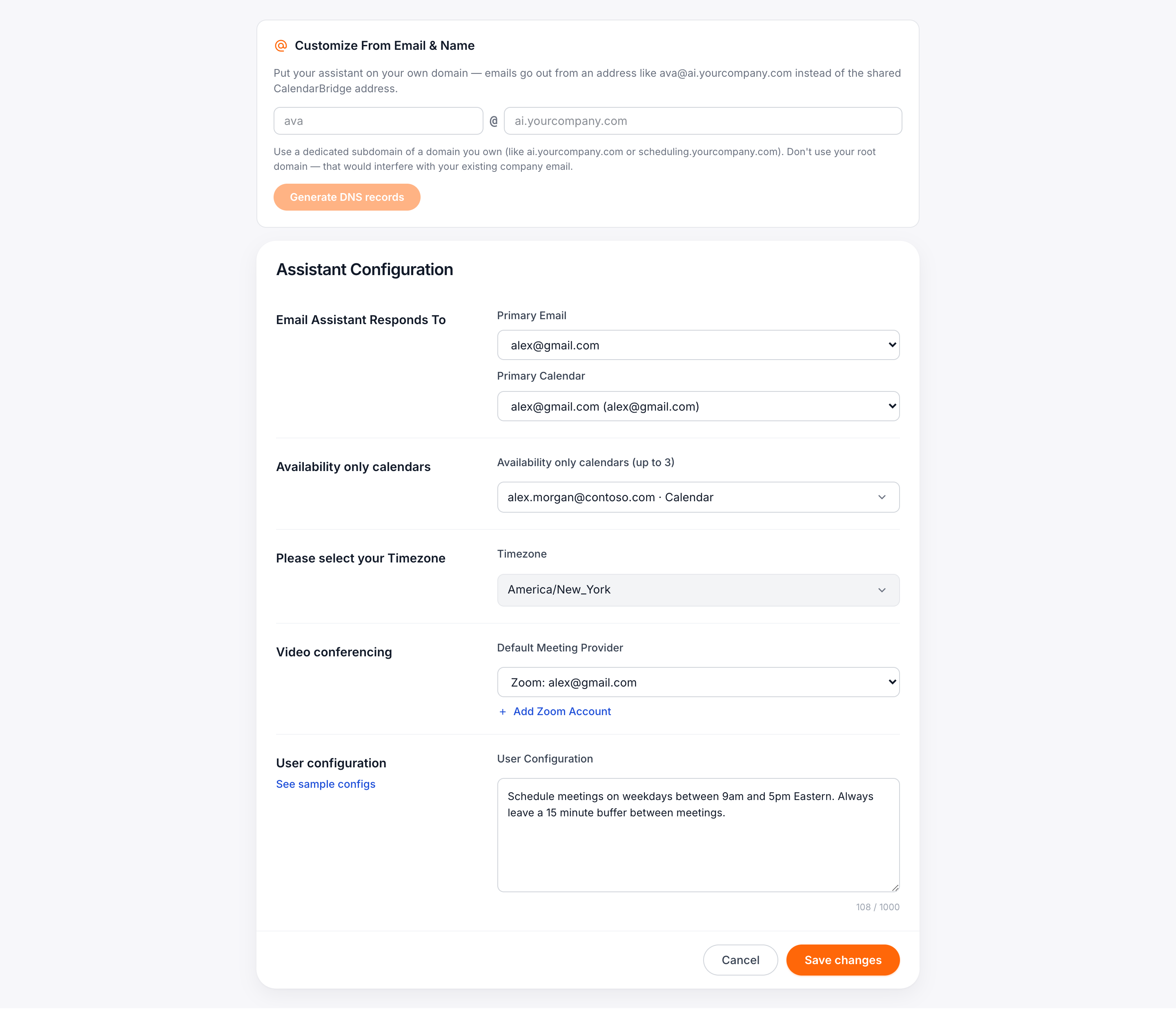
Enter the address you want — the part before the @ is your assistant's mailbox name, and the domain should be a dedicated subdomain of a domain you own, like ai.yourcompany.com or scheduling.yourcompany.com. Click Generate DNS records and CalendarBridge creates the email identity and hands you the exact records to add at your registrar.
Why a subdomain? Your assistant receives mail at this domain, so it needs its own MX record. Putting that on your root domain would interfere with your existing company email — a dedicated subdomain keeps the two completely separate.
Guided DNS, whoever your registrar is
DNS is the step where these setups usually stall, so we did the homework for you. The panel lists every record — the three DKIM CNAMEs that verify your domain, the MX and SPF records for outbound routing, the inbound MX that delivers replies to your assistant, and a recommended DMARC record — each with a copy button.
Below the table, pick your registrar and follow numbered steps written for that provider: GoDaddy, Cloudflare, Namecheap, Squarespace/Google Domains, or a generic walkthrough for anything else. The instructions call out the classic pitfalls, like GoDaddy expecting host names without your root domain, and Cloudflare needing the "DNS only" grey cloud on CNAME records.
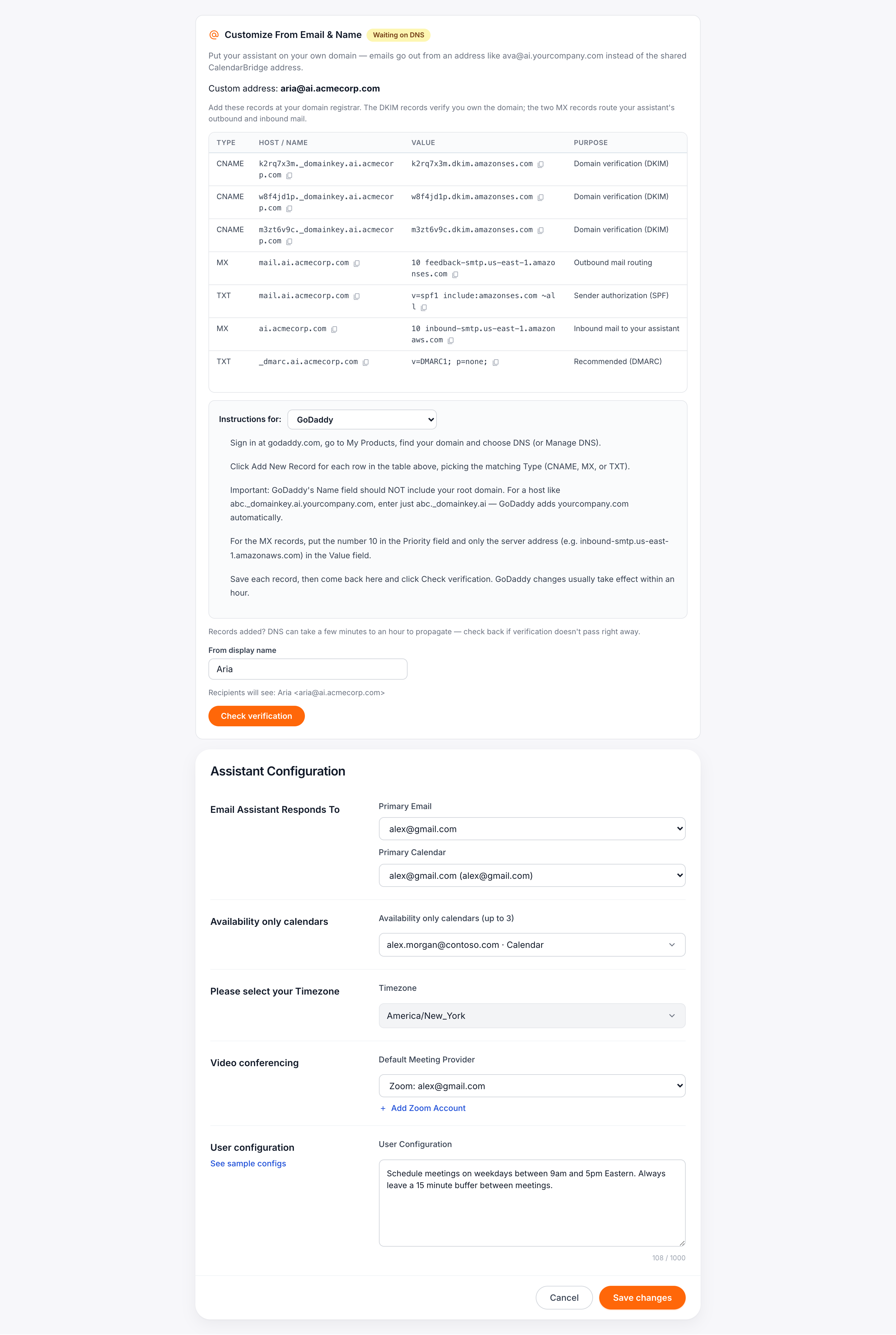
Once the records are in, click Check verification. DNS changes usually propagate within the hour; when verification passes, your assistant's inbound routing switches on automatically and the new address goes live.
Finish with a name
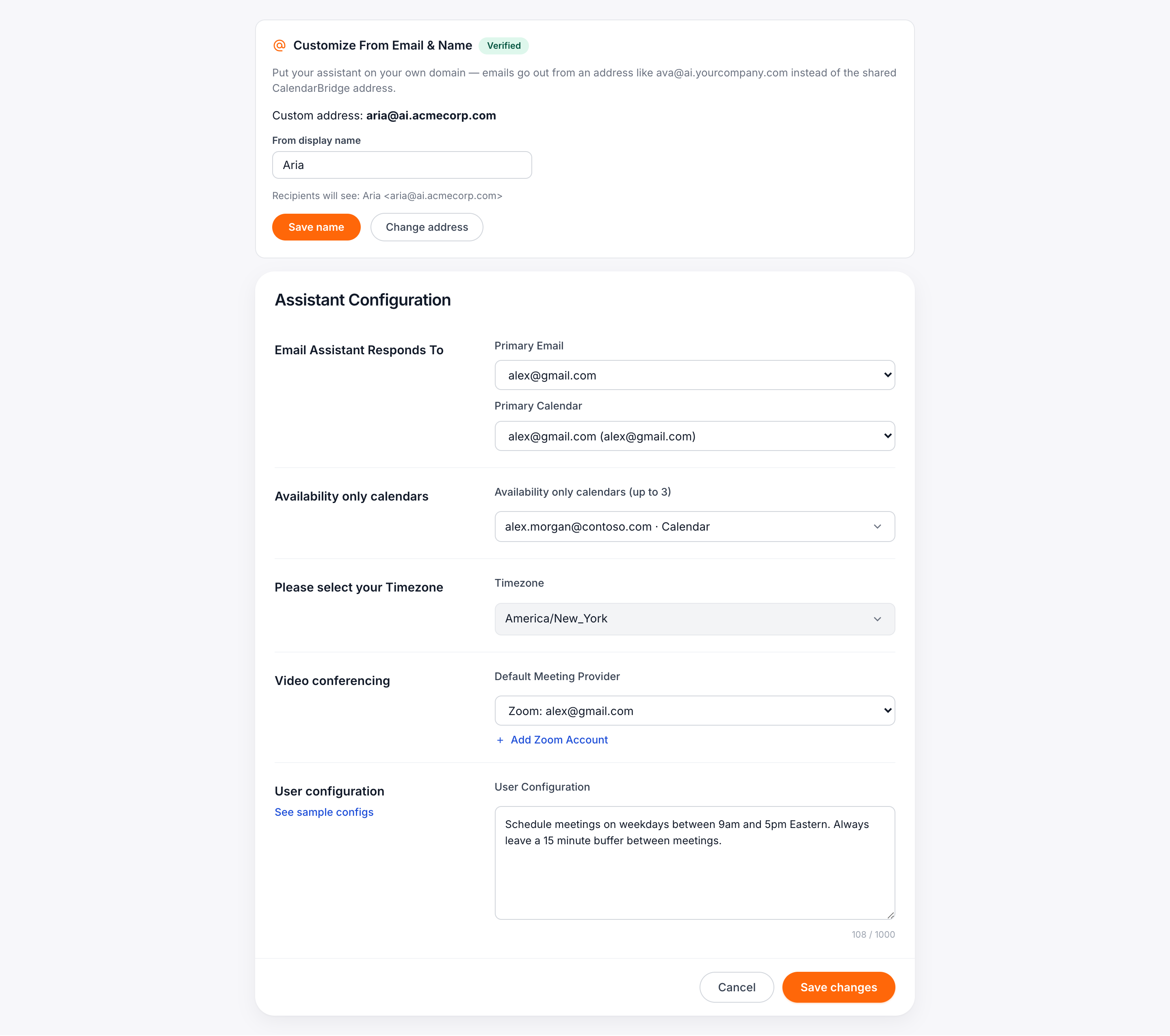
The From display name is what recipients see next to the address in their inbox. Set it in the same panel — the preview shows exactly how it will appear: Ava <ava@ai.yourcompany.com>. You can change the display name any time without touching DNS again.
Who gets it
Custom assistant addresses are included on Pro plans for individual accounts. Organization admins can set a custom address on any org assistant configuration from the Organization AI page — same panel, same guided flow. On other plans you'll see the panel with an upgrade prompt; switching takes effect immediately.
Tip: Already emailing with your assistant at the shared address? Nothing breaks when you switch — conversations continue, and new messages simply go out from your custom address.
Put your assistant on your domain
Start a free trial, connect your calendars, and give your AI scheduling assistant an address your clients will recognize.
Start Free Trial