Update Group Billing Address & Tax ID
Updating the email and/or mailing address for a group account can only be performed by the primary/billing administrator (by default, the user who originally created the group account). If you require a certain address and/or tax ID on your invoices, here is how to update it.
Steps
-
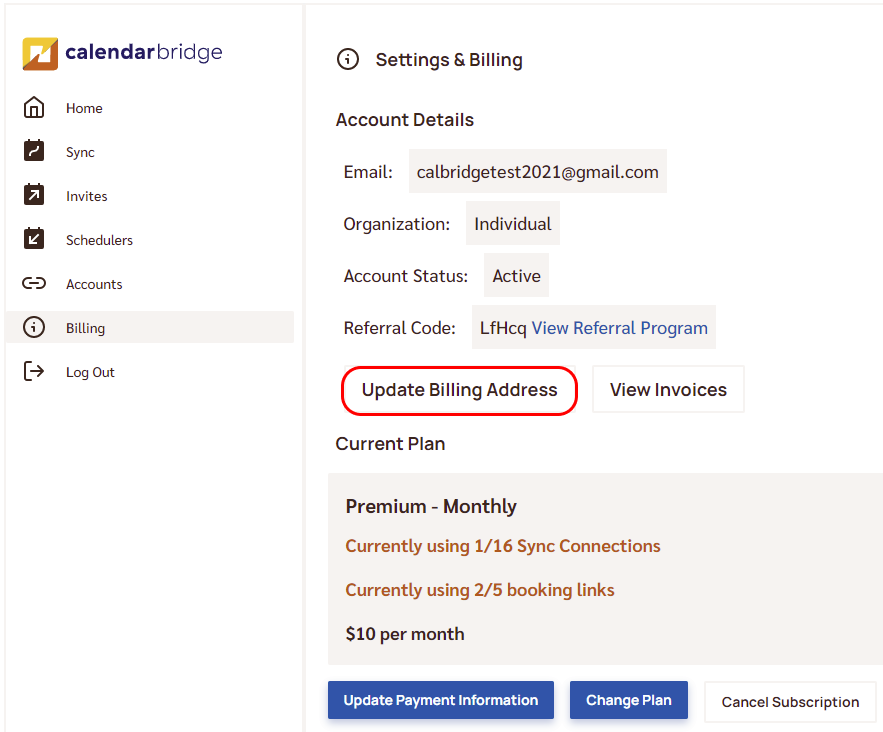
Open Billing and click “Update Billing Address”
When logged into your CalendarBridge dashboard, go to “Billing” in the left menu, then click the “Update Billing Address” button. After a few seconds this redirects you to your customer portal on Stripe’s website.
-
Click “Update Billing Address” in Stripe
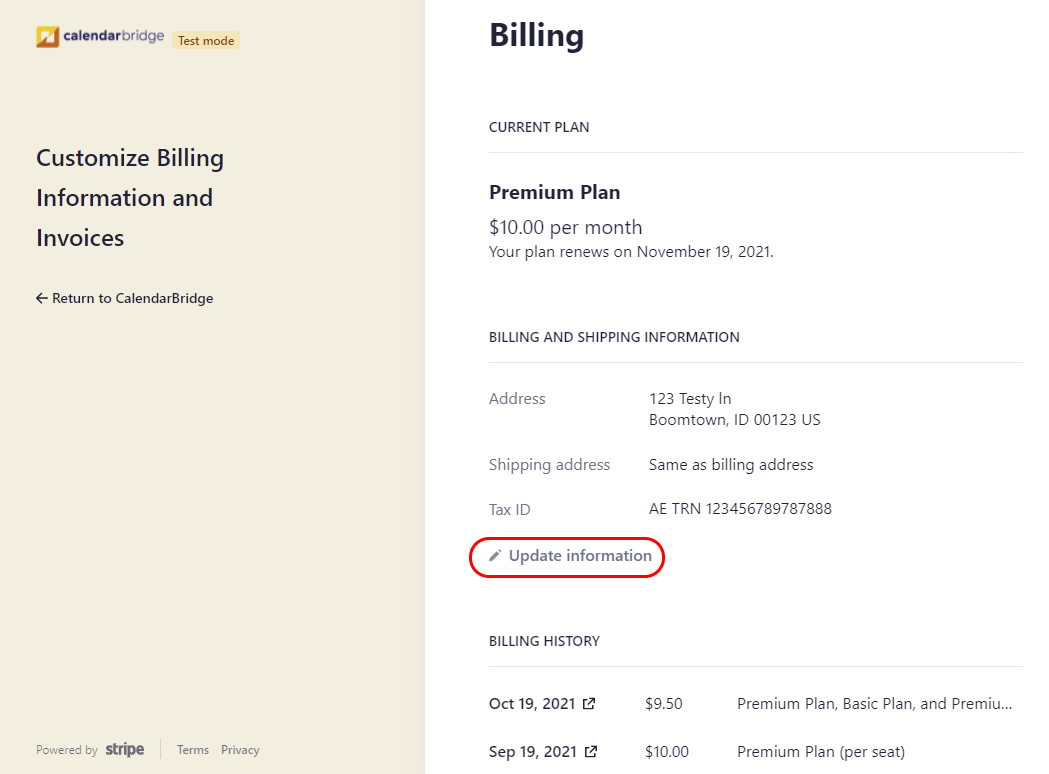
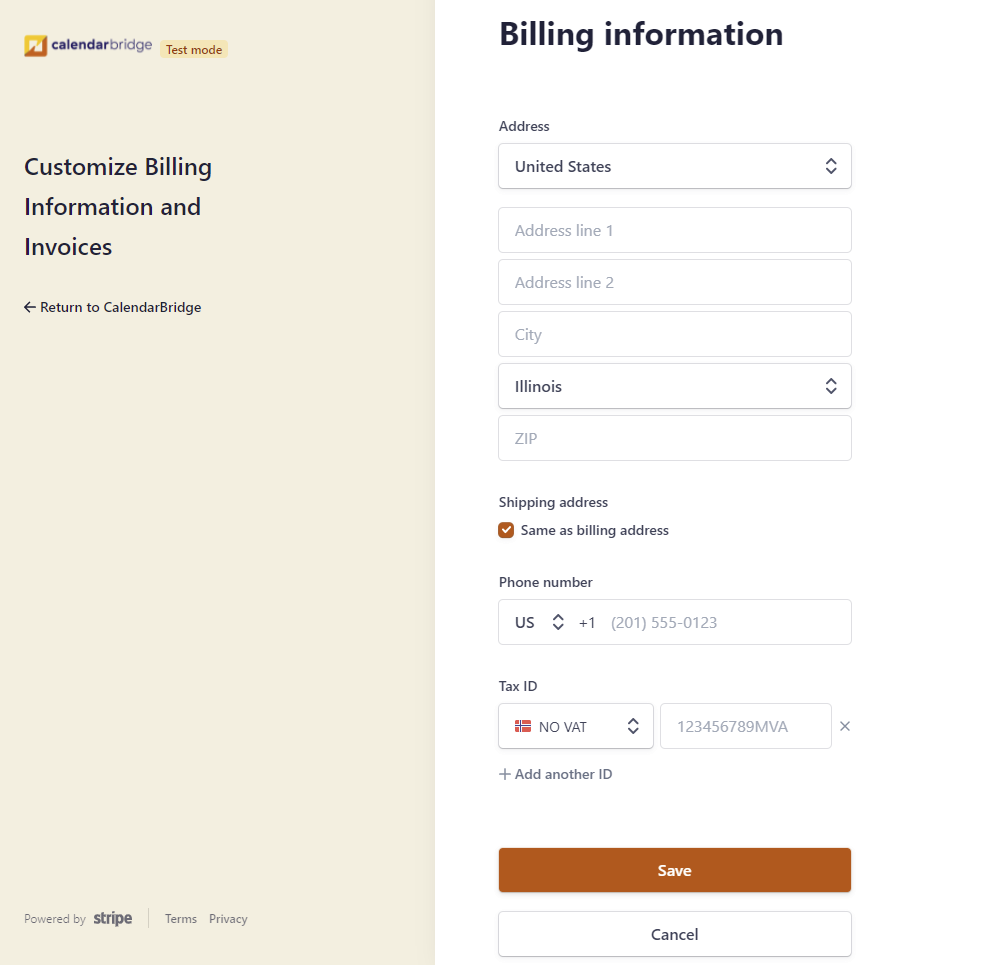
This brings up the address form:
-
Enter your address and/or Tax ID and click “Save”infoFor Tax IDs: once you select the Tax ID Country, the placeholder text indicates the exact format required — if it includes prefixes or suffixes, include those when entering your VAT ID.