Navigating Unified Calendar
A tour of the CalendarBridge Unified Calendar, covering the main view, the event details view, and the create/edit event view, with every called-out feature explained.
Main View
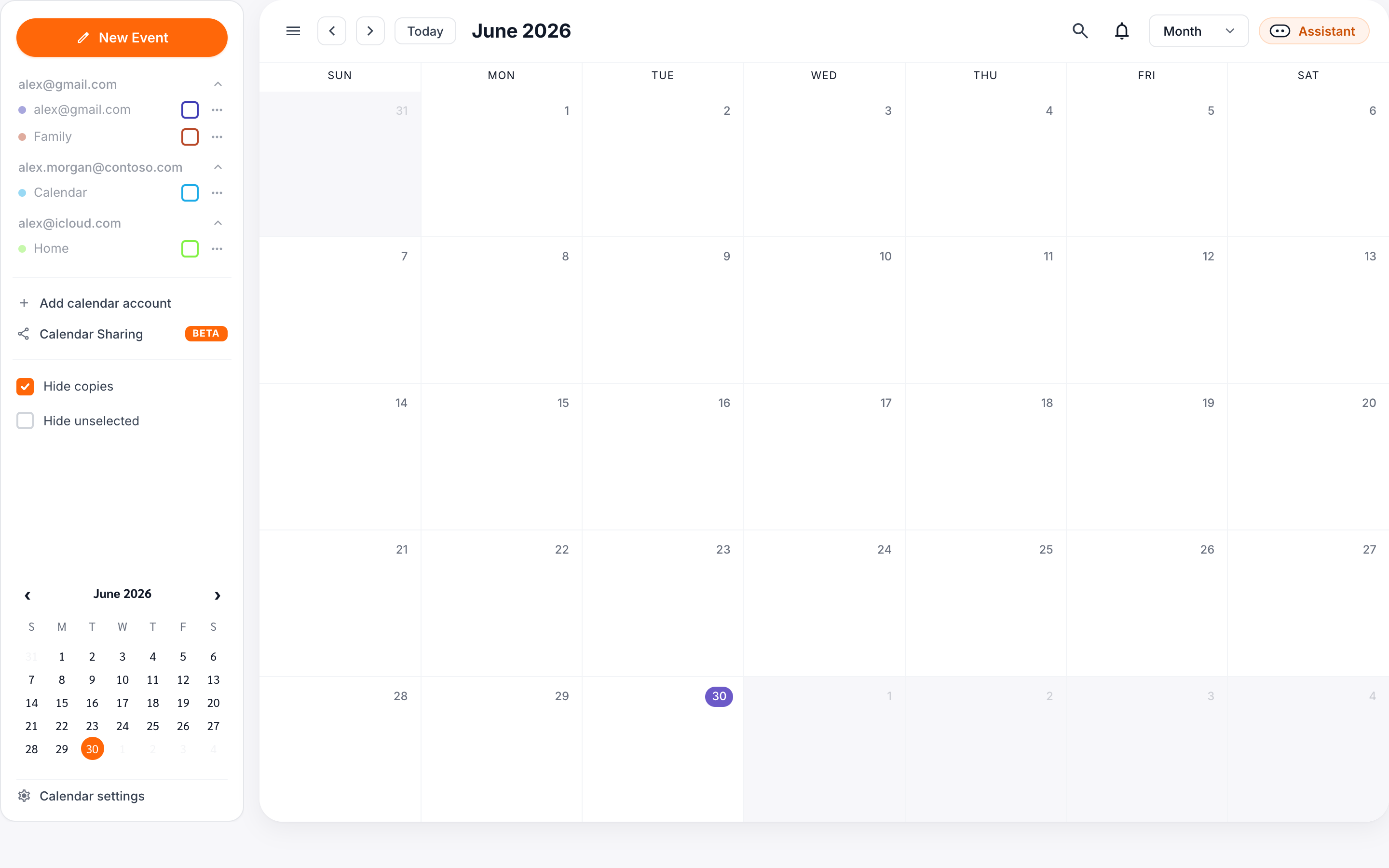
Here is a main screen/view of the CalendarBridge Unified Calendar. Each of the called-out features is explained below.
Go to previous/next – These arrows in the top left allow you to navigate to the previous or next Month (for month view), week (for week view), or day (for day view)
Switch to month/week/day view – Allows you to select between Month, Week, and Day views of your Unified Calendar
View pending invites – If any of your selected calendars have invites that need a response from you, this bell will be red and you can click it to view them and respond.
Create new event – brings up the create/edit event dialog box (see below)
Expand calendar list – When the arrow next to an account points to the right, the list of calendars for that account is collapsed. Click the arrow to expand/show the list.
Collapse calendar list – When the arrow next to an account points down, the list of calendars for that account is expanded/shown. Click the arrow to collapse/hide the list.
Open calendar color selector – Click the three dots next to a calendar to set the color that events of that calendar are shown in the unified calendar.
Selecting a color for a calendar in the CalendarBridge Unified Calendar only affects the color of that calendar in the CalendarBridge Unified Calendar -- it does not affect the color of that calendar in Google, Outlook, or iCloud and it does not categorize any events on the calendar.
Show/hide events – Clicking the eye next to a calendar will show/hide events for that calendar.
Add calendar account – brings up the dialog box for connecting another Google, Microsoft, or Apple account; or for adding an ICS URL to the Unified Calendar. Note that ICS URLs used in a sync connection are not automatically added to the Unified Calendar. If you want an ICS URL calendar shown in the Unified Calendar it needs to be added here.
Hide copies – Checking this box will hide event copies created by CalendarBridge. This is extremely useful for decluttering your view when using the Unified Calendar in combination with CalendarBridge syncing.
Enable reminders – Checking this box will turn on browser notifications from the Unified Calendar for your events. A popup will appear asking you to consent to browser notifications from CalendarBridge.
Event Details View
Clicking on an event will open up the event details view:
Edit event – Click the pencil icon to open the event edit view for this event.
Delete event – Click the trash icon to delete the event.
Close details – Click the ‘x’ icon to close the event details dialog box.
Join meeting button – If the event has a Google Meet, Microsoft Teams, or Zoom web/video meeting, clicking this button will open the link to the web meeting
copy link to web conference – Click this “copy” icon to copy the join url for your Teams, Meet, or Zoom meeting. Makes it easier for you to paste it into a browser or share it with someone.
Calendar and account – The bottom of the event details dialog box shows the calendar and account that this event is on (the account is in parenthesis).
Create/Edit Event View
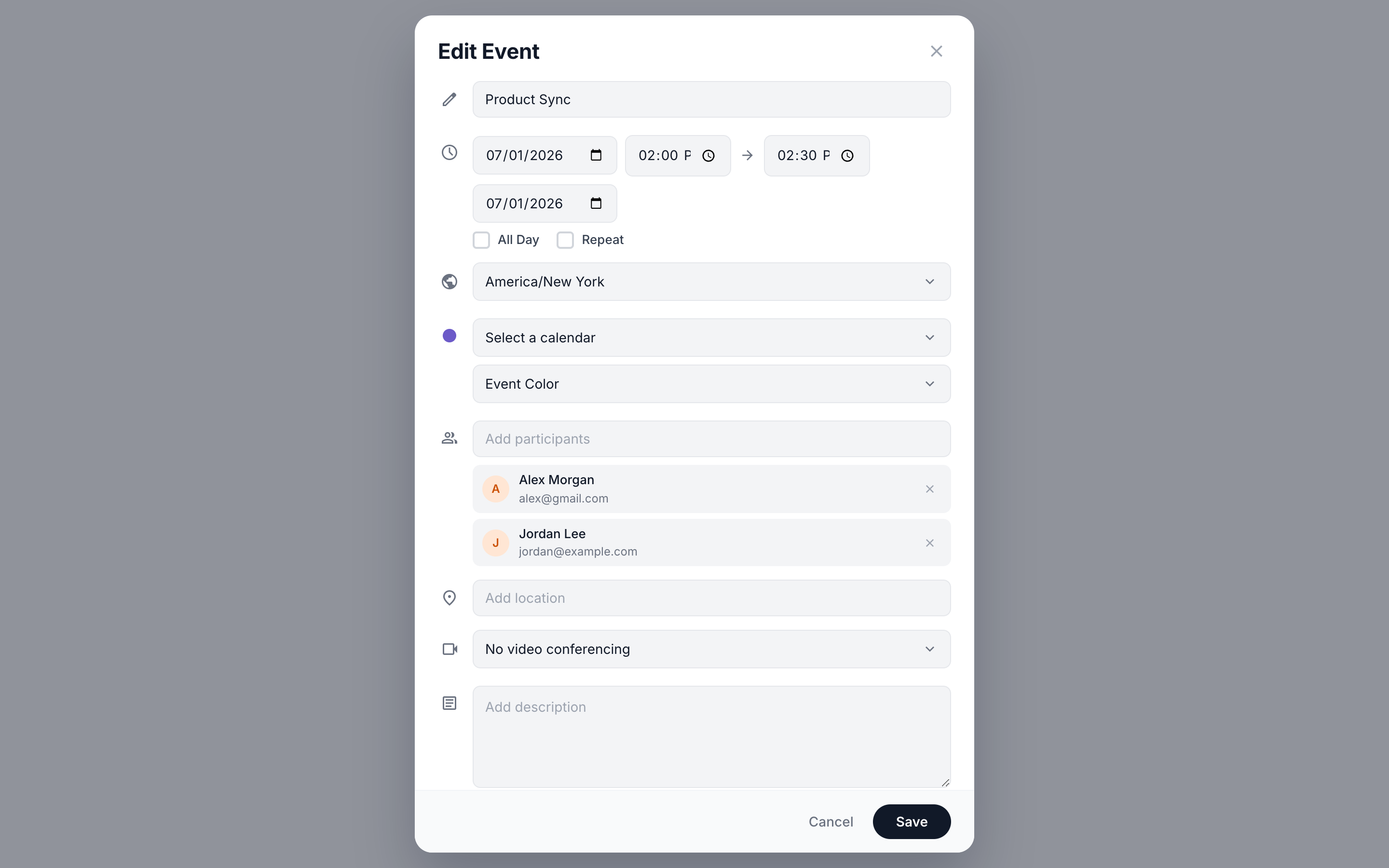
As of July 2025, CalendarBridge Unified Calendar supports creating and editing events directly from the CalendarBridge interface. Here is what it looks like when creating or editing an event.
Event subject – Type the subject of the event here
Event start/end time – The start and end times of the event.
Event timezone – Click this to see/edit the timezone of the start and end times.
Event category – If your event is categorized, it will show here. Note that in both Google and Microsoft events are not categorized by default. Specifically, in Google, although you can assign a color to a calendar, that does NOT automatically categorize events with that color.
Event participants – View/edit the attendees/guests/participants of the event.
Web conference – The the event has a Teams/Meet/Zoom associated with it, that info is here.
Event description – The description of the event. Generally speaking, this is the content of the email invite sent for the event.
Free/Busy status – See whether the event is set to “showAs” free or busy. Free events do not block time on your calendar.
Visibility – See/Edit whether the event is “public” or “private,” as those settings are used in Google in Microsoft.
Cancel – Do not save any changes you have made on this screen.
Save – Save any changes you have made on this screen.