Using Your AI Scheduling Assistant
Once your assistant is set up, you can coordinate with others in an email thread or manage your own schedule directly. This guide covers how the assistant operates in each scenario.
How to Use Your Assistant in Different Scenarios
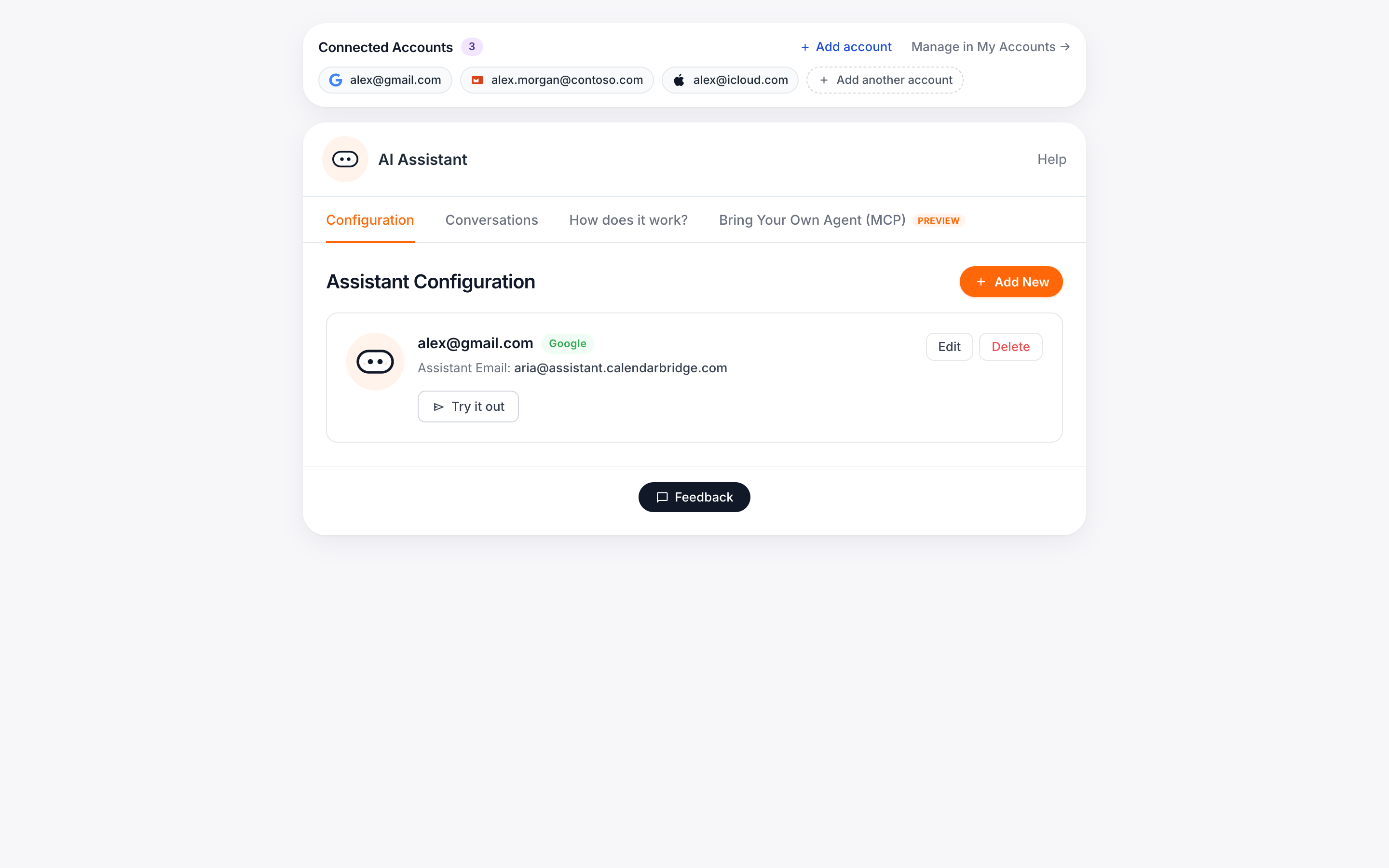
Once your assistant is set up, you can interact with it in three ways:
- Add it to an existing email conversation
- Include it when starting a new email with others
- Message or chat with it directly
How you use it depends on whether you are coordinating with other people or managing your own schedule.
When others are involved, include the assistant in the email conversation so it can coordinate directly in the thread.
When managing your own time, reminders, or prep work, message the assistant directly or use chat in the Unified Calendar.
The sections below explain how the assistant operates in each scenario.
When Included in an Email Conversation
When added to a thread, the assistant manages scheduling and coordination directly within the conversation.
It can propose times, schedule or reschedule meetings, set recurring events, schedule individual meetings within a group, convert the discussion into a confirmed calendar event, book rooms, add conferencing details, include shared resources, follow up with participants, send reminders, and confirm attendance.
Example:
“Please find a time next week for everyone on this thread.”
When Messaging the Assistant Directly
When contacted directly, the assistant manages your personal calendar and reminders.
It can schedule meetings, block focus time, move or cancel events, add travel or preparation time, create personal reminders, schedule deadline reminders, and send reminder emails at a specified time.
Example:
“Block two hours tomorrow morning.”
“Remind me to submit the report next Wednesday at 2pm.”
Referencing Individuals by Name
The assistant uses context from your calendar and prior invites to identify the correct recipient. If someone has been included in prior meetings or exists in your email contacts, you can reference them directly:
- “Schedule time with Mark next week.”
- “Remind Sarah about the 3pm meeting at 1pm.”
- “Follow up with Paul tomorrow morning.”
If someone is not yet recognized, you can define them once:
“My boss Mark’s email is mark@company.com.”
“John from finance is john@company.com.”
After that, you can simply use their name in future requests.
Referencing People in a Thread
When the assistant is included in an email conversation, you can reference:
“Everyone on this thread.”
“All attendees.”
“Anyone who hasn’t replied.”
The assistant identifies the participants automatically and coordinates accordingly.
Using Contact Groups
If you use contact groups in Outlook or contact labels in Google, the assistant can identify the members of those groups when processing your request. This allows you to schedule or send reminders to entire teams without manually listing each email address.
For example:
“Schedule a meeting with the Dev Team next week.”
“Send a reminder to Leadership tomorrow at 9am.”
If “Dev Team” or “Leadership” exists as a saved contact group in Outlook or a label in Google Contacts, the assistant will expand that group and coordinate with all members.
Booking Shared Resources and Rooms
You can configure shared resources such as conference rooms in your assistant settings. Once added, the assistant can schedule them the same way it schedules people.
For example:
westroom@boomscan.info holds 5 people
southroom@boomscan.info holds 30 people
eastroom@boomscan.info holds 10 people
northroom@boomscan.info holds 10 people
After adding them in your configuration, you can reference them naturally in a request:
“Book the South Room.”
“Schedule this in the East Room.”
“Add a room that fits 10 people.”
The assistant checks availability for both attendees and rooms before confirming the meeting.
Once you add the assistant@ai.calendarbridge.com email address, sit back and let it do the work. There is no further interaction required from you and the assistant handles everything to arrange the time, discuss it with the person you emailed, and add the event to your calendar.
Simple, fast and very efficient!
Working with Email Threads, Attachments, and Images
The assistant does not require perfectly structured requests. It can extract relevant information from email threads, forwarded messages, attachments, and images.
Forwarding Email Threads
You can forward an existing email chain and ask the assistant to take action.
For example:
Forward a conversation about a proposed meeting and say, “Please find a time that works for everyone and schedule this.”
Forward a project scope with embedded dates and say, “Add the milestone deadlines to my calendar.”
Forward a long thread and say, “Summarize the key dates and schedule what’s needed.”
The assistant reads the thread, identifies dates, participants, and context, and creates or updates calendar events accordingly.
Turning Emails into Events
If an email already contains the necessary details, you can simply instruct:
“Add this to my calendar.”
“Create an event based on the information below.”
“Hold this time while we confirm details.”
The assistant extracts the date, time, location, and participants directly from the message.
Using Photos, Screenshots, and Attachments
You can also send images or files instead of manually entering details.
For example:
Take a picture of an appointment card and email it with, “Add this to my calendar.”
Screenshot a concert flyer and say, “Add this event and remind me to buy tickets one week before.”
Forward a school schedule and say, “Add all of these dates to my calendar.”
Attach a PDF with a project timeline and say, “Add the deadlines as calendar events.”
The assistant reads the image or document, identifies relevant dates and details, and creates the appropriate calendar entries.