Adding a User Who Already Has a CalendarBridge Account
When you add someone who already has their own CalendarBridge account, they get an email invitation to join your organization. Once they accept, their personal subscription is cancelled with a prorated credit and their license moves onto your group account — no support ticket required.
How inviting an existing user works
Most people you add to your organization don't have a CalendarBridge account yet, so they're created and added instantly (see Getting Started with Managed Users). But some people have already signed up on their own — often with a paid individual subscription or an active trial.
Because joining your organization changes their billing (their personal subscription is cancelled and your group account takes over their license), we ask for the user's consent first. Instead of adding them immediately, CalendarBridge emails them an invitation. They review what will change, then accept or decline. When they accept, everything is handled automatically.
Send the invitation
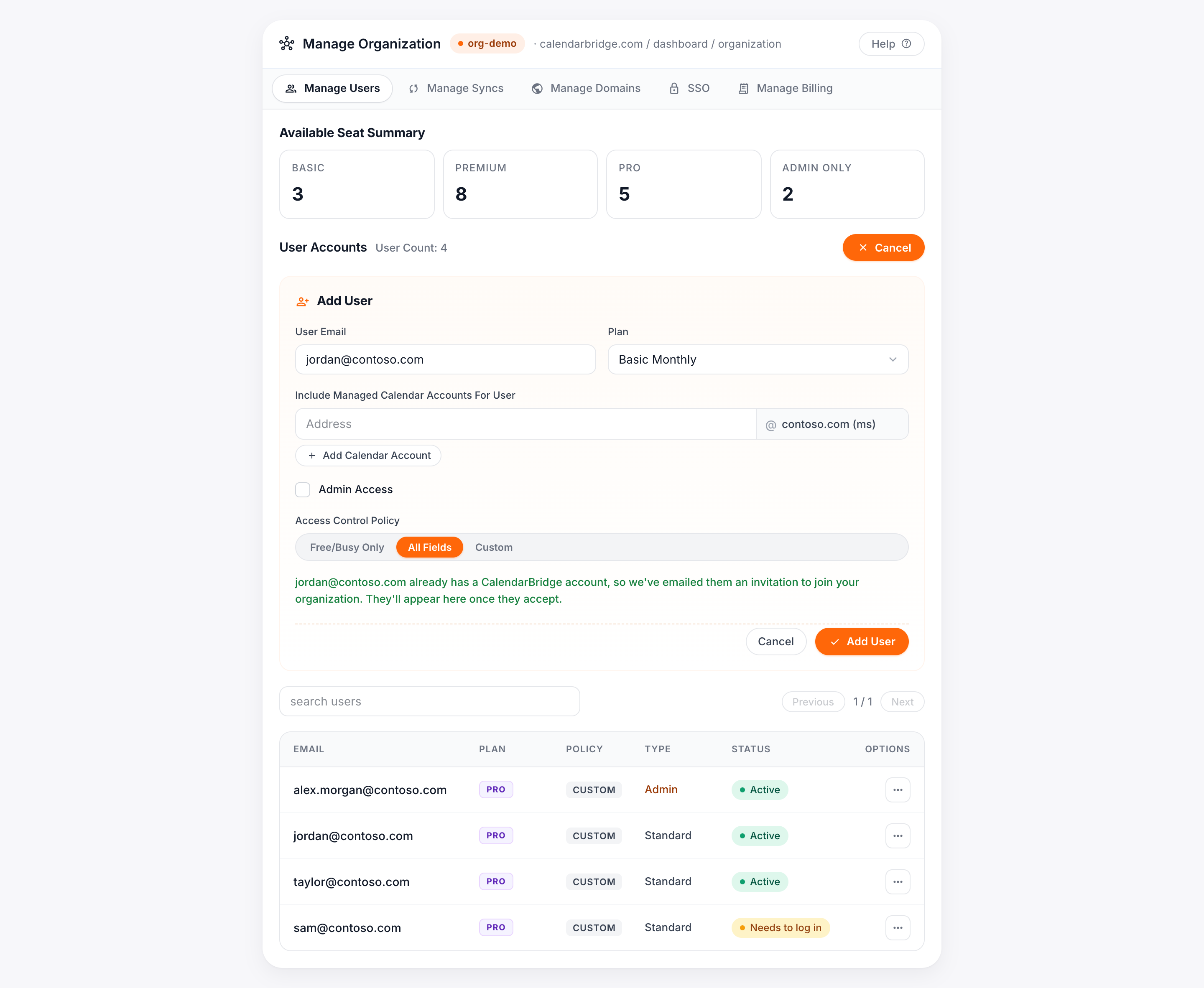
From the Manage Users tab of your organization portal, click Add User and enter the person's email address, plan, and access policy exactly as you would for any new user. When you click Add User, if that email already has a CalendarBridge account, you'll see a confirmation that an invitation was sent instead of the user appearing in the list right away.
The user won't show up in your User Accounts list until they accept. You can re-add the same email later to resend the invitation — it reuses the same link rather than sending a second one.
What the invited person sees
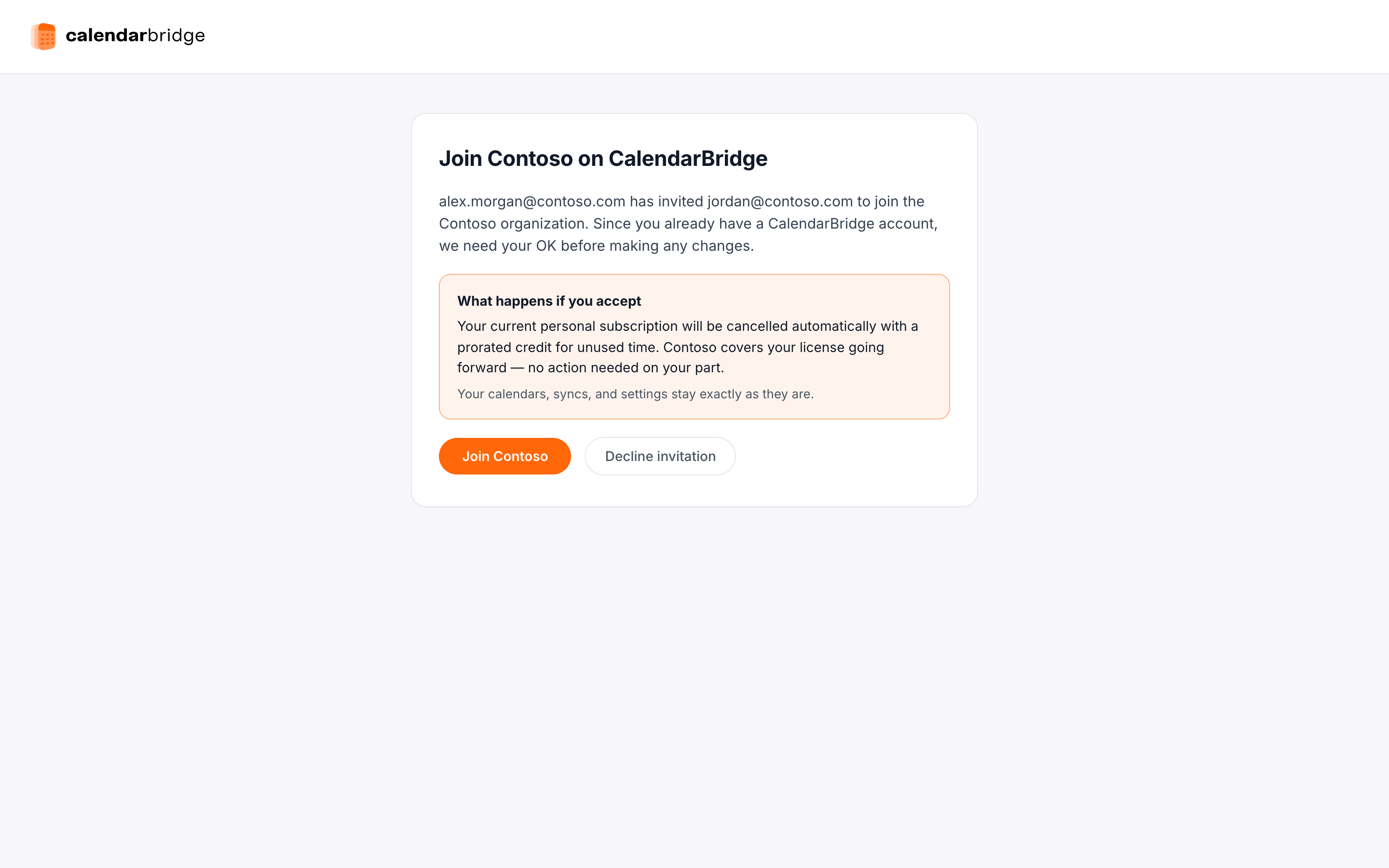
The invitation email links to a page where the user reviews the invitation before anything changes on their account. It clearly states what accepting does to their billing:
- Paid individual subscription — it's cancelled automatically with a prorated credit for the unused time, and your organization covers their license going forward.
- Free trial — the trial ends and your organization covers their license. Nothing to pay.
Their calendars, syncs, and settings are untouched either way. From this page they choose Join or Decline. The invitation link stays valid for 14 days.
After they accept
When the user accepts, CalendarBridge automatically:
- adds a seat on your group account for their plan,
- cancels their personal subscription (with the prorated credit), and
- moves their license onto your organization.
You'll get an email letting you know they accepted, and they'll appear in your User Accounts list as an active member. From there you manage them like any other user.
Declines and special cases
- If they decline — nothing changes on their account, and we email you to let you know.
- User already in another organization — they can't be invited until they leave their current organization. You'll see a “user belongs to another organization” message when you try to add them.
- Trial users on one of your authorized domains — these are added to your organization immediately, without an invitation, since they're already on your domain.
Still stuck? Reach out at support@calendarbridge.com and we'll help.