Approve Delegated Permissions for CalendarBridge for Microsoft 365
You may be here because a user attempted to connect CalendarBridge and Microsoft required administrator approval. This page explains how to approve CalendarBridge in the most common Microsoft 365 tenant configurations.
What CalendarBridge does
CalendarBridge securely syncs calendar availability and events across calendar systems (Microsoft 365, Google Workspace, iCloud, ICS). You remain in control — access can be restricted to specific users and revoked at any time. With a group account, you can also restrict which event details users are allowed to sync.
Why approval is required
In November 2025, Microsoft changed the default settings in Entra ID such that all third-party apps require administrator consent before a user can grant the app access to their calendars via Microsoft Graph. Depending on how your tenant is configured:
- A user may submit an approval request that you review in Entra ID, or
- No request is created and you must proactively grant admin consent.
Option A — You received an admin consent request
This applies if a user clicked a “Request approval” option, or if you received an email or notification asking you to review an app request.
- Sign in to the Microsoft Entra admin center.
- In the left-most menu under Entra ID, click Enterprise apps.
- In the second-from-the-left menu under Activity, select Admin consent requests.
- Locate the request for CalendarBridge Inc.
- Click to review and approve the permissions. Note that it can take an hour or more for the permissions to propagate within Microsoft before the user stops seeing the approval-required screen.
Option B — No request exists (approve proactively)
This applies if the user saw “Admin approval required” but you do not see any pending approval requests in Entra ID.
- Open the CalendarBridge delegation authorization link.
- Sign in as a Microsoft 365 administrator.
- Review the permissions shown by Microsoft.
- Click Accept to grant admin consent. It can take an hour or more for the permissions to propagate.
After granting consent, you can restrict which users may use CalendarBridge by enabling “Assignment required” in the CalendarBridge enterprise application and assigning only approved users or groups. See Restrict/Allow CalendarBridge to Certain Microsoft 365 Users.
Permissions and scope (high level)
When approving CalendarBridge, Microsoft displays user-friendly permission descriptions. The table below shows how those map to Microsoft Graph scopes and what they actually allow.
| Microsoft consent text | Graph scope | What it actually means |
|---|---|---|
| Sign in and read user profile | User.Read | Allows CalendarBridge to identify the signed-in user (name, email, user ID) during OAuth sign-in. Does not grant directory-wide access. |
| Have full access to calendars | Calendars.ReadWrite | Delegated access to the calendar of the user who completes OAuth. Does not grant access to other users’ calendars and does not provide tenant-wide access. |
| Maintain access to data you have given it access to | offline_access | Allows CalendarBridge to refresh OAuth tokens so calendar syncing continues without repeated sign-ins. Does not expand permissions. |
All permissions above are delegated. Granting admin consent allows users to sign in, but CalendarBridge does not gain access to any calendars until an approved user completes the OAuth flow. CalendarBridge does not request email, files, Teams chat, contacts, or directory-wide permissions.
Security and data handling
- No calendar data is stored or analyzed: your events and availability are used only for syncing or scheduling and not retained for other purposes.
- Secure OAuth connections: CalendarBridge connects using OAuth2 and never sees your login credentials; you can revoke access at any time.
- Admin control over synced data: admins can control what information users are allowed to sync (e.g., enforce free/busy only).
- Separate accounts remain separate: CalendarBridge only interacts with the specific calendar accounts you connect.
- Revocable access: administrators and users can revoke access at any time from Microsoft.
Security review and compliance documentation
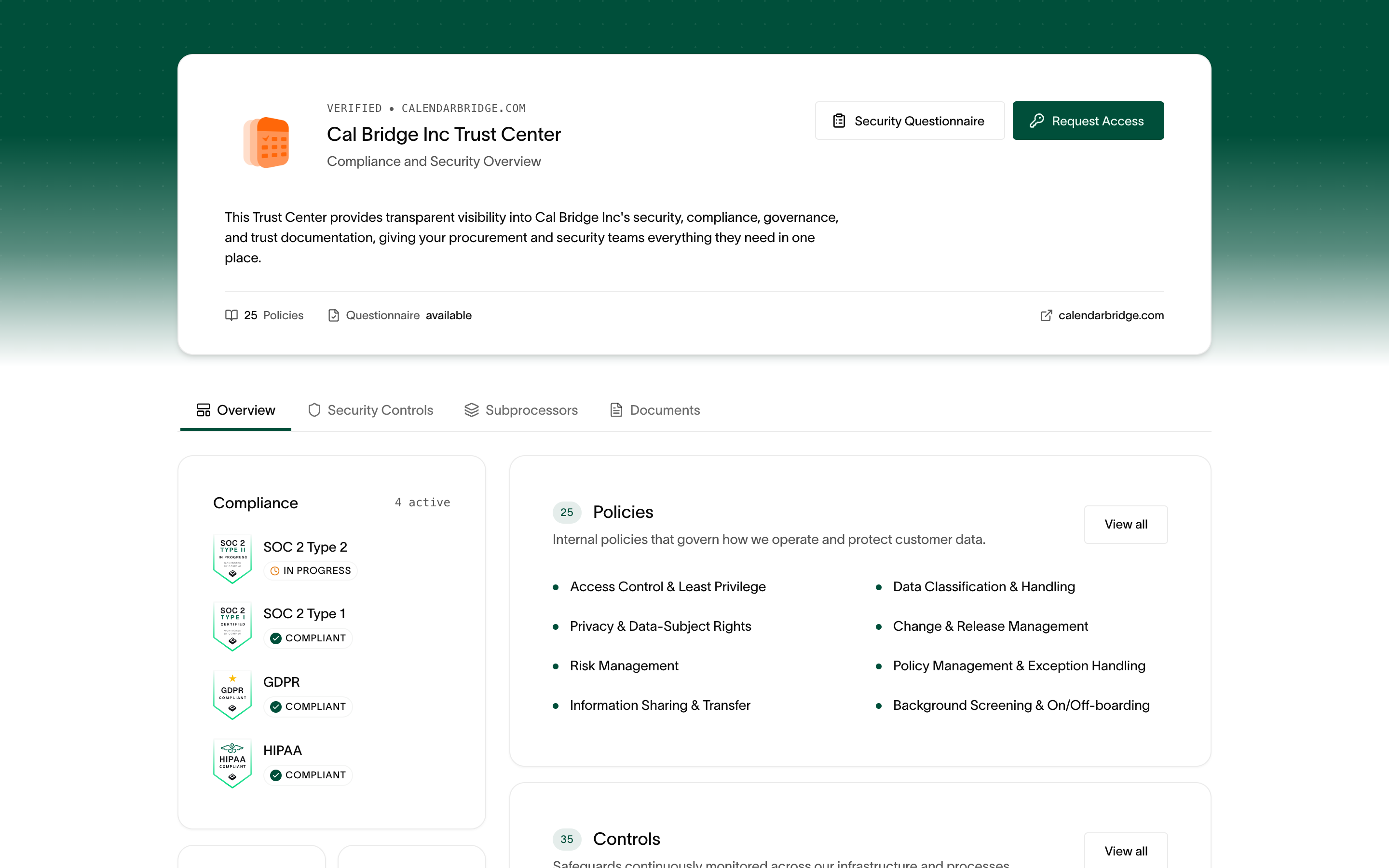
If you need to complete a vendor security review before approving CalendarBridge, visit the CalendarBridge Trust Portal at trust.calendarbridge.com. It provides our SOC 2, GDPR, and HIPAA compliance certifications, security policies, subprocessor list, and audit documents, and you can request access to gated reports or submit a security questionnaire directly from the portal.