Restrict/Allow CalendarBridge Access to Certain Google Workspace Users
These steps restrict which users can sign up for CalendarBridge individually or be given a license on a Managed Users group plan.
Steps in the Google Admin panel
-
Go to Security › API controls
In the Google admin panel, open Security › API controls.
-
Click “Manage app access”
-
Configure a new app
Click “Configure new app,” then “Manage third-party access.”
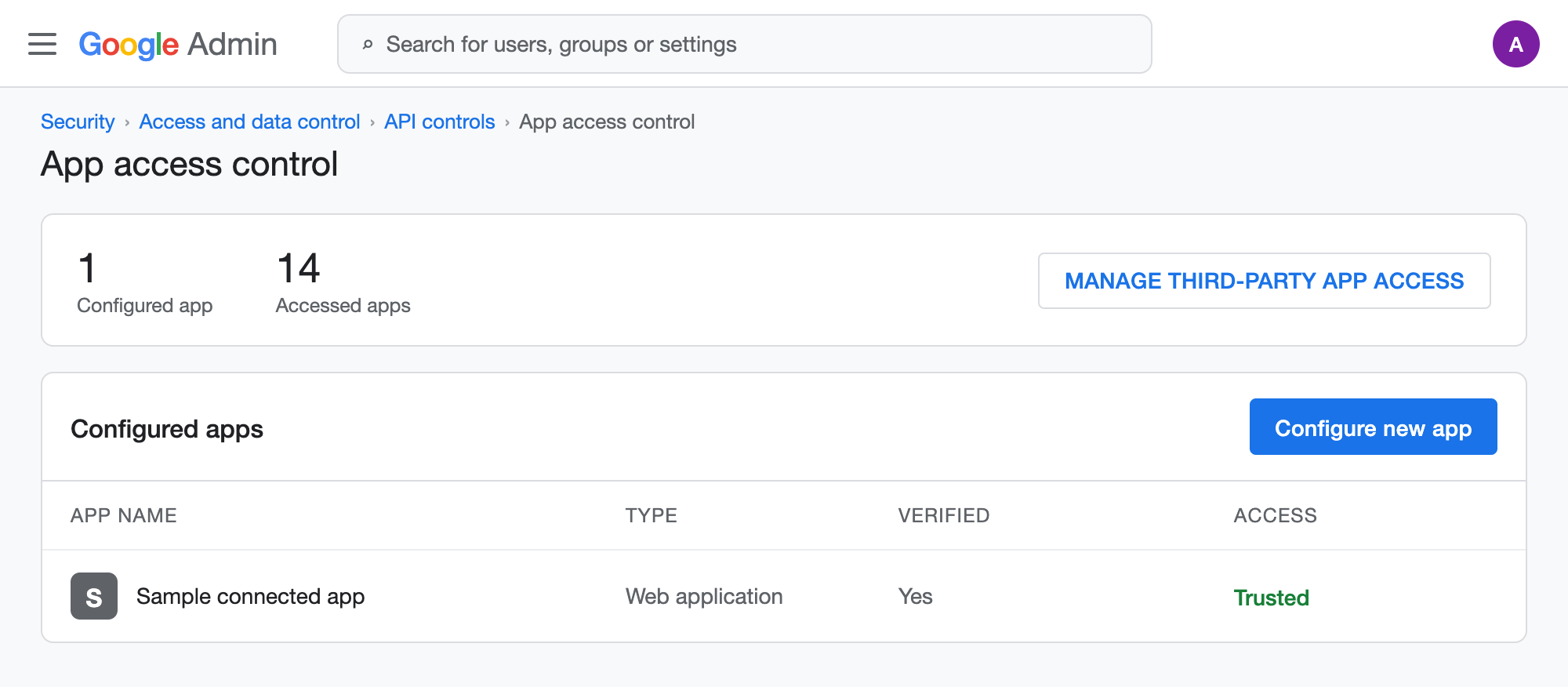
Screenshot: API controls › Manage app access › Configure new app. -
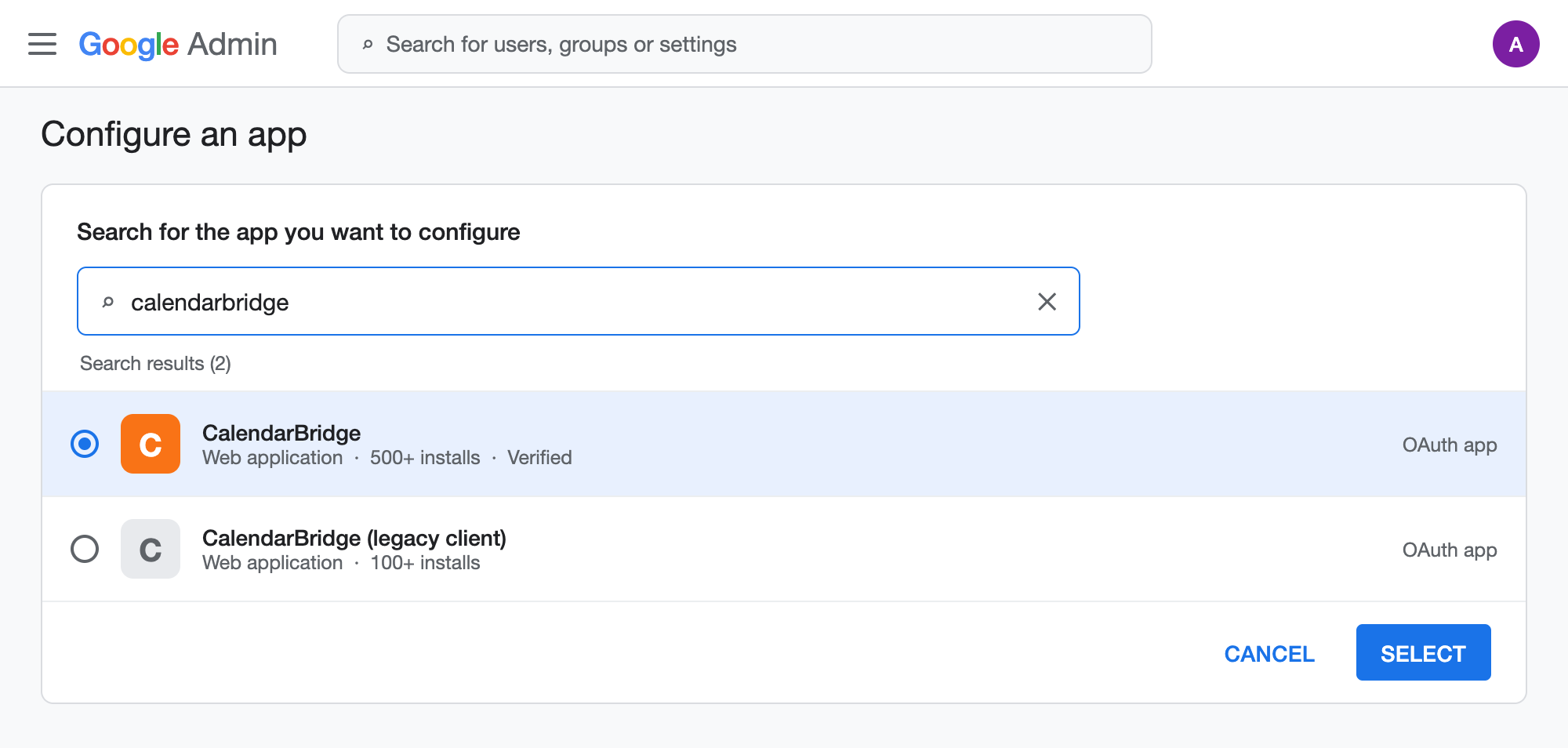
Search for CalendarBridge
Search for calendarbridge and select the first result (with 500+ installs).
-
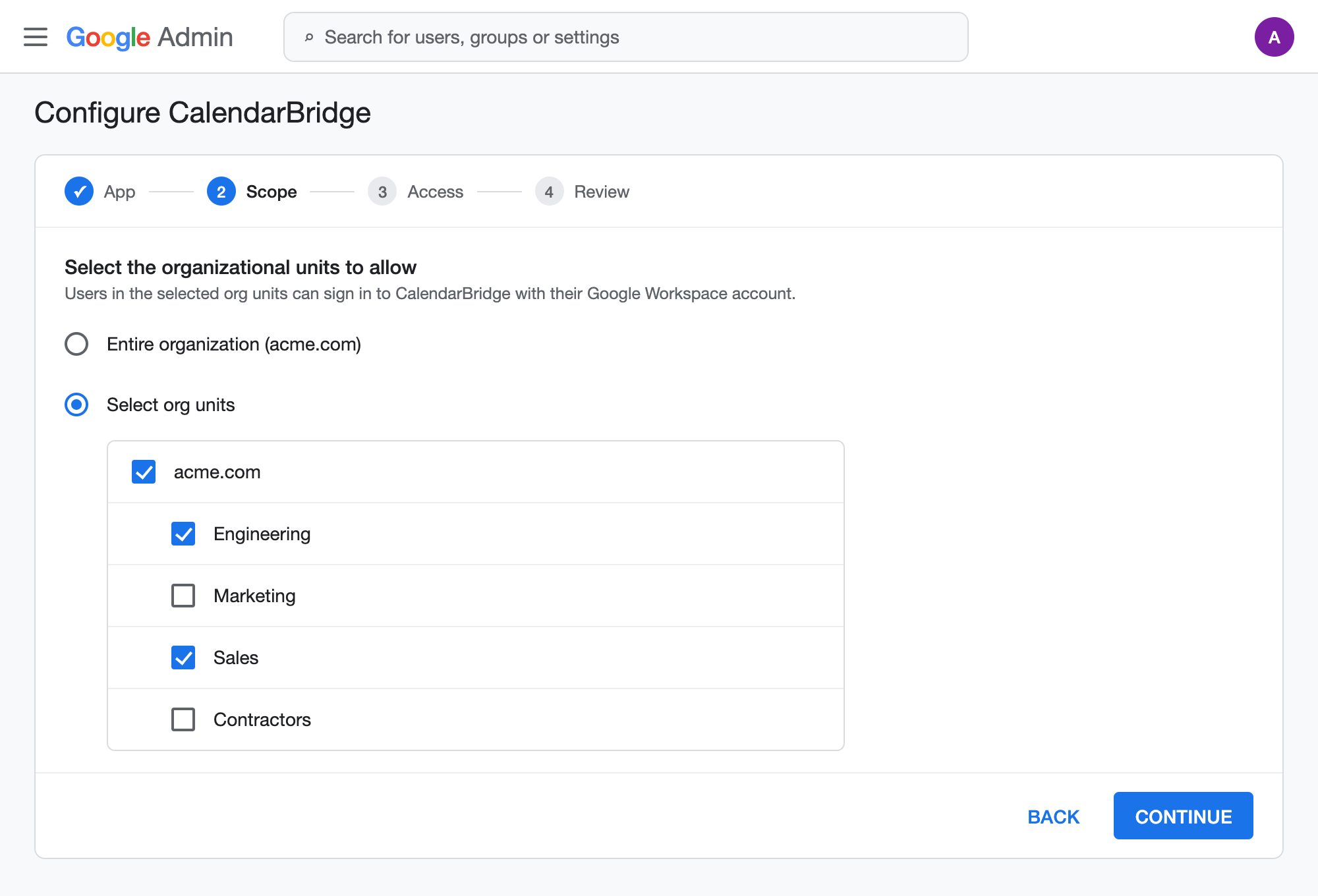
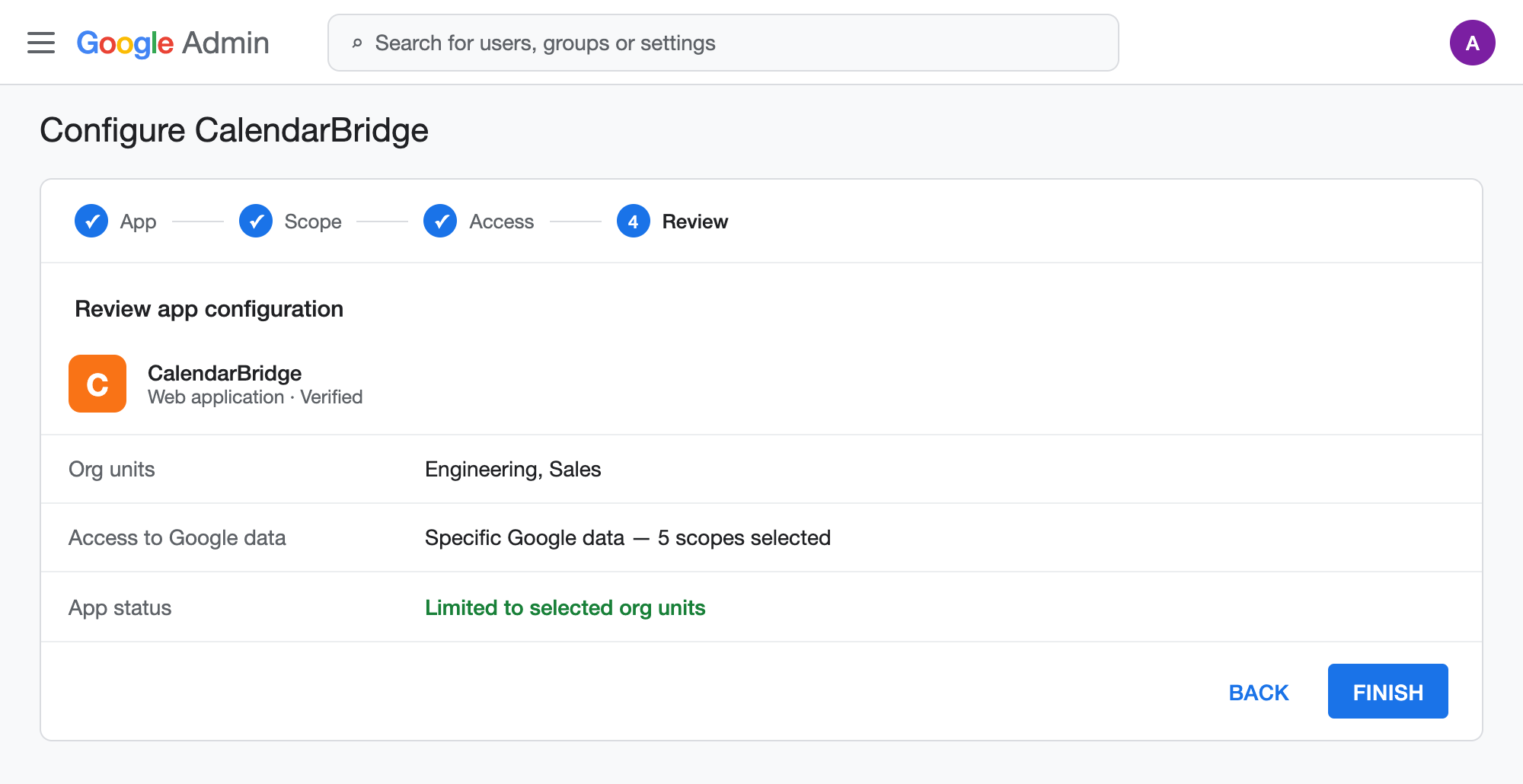
Select the organizational units to allow
Select the organizational units you want to allow access for, then click “Continue.”
-
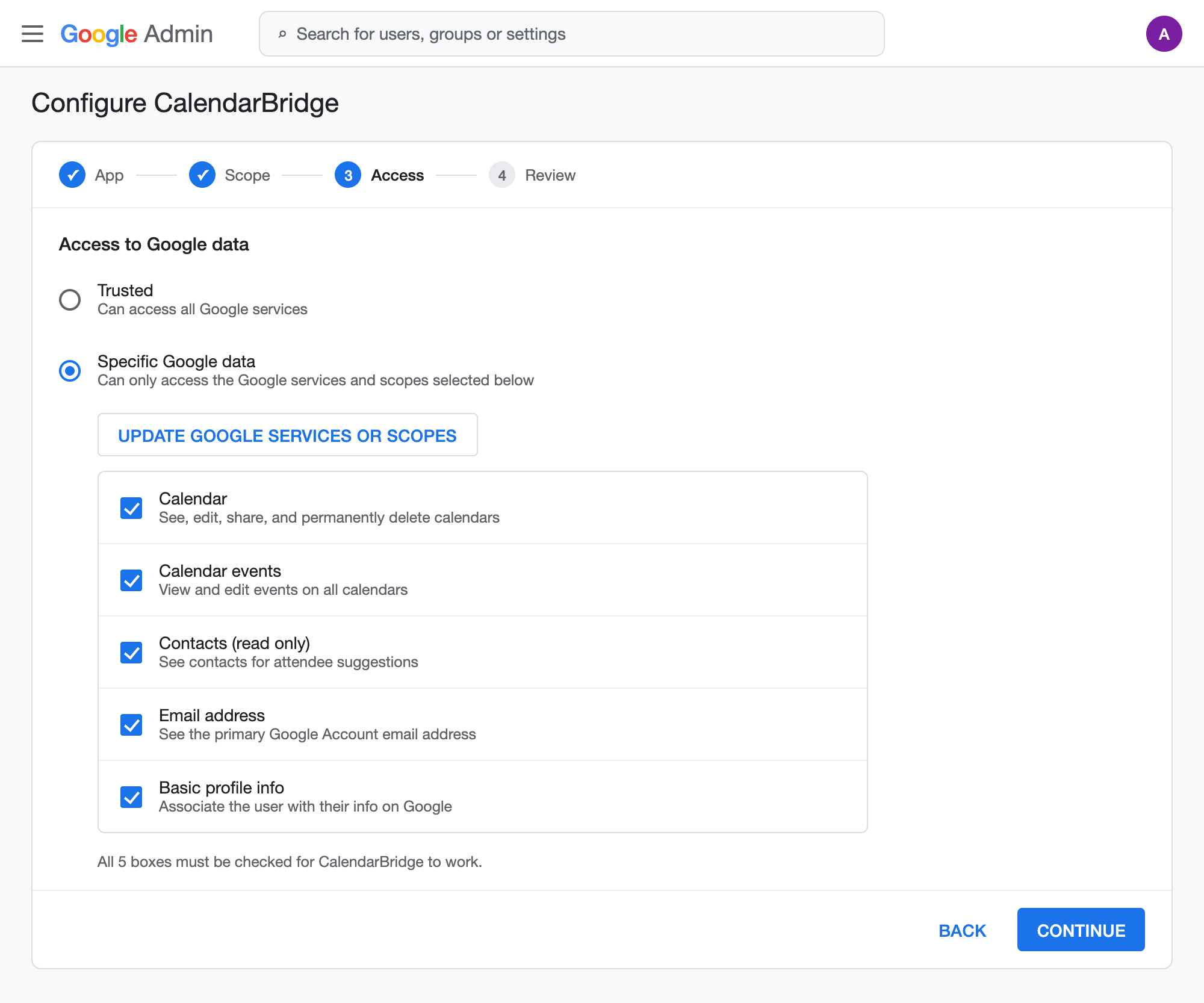
Grant the required scopes
Select “Specific Google data,” click “Update Google services or scopes,” and ensure all 5 boxes are checked.
-
Save and finish
Click Save, then Continue, then Finish.
info
If you are an admin using Managed Syncs, follow Restrict Domain-Wide Authorization to a Microsoft 365 Security Group (Microsoft) or the domain-wide delegation steps in Authorizing Access for Managed Syncs instead.