Manage Syncs
A complete guide to creating, configuring, and maintaining sync connections between your calendars — including the One Way and Both Directions flows, privacy controls, advanced filters, and how to read the status of every sync in your account.
Sync basics
What a sync is
A sync is a rule that copies events from one calendar onto another. When CalendarBridge sees a new, updated, or cancelled event on the source calendar, it mirrors that change as a placeholder event on the destination calendar — usually within about a minute.
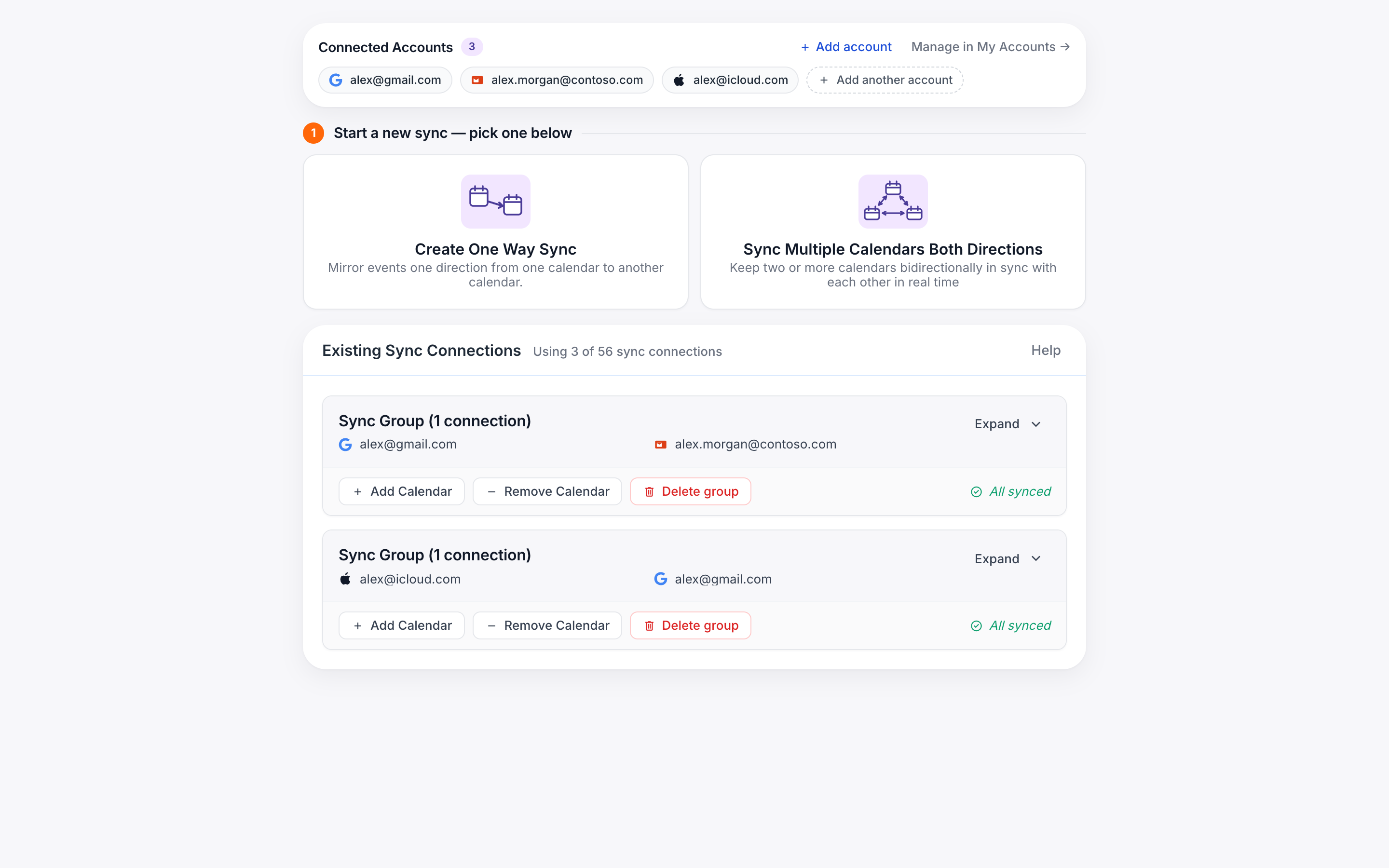
Syncs live on the Manage Syncs page, grouped into sync connections. A connection can hold a single one-way pair, or a group of calendars that all sync to each other in both directions. The page header shows your current usage — for example, 14 / 20 connections used — so you always know how much room is left on your plan.
Manage existing syncs
The Existing sync connections card lists every connection you’ve created, grouped by their underlying calendars.
- Expand a group to see each pair (source → destination) with a status pill on the right.
- Edit opens the same 3-step wizard with the sync’s current settings, so you can change fields, color, filters, or the tag.
- Resync forces an immediate re-scan of the source calendar. Use this after fixing a permission error or if events seem stale.
- Delete removes the sync and stops mirroring future events. Already-synced placeholder events stay on the destination unless you delete them manually.
The group header shows a red dot when any pair inside has an error or is mid-sync, so you can tell at a glance which connections need attention without expanding them.
Sync statuses
Each pair shows one of three statuses:
One-way vs two-way
When you click + New sync at the top of Manage Syncs, you’ll see two options. Pick the one that matches the relationship you want.
One source → one destination
- Events flow in a single direction.
- The destination shows a placeholder; the source is untouched.
- Best for hiding work events on a personal calendar, or pushing personal busy times onto a work calendar.
- Counts as 1 connection.
Group of calendars, fully meshed
- Pick 2 or more calendars at once.
- CalendarBridge creates a sync between every ordered pair, so every calendar reflects every other.
- Best for keeping a set of personal, work, and shared calendars in lockstep.
- Counts as one connection per pair generated.
Create One Way Sync
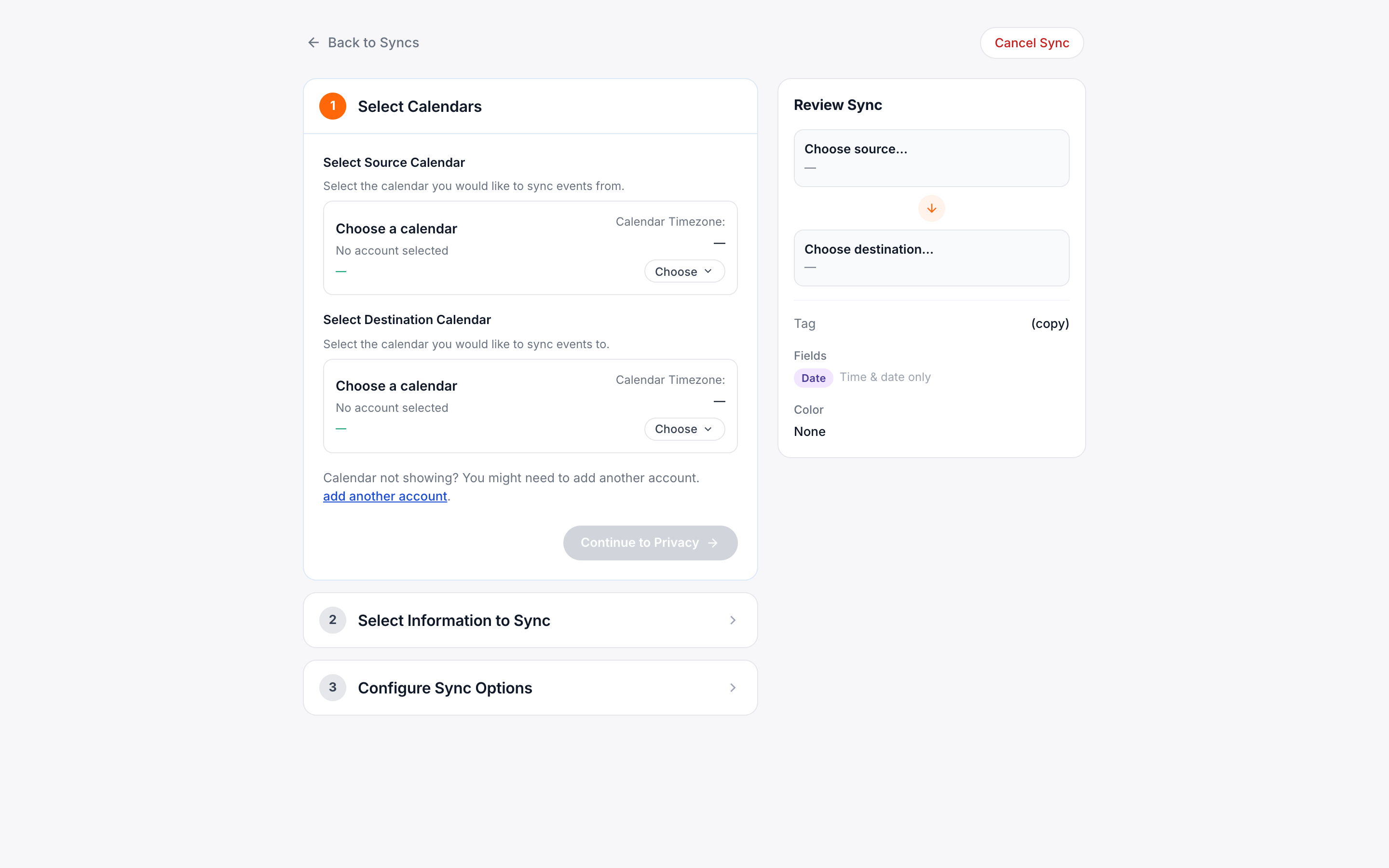
The one-way flow is a 3-step wizard with a live Review panel on the right that updates as you make changes.
-
Step 1 — Choose calendars
Pick a source (where real events live) and a destination (where placeholders should appear). For each, you’ll see the calendar name, the account email, the calendar type (e.g. Primary Calendar), and the time zone. Use Change to switch calendars within the same account.
If a calendar isn’t showing up, click add another account to jump to My Accounts and connect it first.
-
Step 2 — Pick what info to sync
By default the placeholder shows only “Busy” at the same time as the source event. Toggle on any of the fields you want to copy: Subject, Attendees, Description, Location, Conference link, or Reminders. The All Private toggle marks every synced event as private on the destination so coworkers can’t see the details.
Optionally add a tag (default
[CB]) — it’s appended to the placeholder’s subject so synced events are easy to spot. A live Subject preview below shows exactly how the title will read on the destination.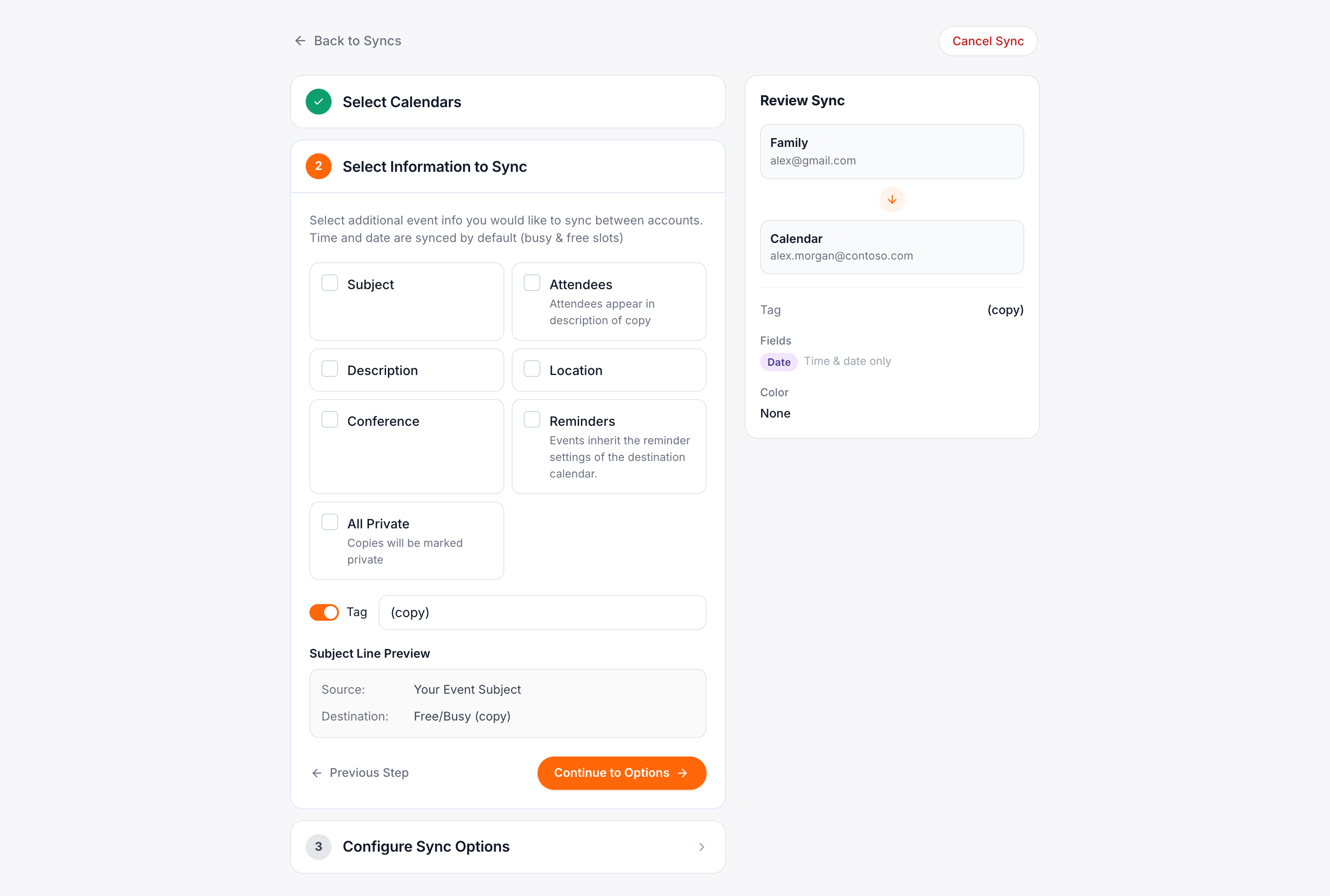
-
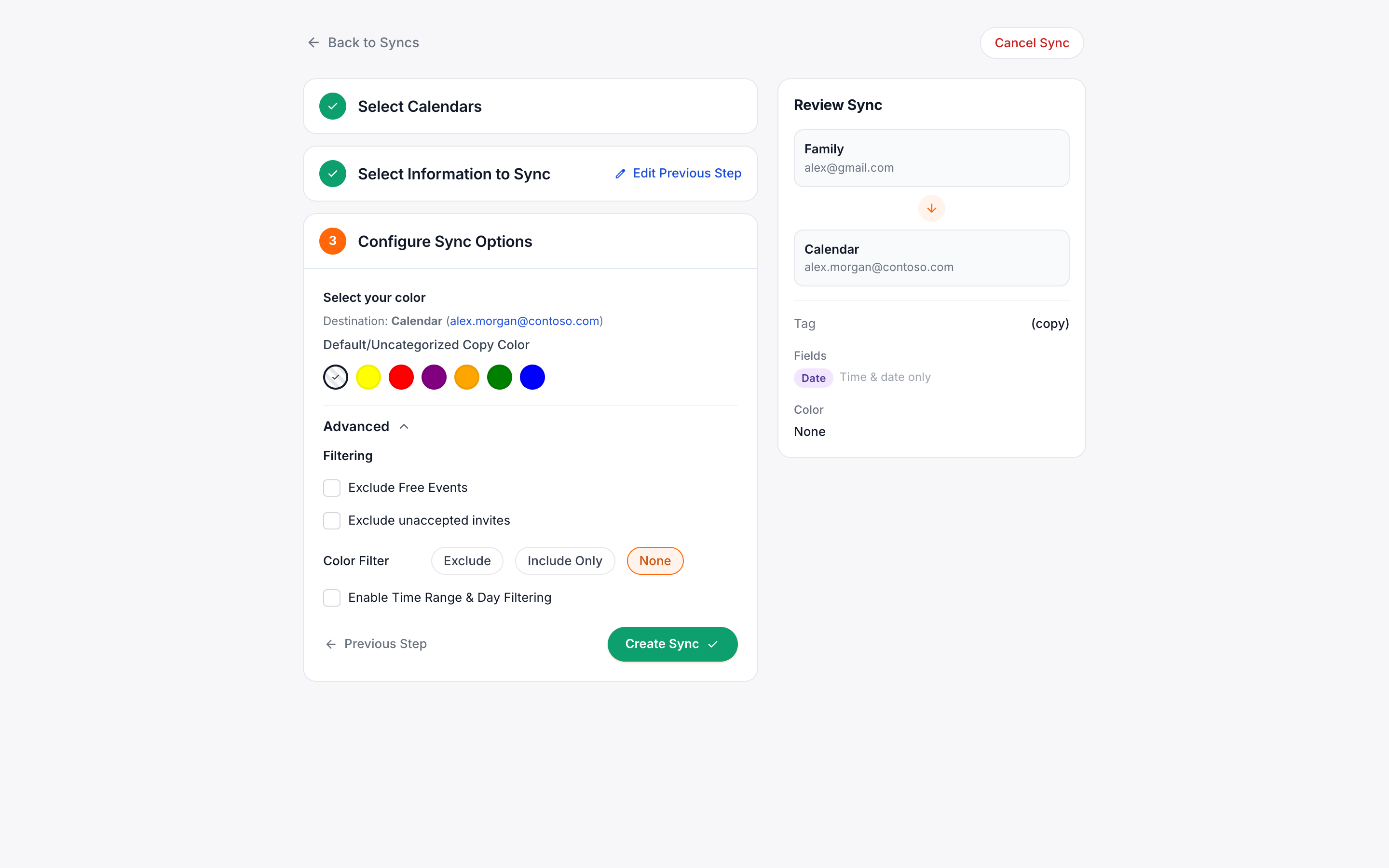
Step 3 — Options
Pick a destination color from the Google-Calendar style swatch row, or enable Match source colors to mirror whatever color the original event has. Open Advanced for filters — see Advanced options below.
When you click the final action, the sync is created and starts backfilling immediately.
Sync Multiple Calendars Both Directions
The batch flow is also a 3-step wizard, but it operates on a group of calendars at once.
-
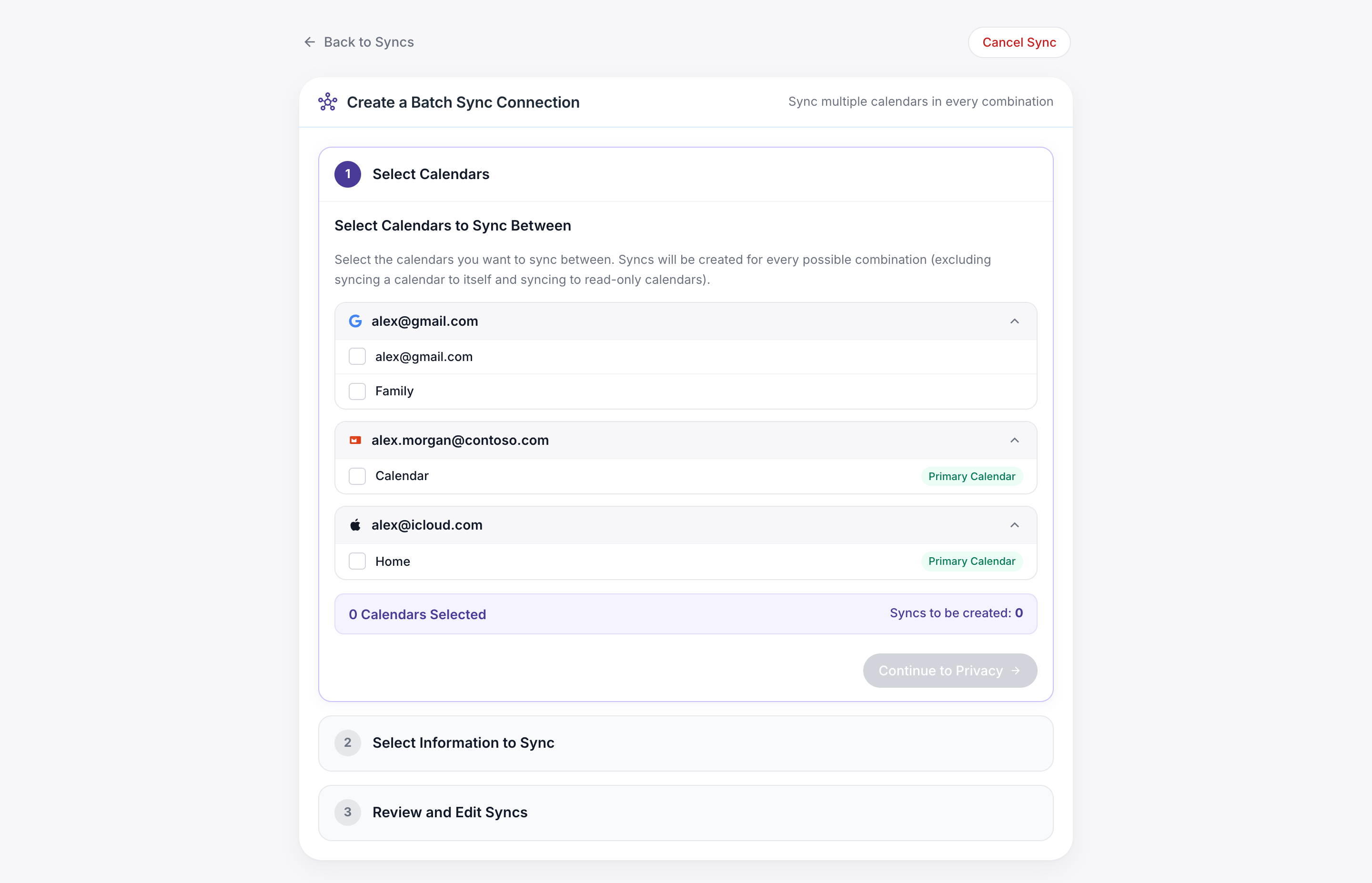
Step 1 — Choose the calendars
Each connected account expands to show its calendars. Tick every calendar you want included in the group. Read-only calendars (US holidays, birthdays, etc.) are listed but can’t be selected as a sync destination, so they’re disabled.
As you tick boxes, a purple banner updates with two counts: “N calendars selected” and “M syncs to create.” A list of every pair appears below so you can see exactly what will be generated before you continue.
-
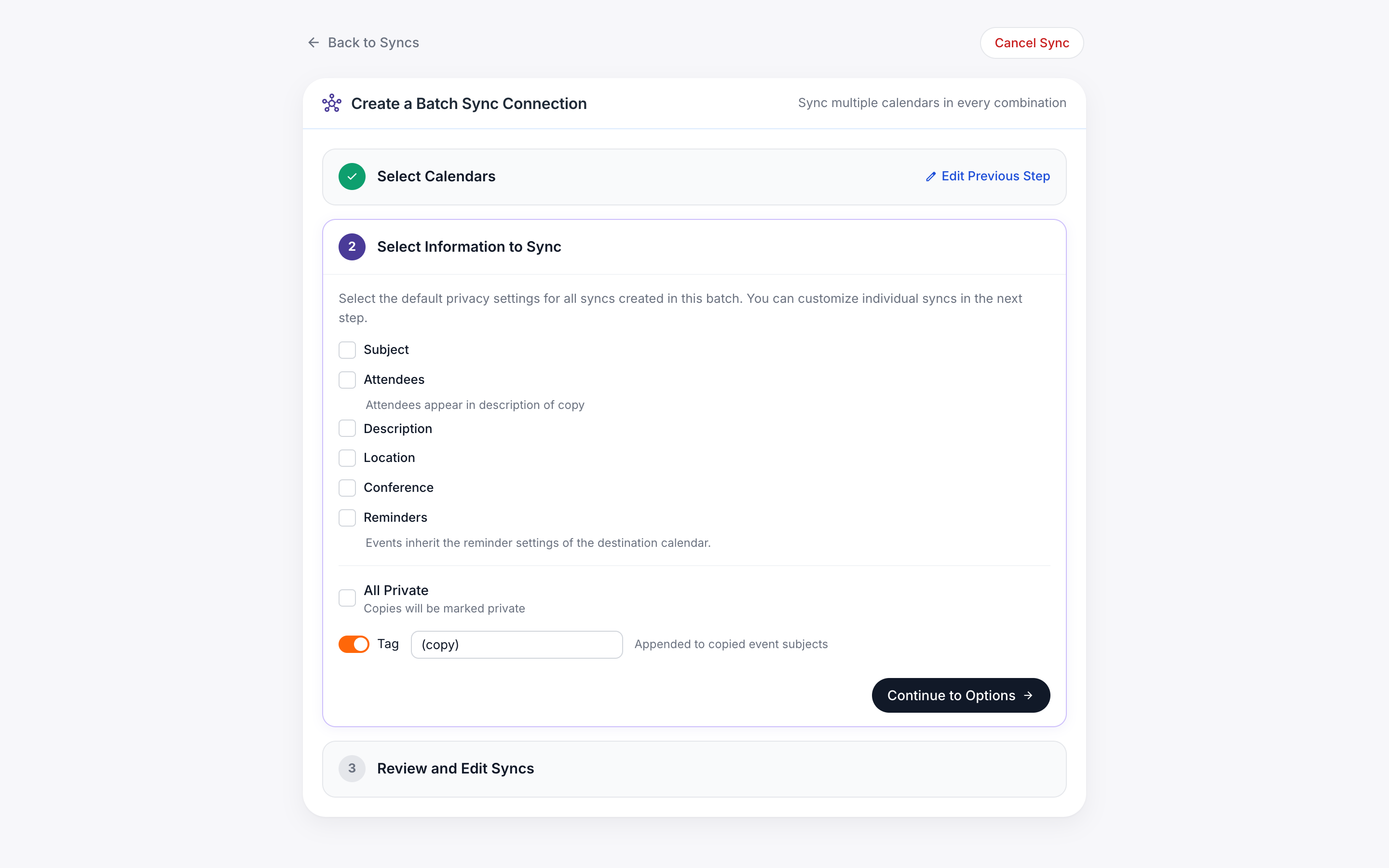
Step 2 — Set defaults for all syncs
Choose the fields and tag that should apply to every pair in the group. These are defaults — you can override them on individual pairs in Step 3.
-
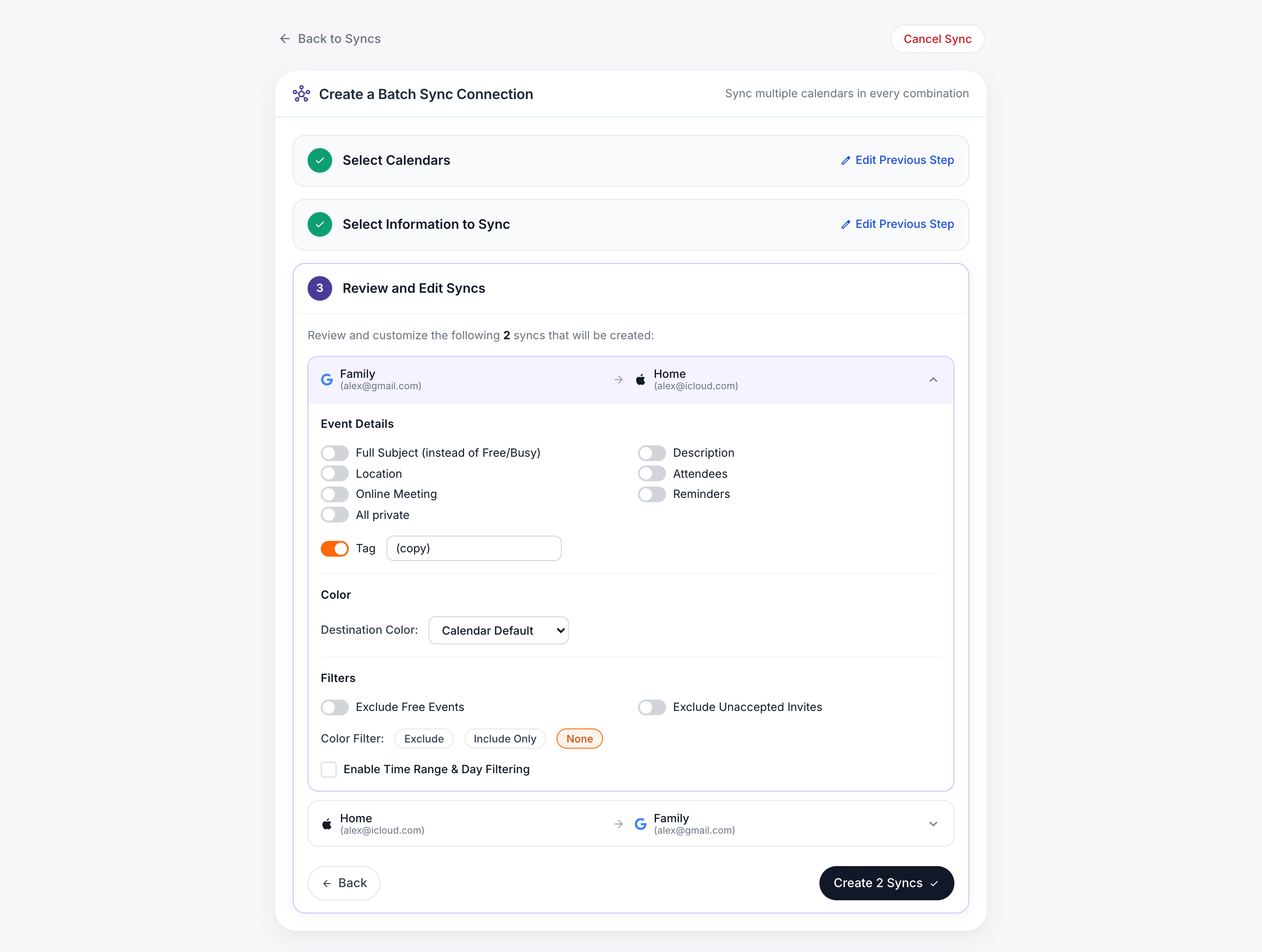
Step 3 — Tune per-pair (optional)
Every pair gets its own expandable card. Open one to customize the fields, color, tag, and filters for just that direction. Anything you don’t override inherits from your Step 2 defaults.
Click the final action to create all syncs at once.
Choose what info syncs
The Info to sync step (Step 2 in either flow) is where you decide how much of the source event ends up on the destination. Time and date always sync — everything else is optional.
| Field | What it does |
|---|---|
| Subject | Copies the event title. With it off, the destination shows just “Busy.” |
| Attendees | Copies the invitee list. By default attendees are added as event attendees on the destination; tick the sub-option Add attendees to description instead to keep them off the invitee list. |
| Description | Copies the event’s body / notes. |
| Location | Copies the physical location field. |
| Conference link | Copies Zoom / Meet / Teams links so you can join from either calendar. |
| Reminders | Copies the event’s reminder/notification settings. |
| All Private | Marks every synced event as Private on the destination so its details aren’t visible to anyone with view access to the calendar. |
| Tag | Optional text appended to the subject (default [CB]). Useful for telling synced placeholders apart from original events. |
Advanced options
Open Advanced on the Options step to filter which events get synced.
- Exclude “Free” events. Skip events marked as Free / Available so they don’t create a placeholder.
- Exclude tentative events. Same idea for events you’ve marked as Tentative.
- Exclude unaccepted events (batch flow). Skip events you haven’t replied to yet.
- Color filter. Choose Exclude, Include only, or None, then pick one or more source colors. Useful for syncing only your “Focus” block color, or skipping anything tagged green.
- Time-range filter. Restrict syncing to a window of the day — for example, only sync work events 9:00 AM – 5:00 PM. When on, you can also pick which days of the week are eligible.
Privacy controls
The combination of toggles in Step 2 forms your privacy model. The three most common setups:
- Busy block only. Leave every field off. The destination calendar shows “Busy” at the right time — nothing else. Best for sharing busy windows with a calendar your team or family can see.
- Title only. Turn on Subject. Useful when you want to know what you’re double-booked against but don’t need attendees or notes.
- Full event. Turn on Subject, Description, Location, and Conference link. Pairs well with All Private if the destination calendar is shared.
Privacy is set per-sync, so you can mirror titles onto your personal calendar while keeping the reverse direction busy-only.
Troubleshooting syncs
Events aren’t appearing on the destination
- Confirm the pair status is Synced, not Error.
- Check Advanced filters — Exclude Free, color filter, and time-range filter all silently skip events.
- Open the source event and verify its time falls in the sync’s eligible window (default: 30 days back / 365 days forward).
“Reauthorize required” on an account
Calendar providers expire OAuth tokens periodically — and always when you change your password. Open My Accounts, click Reauthorize on the affected account, and complete the provider prompt. Existing syncs resume automatically.
A managed work account is blocked by admin policy
Microsoft 365 and Google Workspace can require admin consent before third-party apps can read calendars. Forward the consent link to your IT admin — see Microsoft 365: “Need admin approval” when connecting for the steps.
Duplicate or “ghost” events on the destination
Usually means an event was created on both calendars before the sync was active. Delete the duplicate manually; future copies will be deduped because synced events carry an internal ID.
The connection counter is wrong
The counter reflects active sync pairs, not selected calendars. Deleting a pair frees a slot immediately; deleting a whole group frees one slot per pair inside it.