Creating a CalendarBridge Account
Create your CalendarBridge account in a few quick steps: enter your primary email, start the free trial, verify with the code we email you, and land on your dashboard.
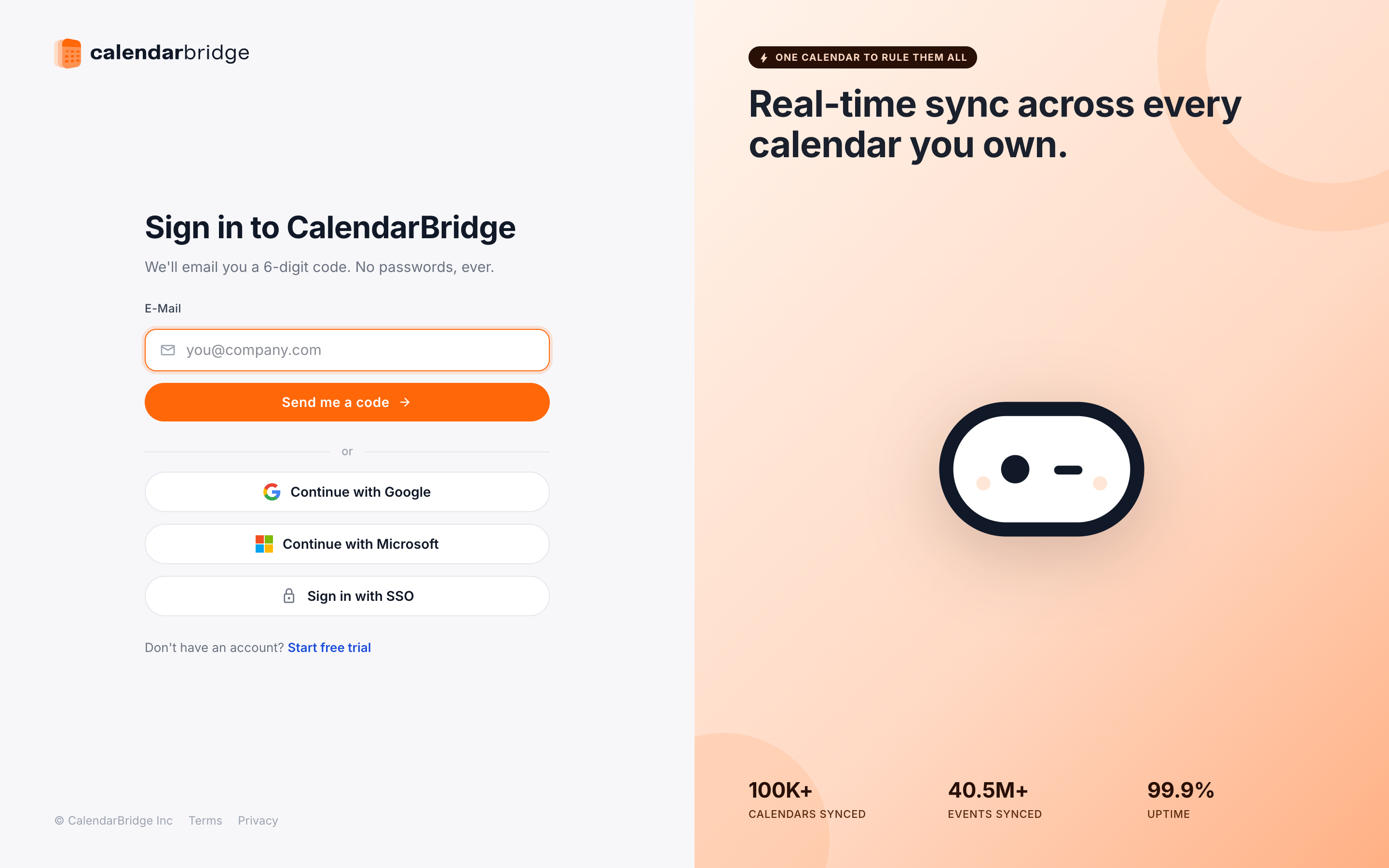
-
You will see this form:
-
Enter the primary email address you want to use for your CalendarBridge account.
The primary email address is simply the one CalendarBridge will use for billing and other account-related notices — it does not have any impact on which calendars you will be able to connect to the account. We recommend using a personal email address because they change less frequently than business addresses.
-
Click “Start 7-Day Free Trial”.
This will send a 6-digit confirmation code to your email address and bring up the verification form:
Leave the verification form open in your browser and check your email for the confirmation code. The email will come from verification@calendarbridge.com.
infoIf you don’t get the email within a few minutes, be sure to check your spam/junk/promotions folders. -
Enter the confirmation code.
Copy the code sent to your email address and paste it into the browser window you left open.
-
Click “VERIFY”.
CalendarBridge account creation is now complete. You will see the dashboard home screen:
The next step will be to Connect Your Google and Microsoft calendars.