Setting up Multi-Directional Syncing
Follow this section to configure setting up multiple sync connections at once (i.e., sync two or more calendars in all directions).
Introduction
This article walks you through setting up syncing in both (all) directions between 2 or more calendars. If you just want to setup syncing in one direction from one calendar to another, see Setting up a Single Sync Connection.
Go to your Syncs page
Click the “Sync” link at the top navigation bar. Or just enter https://calendarbridge.com/dashboard/syncs into your browser. If you have not yet created any syncs, it will look like this:
Click the “Sync Multiple Calendars” button to proceed to the calendars select screen.
Select the Calendars You Want Synced to Each Other
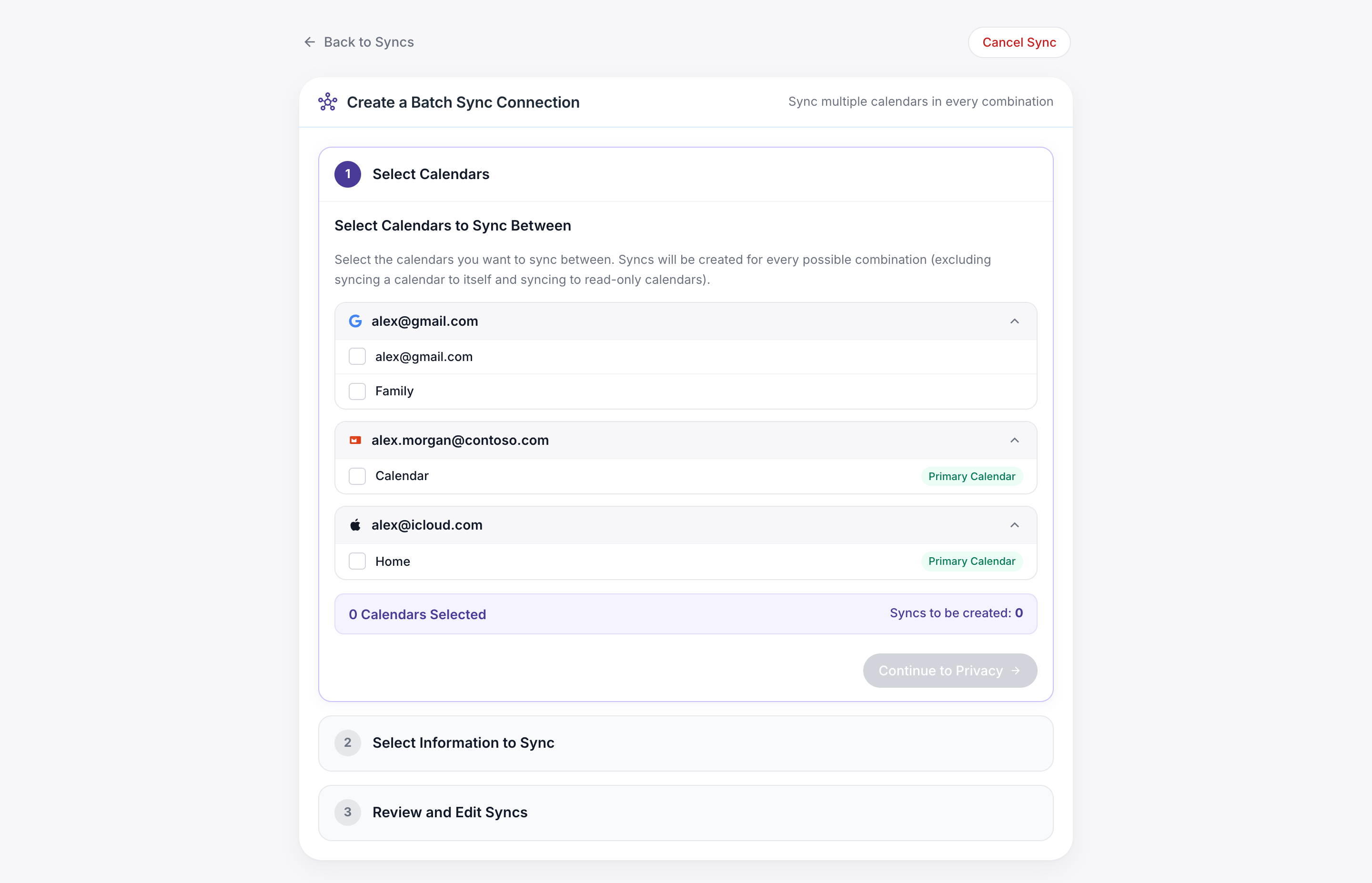
In the center column of this screen are listed all the calendar accounts you have connected to CalendarBridge.
Click the arrow next to the account to expand a list of calendars for that account.
Then click the specific calendar from that account that you want to sync.
Do this for 2 or more calendars. (Note selecting 3-4 calendars will require a premium account. Selecting 5-6 calendars will require a Pro account.
Below the selected calendars is a list of the resulting sync connections that will be created between the selected calendars (one connection for each combination of 2 calendars).
Once you have selected the desired calendars to be synced, click “Continue to Privacy.”
Select which event information to sync
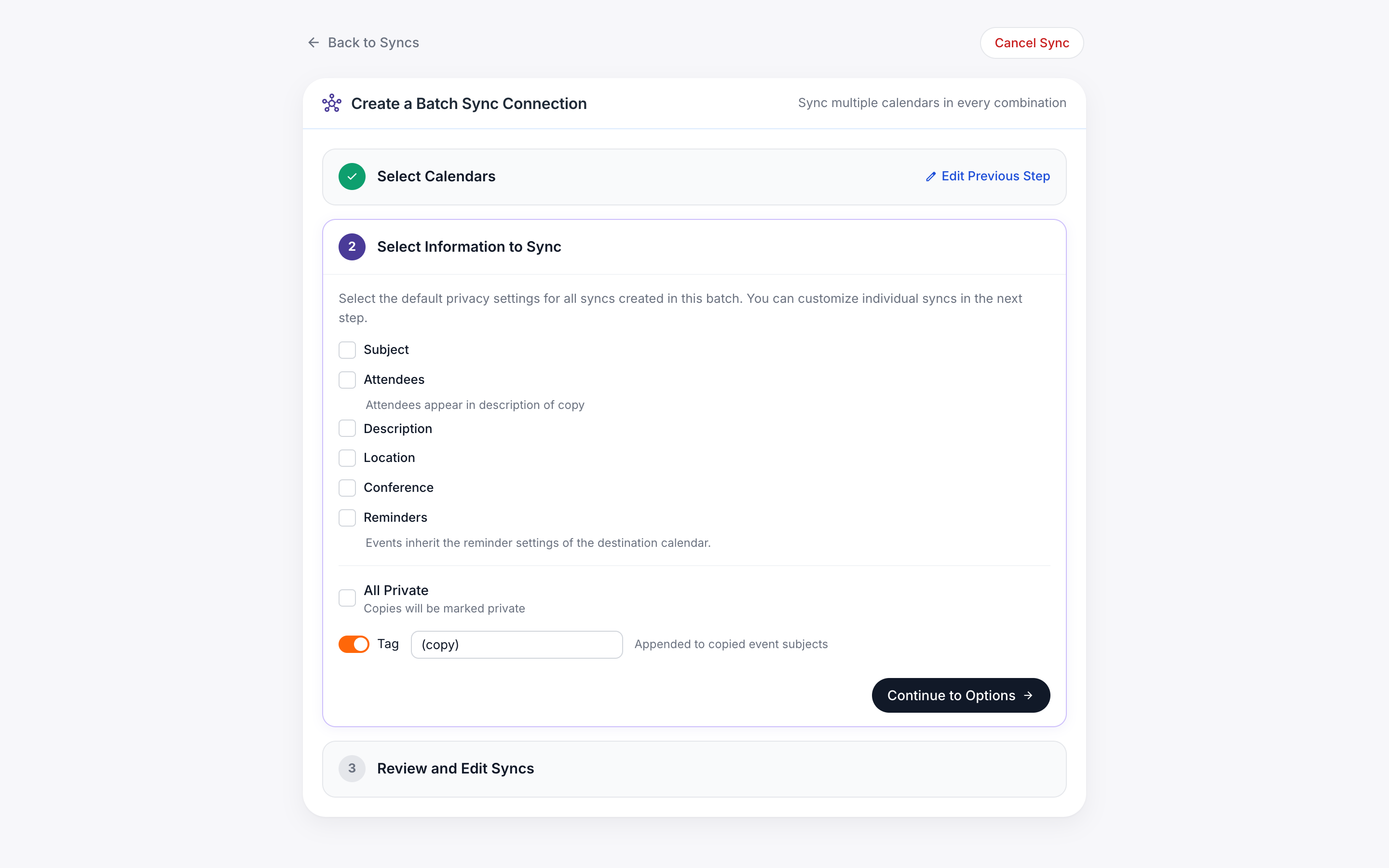
At this step you can configure the default sync settings for all the sync connections that will be created. In the next step you will be able to customize each specific sync connection.
For example, if you want most sync connections to sync event details but one sync connection to only sync “free” or “busy”, then in this step you can check the boxes for the details and in the next step you can uncheck the boxes for that specific sync connection.
Select which event fields to sync
- Subject
- If this box is checked, the subject of events will be copied from the source calendar to the destination calendar. If this box is unchecked the subject of the event copies will simply be “busy.”
- If you check this box, but want your event copies to show as “busy” in Outlook Scheduling Assistant and Google Find a Time, use the “All Private” option (discussed below).
- Attendees
- If this box is checked, the attendees of events will be copied from the attendees field of source calendar to the description field of the destination calendar. Attendees are not copied to the attendees field of event copies to avoid the potential for invites and event updates being sent from the wrong calendar.
- Description
- If this box is checked, the subject of events will be copied from the source calendar to the destination calendar. If this box is unchecked the description in the event copy will be left blank.
- If you check this box, but don’t want the description to show in Outlook Scheduling Assistant and Google Find a Time, use the “All Private” option (discussed below).
- Location
- If this box is checked, the location of events will be copied from the source calendar to the destination calendar. If this box is unchecked the location field of the event copy will be left blank.
- If you check this box, but don’t want the location to show in Outlook Scheduling Assistant and Google Find a Time, use the “All Private” option (discussed below).
- Conference
- If this box is checked, web conference details generated by Google Meets, Microsoft Teams, Skype, and Zoom add-ins/extensions will be copied into the description of the event copy. If this box is unchecked, web conference details generated through these add-ins/extensions will not be added to event copies.
- Reminders
- If this box is checked, the default reminder settings of the destination calendar will be applied to event copies. If this box is unchecked event copies will have no reminders set by default. Note: If this box is checked, subsequent updates to the original event will cause the reminder on the event copy to be reset (i.e., you may have to dismiss it again on the destination calendar).
- All Private
- If this box is checked, then all event copies will be marked as private such that other users in your organization will see your event copies as simply “busy” in the Outlook Scheduling Assistant and Google Find a Time features.
As explained in this Microsoft support thread: “If you share your Calendar, Contacts, or Tasks folders with one or more people who have Read permissions, the Private feature will not prevent them from seeing the details of your appointments. In addition, anyone with Read access to your folders could use programmatic methods or other email applications to view the details of your private items.”
Configure event subject tags.
By default, CalendarBridge appends “(copy)” to the subject of event copies. If you would like to replace “(copy)” with some other text (e.g., some text that indicates the calendar that the event came from), type that text in this textbox. If you would not like CalendarBridge to add any tag to the subject of event copies, check this box.
- Having no tag is not recommended because it can quickly become confusing as to which events originated from which calendar. If your concern is that “(copy)” looks strange to coworkers, the recommended approach is to use the “make private” setting instead. If you are sure you want to disable tagging of event copies, then it is recommended to at least set a custom color for event copies (steps 5c and 5e, above).
- Custom tag has no effect when syncing only free/busy (i.e., when subjects are not synced).
- Choose a tag that will not likely occur “naturally” at the end of an event subject. For example, wrap the tag in square brackets or include a special character such as “|”.
Customize each sync connection
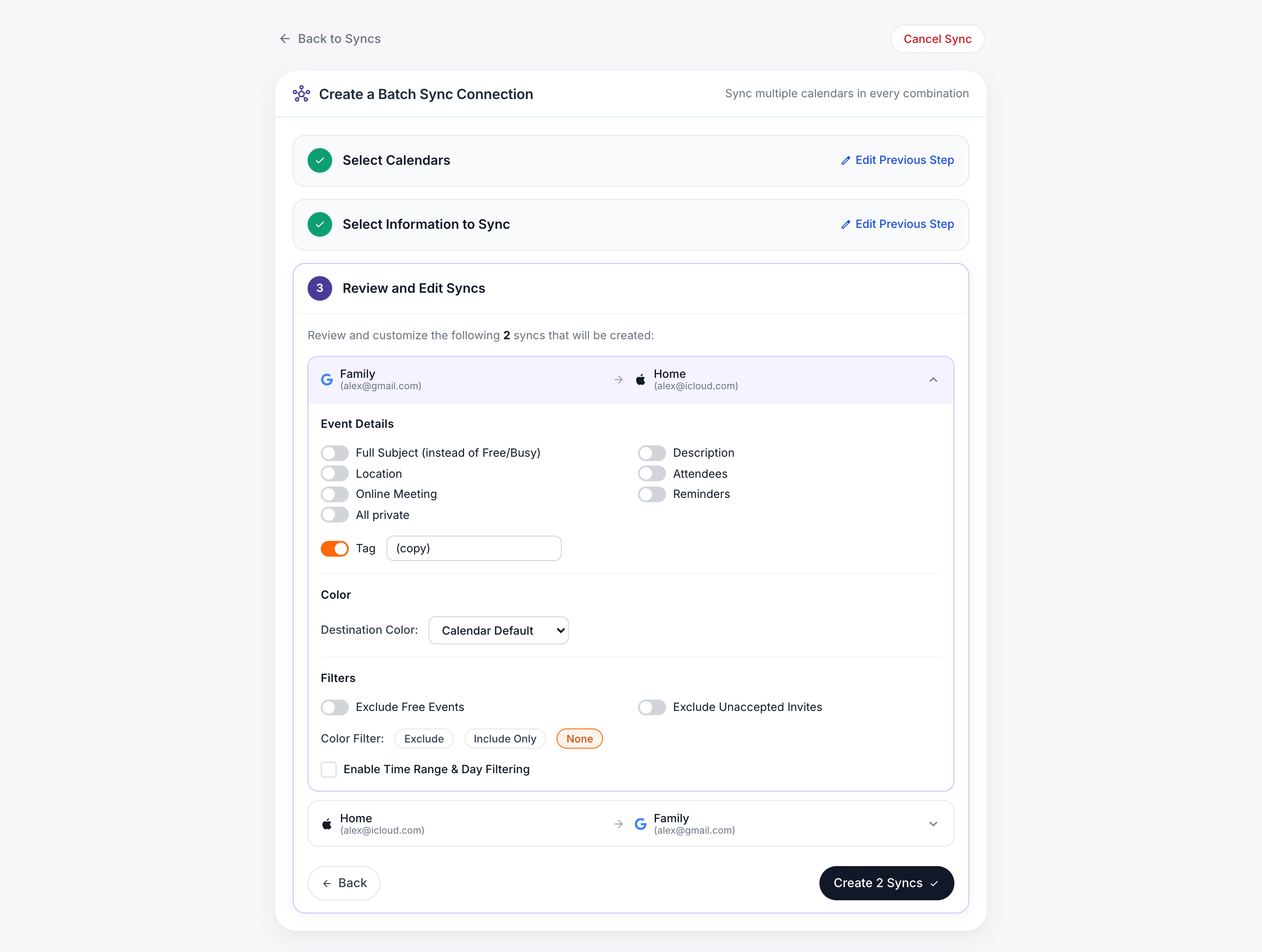
In the “Review and Edit Syncs” step, you can individually configure the setting for each of the sync connections to be created.
By default each connection is configured:
- to sync the information you selected in the previous step
- to use the tag you selected in the previous step
- to set event copies to the default color of the destination calendar
- to sync free & tentative events
- to not filter out any event categories
In this step, you can separately change these settings for each of your connections. For example:
- you can sync event subjects on some subjects and just sync “free/busy” on other sync connections
- you can set a different tag and color for each of your sync connections
- you can have some sync connections filter certain events and other sync connections not filter those events
Finish and Begin Syncing
Once you have each connection configured as desired, click “Create Syncs.”
You will see a “syncing” status indicator next to the sync group:
How long the initial syncing takes depends on how many connections you are creating and the number of events on your calendars.
Creating just 2 connections with lightly populated calendars will typically take less than 5 minutes. Creating 12 connections with heavily-populated calendars could take an hour or more. Please be patient while the initial syncing is in progress.
Exclude Free Events
If you activate this setting, CalendarBridge will not sync events that are designated as “free” on the source calendar. (For example, all-day events are set as “free” by default in both Google and Outlook Calendars.)
Exclude tentative events
This setting is available when the source calendar is an Outlook calendar. If you activate it, CalendarBridge will not sync events that are set as “tentative” in your Outlook calendar. By default, Outlook marks invitations that you have received but not accepted as “tentative.”
Exclude Unaccepted Events
This setting is available when the source calendar is a Google calendar. If you activate it, CalendarBridge will not sync events resulting from invitations that you have received, but not accepted on your Google calendar.
Exclude Source Events with a Specific Color/Category
This setting allows you to designate a color (Google source calendar) /category (Outlook source calendar) that, when applied to an event on the source calendar, will result in CalendarBridge not syncing that event to the destination calendar. This enables deciding which events to sync and not to sync on a per-event basis. Please note that, for Outlook source calendar, your category name must exactly match the default name that Outlook uses (“Green category”, “Yellow category” etc.).
The syncs are now being created. How long they take to get setup depends on how many connections you are creating and how busy your calendars. Creating just 2 connections with lightly populated calendars will typically take 5 minutes or less. Creating 30 connections with heavily-populated calendars could take hours.
Only Sync Events of a Specific Color
This is the inverse of the above setting. Only the events that match the selected color/category will be synced, and all others will be ignored. This is helpful if you assign a color to work events, personal events, travel events, etc., and only want a specific subset to sync.
Enable Time Range & Day Filtering
This allows you to sync only the events that fall within specific hours and specific days of the week. Events occurring outside the selected range will not be synced.
Once you have each connection configured as desired, click “Create Syncs.”