Billing
Everything you can do from Billing in the left rail — review your current plan, check usage against your plan limits, change your subscription, update payment details, and apply a referral code.
Open the Billing page
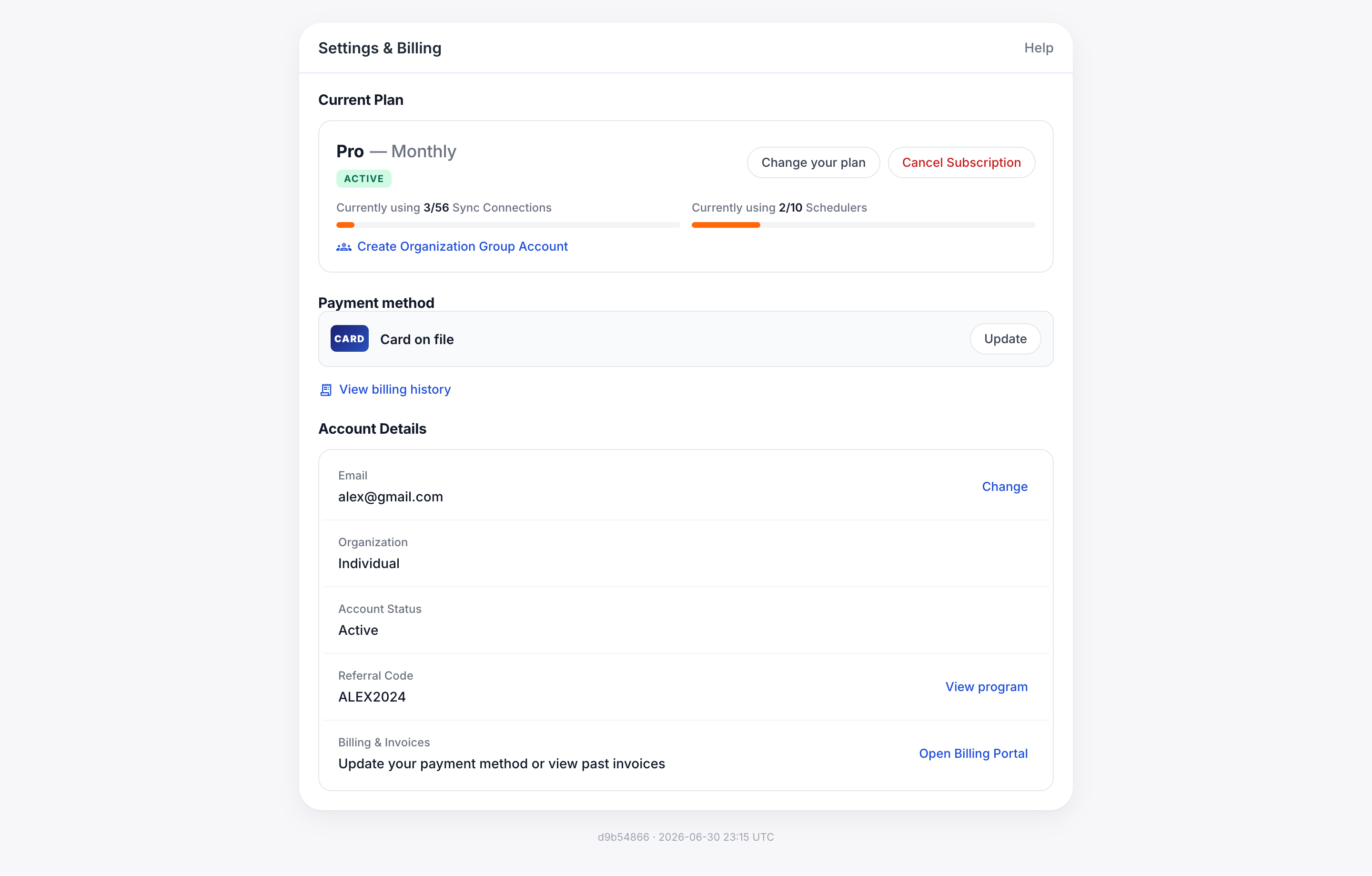
Click Billing in the left navigation of the web app. The page is titled Settings & Billing and groups everything related to your subscription into four cards:
- Current Plan — which plan you’re on, billing cycle, trial status, and usage meters.
- Upgrade to a paid plan — side-by-side plan comparison with a yearly/monthly toggle.
- Payment Information — what you’ll be charged, trial notice, and referral code entry.
- Account Details — email, organization, account status, and your personal referral code.
Current Plan
The top card shows the plan you’re on right now in the form “Premium — Yearly”: the plan name (Basic, Premium, or Pro) followed by your billing cycle. Beneath the name you’ll see one of three status pills:
- TRIAL — orange pill, with “expires in N days” next to it. You won’t be charged until the trial ends.
- ACTIVE — green pill, shown once your subscription has started billing.
- No pill — you’re on the free tier and not on a trial.
On the right of the row, the Cancel Trial button ends your trial immediately and reverts you to the free tier (Basic features only, with no billing). You can re-start a trial later if you change your mind.
Usage meters
Two progress bars under your plan name tell you how much of your plan you’re using:
- Sync Connections — counts every individual sync pair. A one-way sync is 1 connection; a both-directions group of three calendars uses 6 connections (every ordered pair). Plan limits: Basic 2, Premium 20, Pro 56.
- Booking links — counts active schedulers, regardless of how often they’ve been booked. All paid plans include 10.
The bar fills orange as you approach the limit. When you hit it, the relevant New sync or New scheduler button is disabled until you free up a slot or upgrade.
Trial and expiration
New paid plans start with a free trial. While the trial is active you have full access to every feature included in the plan you selected — including the AI Assistant on Premium and Pro.
- The countdown (expires in N days) is in the Current Plan card.
- The Payment Information card repeats the trial notice with a precise date: “you will not be charged until {date}”.
- The first charge happens automatically when the trial ends, using the plan and cycle currently selected in the Upgrade card.
If you don’t enter a payment method during the trial, your account drops to the free Basic tier when the trial ends. No charge, but any syncs or schedulers that exceeded the free limits will be paused until you upgrade or remove them.
Plans & pricing
The Upgrade card shows three plan cards side-by-side. Use the Yearly / Monthly toggle in the section header to switch pricing. Yearly billing saves 20% versus paying monthly, and the savings badge stays lit on the toggle so you can tell which cycle is selected.
| Basic | Premium POPULAR | Pro | |
|---|---|---|---|
| Monthly price | $5/ mo | $10/ mo | $40/ mo |
| Yearly price (per month) | $4/ mo Charged $48 per year | $8/ mo Charged $96 per year | $32/ mo Charged $384 per year |
| Sync Connections | 2 | 20 | 56 |
| Connected accounts | Unlimited | Unlimited | Unlimited |
| Booking links | 10 | 10 | 10 |
| Unified Calendar | ● | ● | ● |
| AI Assistant | — | ● | ● |
Click a plan card to select it — the selected card gets an orange outline. The Payment Information card below updates to match.
Change your plan
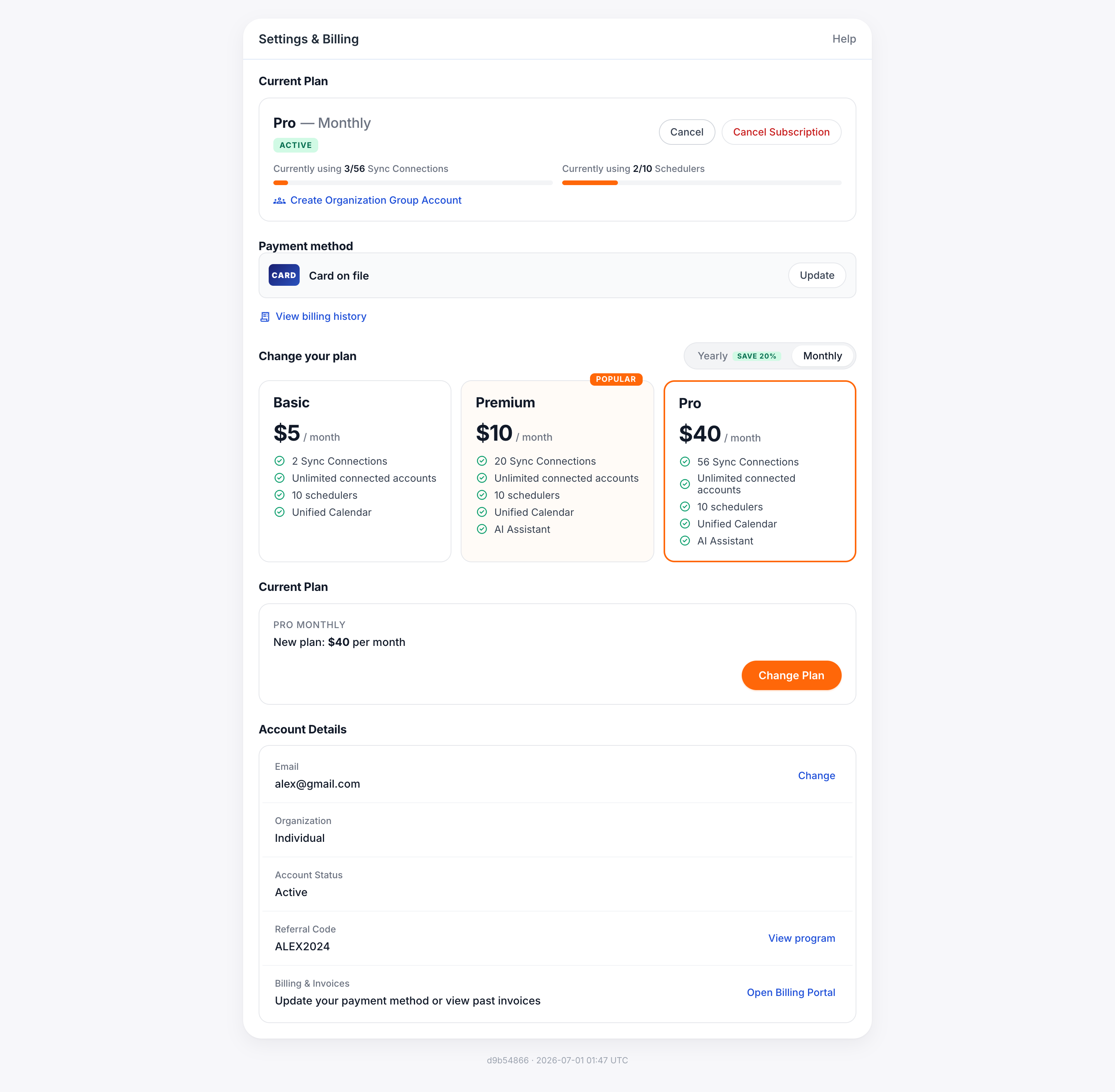
-
Pick your billing cycle
Toggle Yearly or Monthly at the top of the Upgrade card. Yearly is checked by default because it saves 20%.
-
Click the plan you want
The card you click gets an orange outline and the Payment Information card updates with the matching amount and cycle.
-
Review the payment line
Confirm the line that reads “Amount to be charged: $X per year” (or per month) matches the plan you selected.
-
Apply a referral code (optional)
If you have one, paste it into Have a referral code? and click Apply. The discount appears under the amount line.
-
Click Subscribe to Plan
The orange Subscribe to Plan button at the bottom of the Payment Information card opens our secure checkout. After you confirm payment details, you return to Billing and your Current Plan card refreshes with the new selection.
You can change cycles or plans at any time. Upgrades take effect immediately and prorate against your remaining period. Downgrades apply at the end of the current billing cycle so you keep paid features until then.
Payment Information
This card always reflects the plan and cycle currently selected above. It contains four pieces:
Accepted payment methods
- Major credit and debit cards — Visa, Mastercard, American Express, Discover, JCB.
- Apple Pay and Google Pay where supported by your browser.
- Bank transfer (ACH) is available on annual Pro plans on request — contact support.
Referral codes
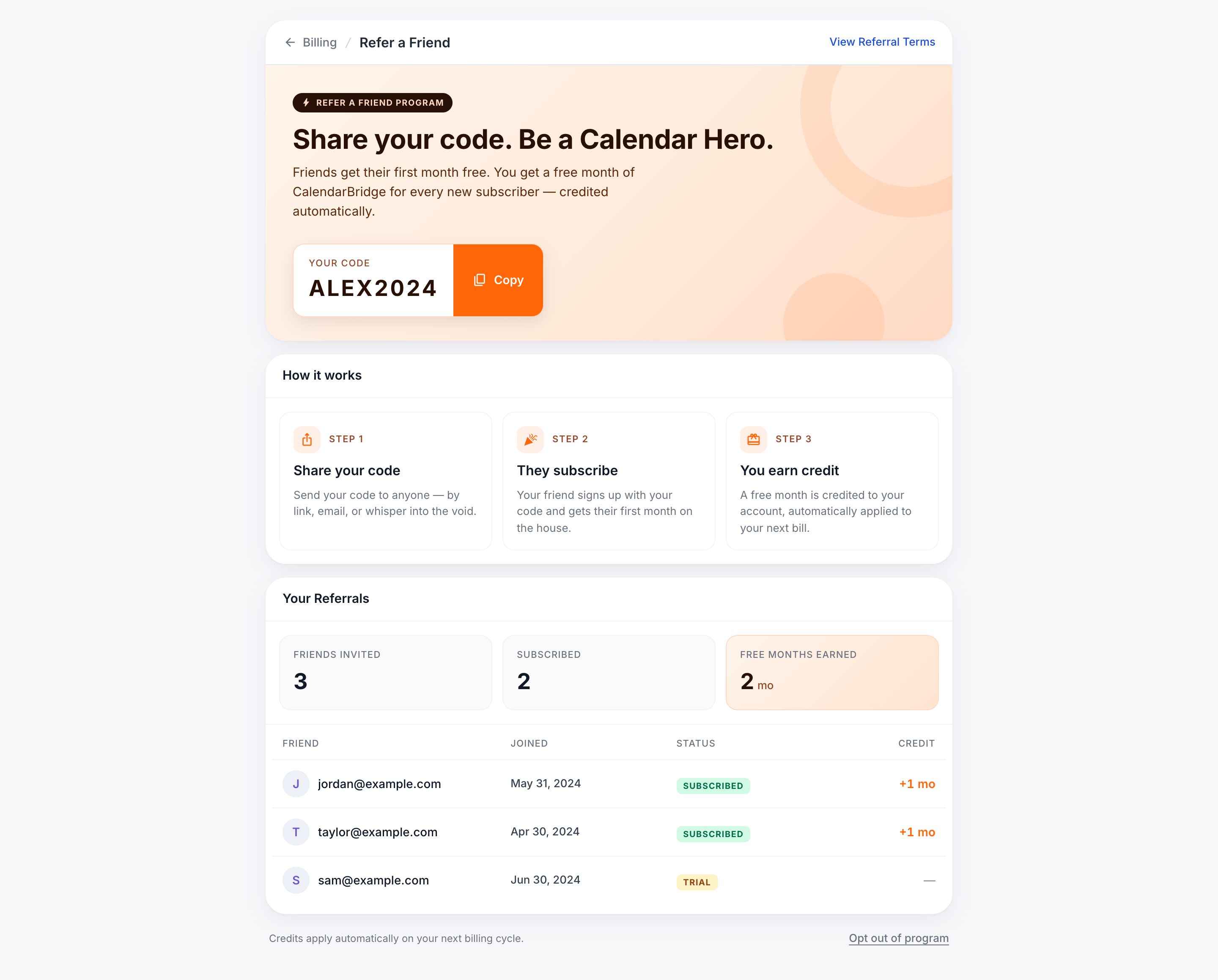
CalendarBridge has a built-in referral program. There are two sides to it on this page:
- Have a referral code? — in the Payment Information card. Paste a friend’s code here to claim their referral discount on your first charge.
- Referral Code — in the Account Details card. This is your code (for example,
QA60s). Click View program to open the referrals page, where you’ll see your share link, who has signed up, and the credit balance applied to your account.
Both sides obey the same program terms — you can either redeem someone else’s code or earn credit when others use yours; one referral relationship per pair of accounts.
Account Details
The bottom card on the page summarizes the account-level facts about your subscription. Every row has an action on the right that opens the relevant settings.
| Field | What it means | Action |
|---|---|---|
| The login address on the account. Invoices and trial-ending notices are sent here. | Change — lets you pick one of your other connected calendar accounts as your new login email. You’ll be signed out and log back in with the new address. See Change Your Login Email Address. | |
| Organization | Either Individual (you pay for yourself) or the name of an organization paying for your seat. | Manage — opens the organization page where owners can add or remove seats and reassign billing. See below. |
| Account Status | ACTIVE means billing is healthy. Other values: TRIAL, PAUSED, PAST_DUE, CANCELED. | — |
| Referral Code | Your personal code. Share the link from the program page to give friends a discount and earn credit yourself. | View program — opens the Referrals page. |
Organization accounts
If you bought multiple seats — or want to centralize billing for a team — you can convert your account into an Organization group account. The link sits inside the Current Plan card: Create Organization Group Account.
Once an organization exists:
- The organization owner is the only person who can edit the Payment Information card.
- Individual members keep their own Account Details (email, referral code, status) but the Current Plan and usage meters reflect the organization’s shared limits.
- The Organization row in Account Details switches from Individual to the organization name. Manage opens the organization page where the owner can invite, remove, or reassign seats.
Cancel or pause
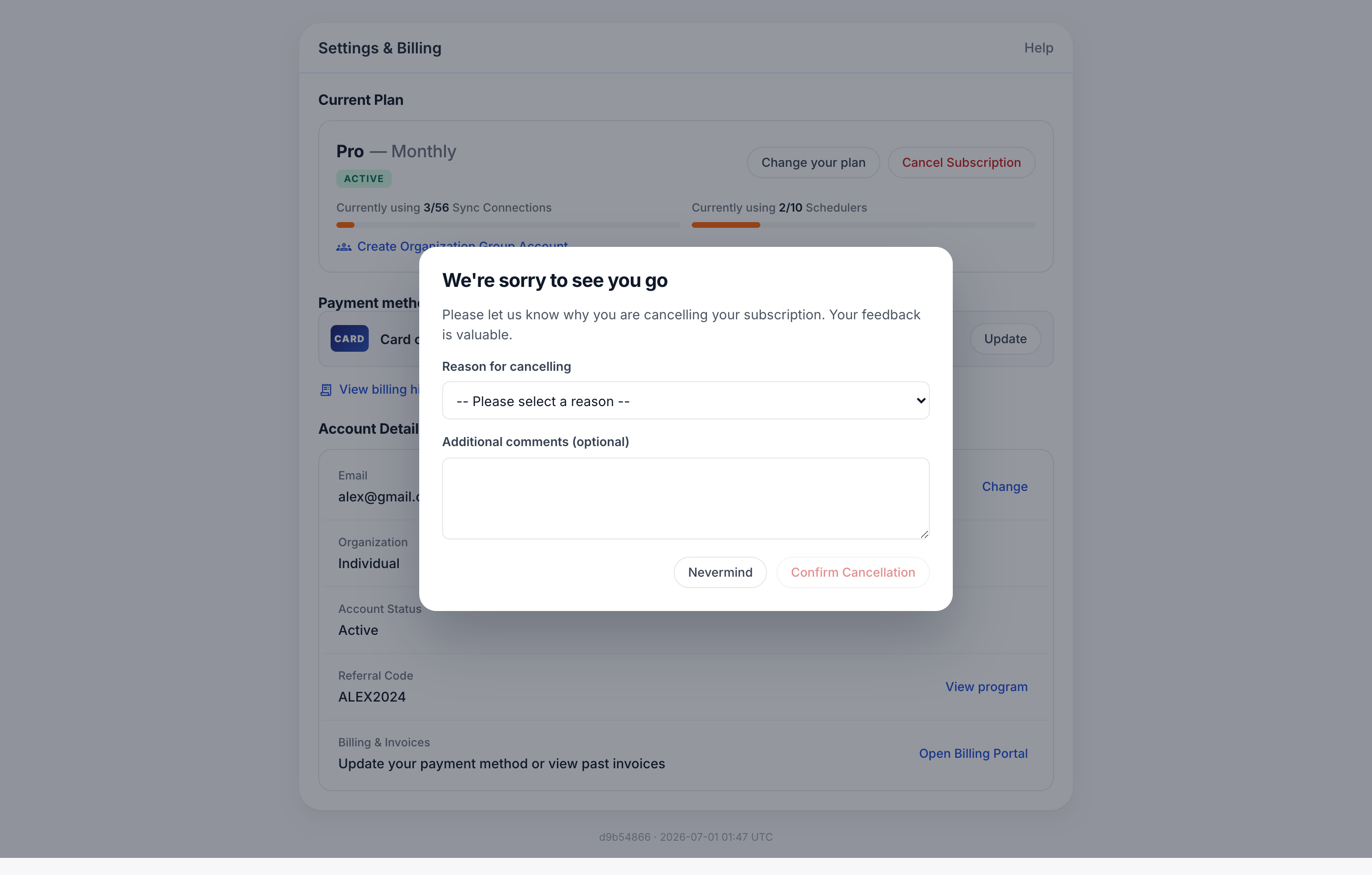
There are two ways to stop being charged.
During a trial
Click Cancel Trial on the right side of the Current Plan card. Your subscription is removed immediately and your account drops to the free Basic tier at the end of the day. You won’t be charged the trial’s first amount.
On a paid plan
Open the Payment Information card and click Manage subscription in the secure checkout that opens after Subscribe to Plan. From there you can:
- Cancel — your plan keeps running until the end of the current billing period, then your account moves to the free Basic tier. No further charges.
- Downgrade — change to a cheaper plan or switch from Yearly to Monthly. Takes effect at the end of the current period.
Common questions
Will I be charged the moment I click Subscribe to Plan?
No. If you’re on a trial, the first charge is deferred to the trial-end date shown on the yellow trial notice. Subscribing simply attaches a payment method and confirms the plan you want billed when the trial ends.
What counts as a “Sync Connection”?
Each ordered source → destination pair. A one-way sync is 1; a two-way sync between calendars A and B is 2; a both-directions group across 3 calendars is 6 (3 × 2). The Usage meter in the Current Plan card always reflects the live total.
Can I switch between yearly and monthly later?
Yes. Use the Yearly / Monthly toggle and click Subscribe to Plan again. A switch from monthly to yearly is prorated and applied immediately; yearly to monthly takes effect at the end of your current annual period.
I changed my mind during the trial — how do I revert?
Click Cancel Trial in the Current Plan card. The status pill clears, the Subscribe to Plan button greys out, and you stop accruing trial days. No charge is made.
My organization owner can’t see Payment Information.
Only the seat owner with the billing role sees a populated Payment Information card. Other org members see a read-only summary and can’t change plan or payment method. Ask your owner to reassign the billing role from Account Details → Organization → Manage.