Get Paid Before Meetings With Paid Booking Links
Put a price on any scheduling link. Clients pay through Stripe before the event hits your calendar, and the money goes straight to you.
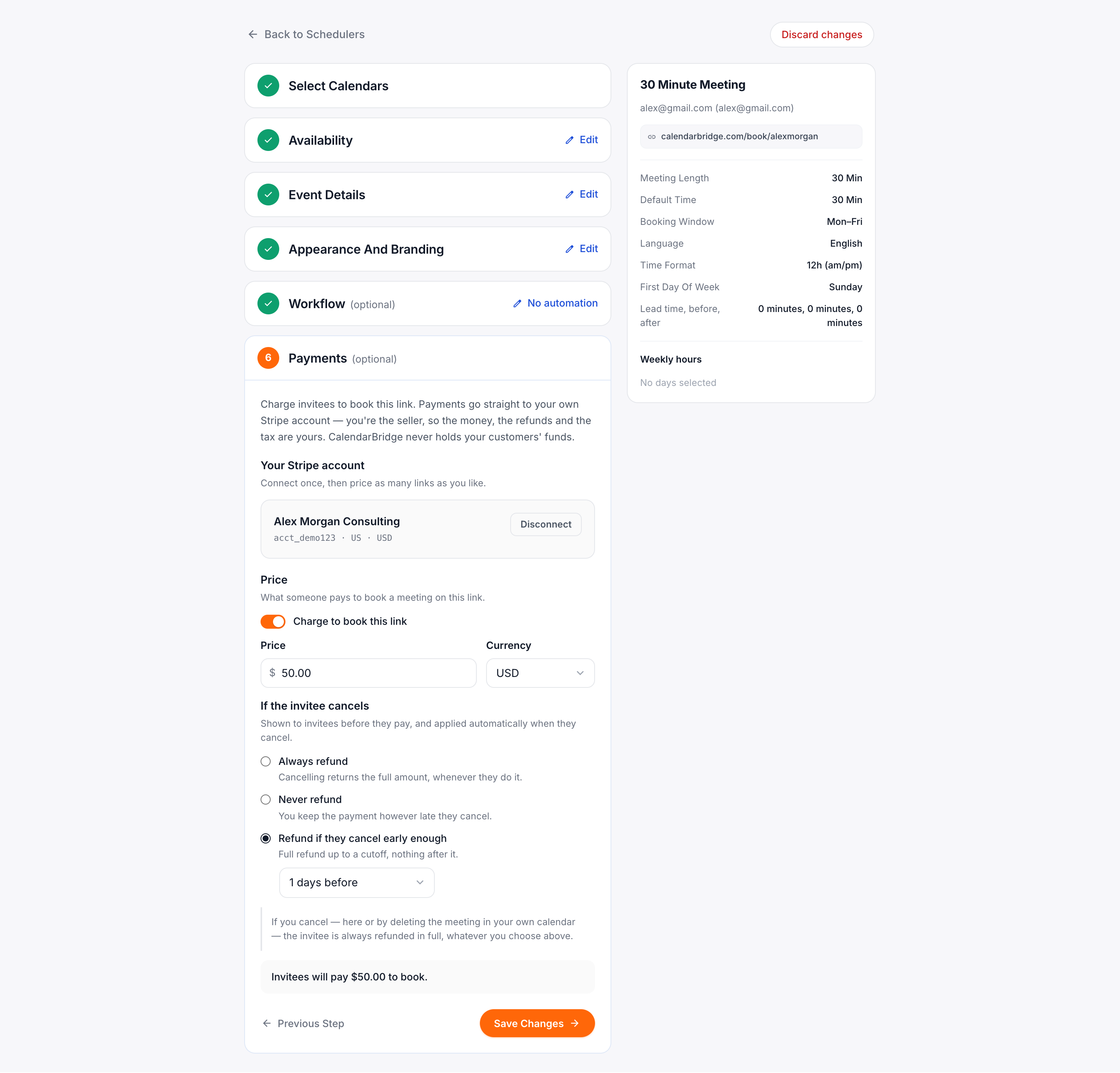
You can now collect upfront fees with paid booking links in CalendarBridge. Connect your Stripe account in Step 6 of the scheduler editor, set a price for each meeting length, and clients pay before the meeting is created. You get paid right away, so you never have to send an invoice or chase an overdue bill again.
Why take payments at booking
When you sell your time, the booking is the sale. Chasing payment later brings invoices, reminder emails, and no-shows who never pay. Taking a card up front solves all of that. The client commits, the slot is genuine, and the money is already processing before you join the call.
Until now, that meant sending a separate invoice link, cross-checking bank records, or adding another tool to your stack. Paid links put the entire step directly inside the booking flow you already use.
How to set it up
You connect Stripe once. Then you can price any link you want, with its own price, currency, and refund rules.
Go to Schedulers, select Edit on a link, and scroll down to Step 6, Payments. It is completely optional, so any link without pricing works just as it always did.
- Connect Stripe. A new tab opens for you to sign in to Stripe or register a new account. The editor saves your place, and you return right where you left off once you finish.
- Turn on Charge to book this link, then choose the amount and currency. If your link has multiple durations, you can set a rate for each one. Any duration left blank defaults to the base price, so meetings are never free by mistake.
- Select your refund policy. Always refund, never refund, or refund if they cancel early enough. Clients see this policy before they pay, and CalendarBridge runs it automatically if they cancel.
There is one exception. If you cancel the meeting, the client always gets a full refund, regardless of the policy on the link. This also applies if you delete the event directly from your calendar. Keeping money for a session you called off leads to chargebacks, and those hit your Stripe account, not ours.
What your clients see
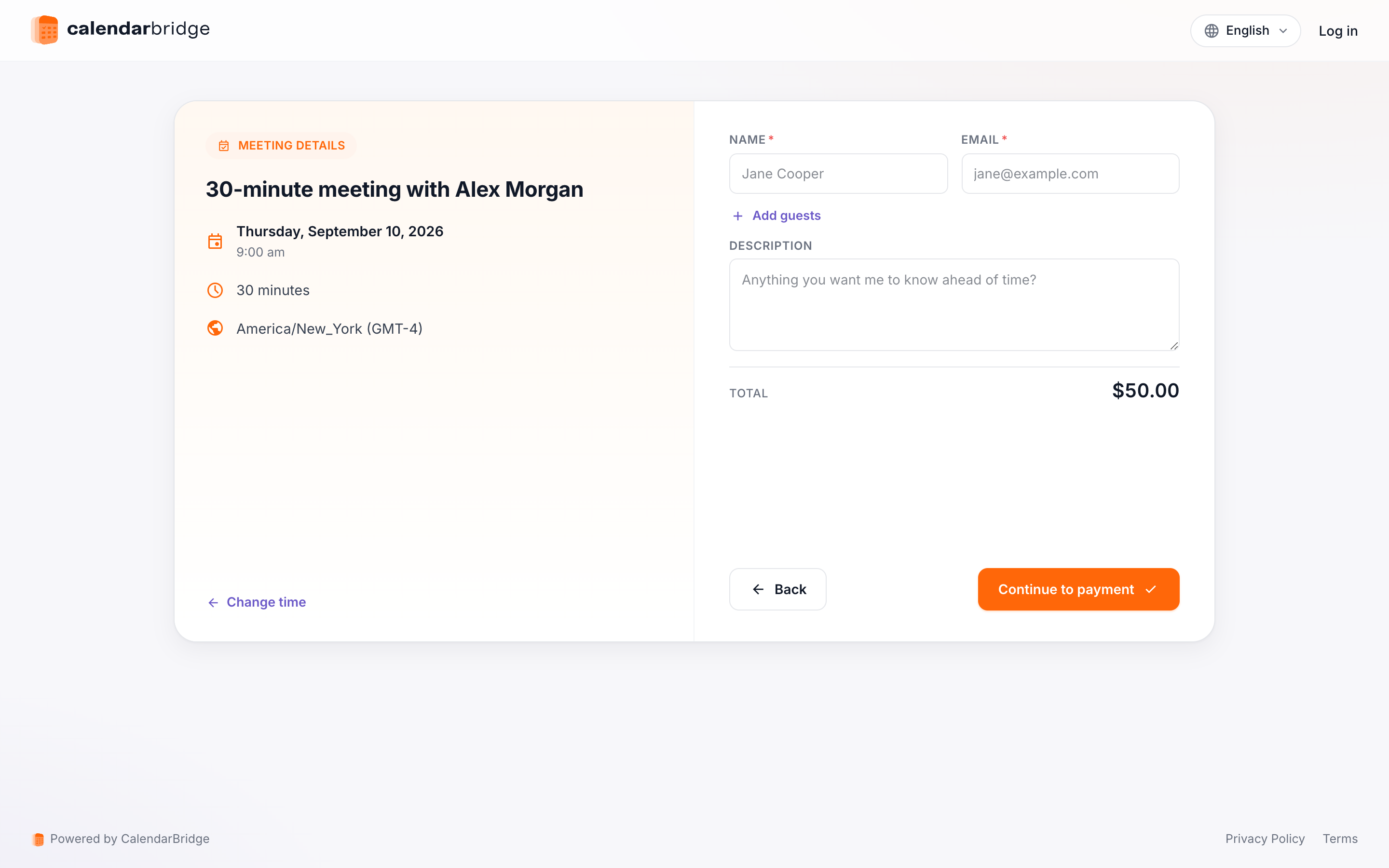
Clients see the price on your booking page before they pay. When they proceed, they pay on a secure Stripe page. Once approved, they see a confirmation screen while the meeting lands on your calendar and the invite goes out.
Calendar events are created only after the charge goes through. If someone leaves the payment page, they are not charged and nothing hits your calendar. Stripe sends them a separate receipt under your business name.
Handling cancellations and refunds
If an invitee cancels, your chosen refund rule runs immediately. Rescheduling never moves money. Refunds return to the original payment method, usually within 5 to 10 business days. You can track every charge and refund in your Stripe dashboard, which you can also use to issue manual refunds.
Times are not held while someone types their card details. If two people try to book the exact same slot at once, the second person gets an immediate full refund and a prompt to pick another time. Your calendar stays clean.
Where your money goes
All transactions run through your own Stripe account. CalendarBridge never holds your funds and takes no percentage cut. Payouts follow your standard Stripe schedule, receipts carry your company details, and you manage taxes and disputes directly. You pay standard Stripe processing fees and nothing else.
You choose which payment options to show from your Stripe dashboard, not CalendarBridge. Cards, Apple Pay, Google Pay, PayPal, Klarna, and other methods will show up for your clients based on your Stripe settings and country.
Full details: Read our Accept Payments for Bookings guide for complete instructions, plus help with Stripe verification, payment methods, and pending refunds.
Availability
Look for Payments under Step 6 in your scheduler editor. If it does not show up yet, it is still rolling out to your account. Everything else on your links stays the same. Your buffers, working hours, custom questions, reminder emails, and combined links continue to run as expected.
Frequently asked questions
Does CalendarBridge take a cut of paid bookings?
No. CalendarBridge never holds your money or takes a percentage of your bookings. You connect your own Stripe account, so payments go directly to you. You only pay Stripe's standard processing fees.
Which payment methods can invitees use?
Invitees pay through Stripe checkout. Depending on your country and your Stripe account settings, you can accept credit cards, Apple Pay, Google Pay, PayPal, and Klarna. You manage which methods appear directly in your Stripe dashboard.
Can one scheduling link collect payment for different meeting lengths at different prices?
Yes. When you turn on payments in Step 6, Payments, you can assign a different price to each meeting length you offer on that link. Invitees pick the duration they want and see the matching price.
What happens to the payment if a meeting is cancelled or rescheduled?
Rescheduling never moves money. If an invitee cancels, your chosen refund policy applies. If you cancel the meeting, the invitee always gets a full refund. Stripe returns the money to their original payment method within 5 to 10 business days.
Get paid before you meet
Connect your Stripe account, set a price on a scheduling link, and let CalendarBridge handle the booking and the payment.
Start Free Trial