Configure CalendarBridge for Single Sign-On with Microsoft Entra ID
In this article, you learn how to integrate CalendarBridge with Microsoft Entra ID, so that you can control who has access to CalendarBridge, let users sign in with their Microsoft Entra account, and manage accounts in one central location.
Prerequisites
- A Microsoft Entra tenant with a Cloud Application Administrator account.
- A CalendarBridge organization subscription. SAML SSO is included with every organization subscription. See Group Account License Types.
- A CalendarBridge account with the organization administrator role.
- At least one domain authorized for your organization in CalendarBridge, under Manage Organization > Manage Domains. CalendarBridge applies SSO to users by their email domain. See Connecting Authorized Domains.
Scenario description
In this article, you configure and test Microsoft Entra SSO in a test environment. CalendarBridge supports service provider-initiated SSO and just-in-time user provisioning.
Add CalendarBridge from the gallery
-
Sign in to the Microsoft Entra admin center
Sign in to the Microsoft Entra admin center as at least a Cloud Application Administrator.
-
Open the application gallery
Browse to Identity > Applications > Enterprise applications > New application.
-
Add CalendarBridge
Enter CalendarBridge in the search box, select it from the results, and add the app to your tenant.
Configure and test Microsoft Entra SSO for CalendarBridge
Configure and test Microsoft Entra SSO with CalendarBridge using a test user called B.Simon.
Configure Microsoft Entra SSO
-
Open single sign-on for CalendarBridge
In the Microsoft Entra admin center, browse to Identity > Applications > Enterprise applications > CalendarBridge > Single sign-on.
-
Select SAML and edit Basic SAML Configuration
Select SAML, and then edit Basic SAML Configuration. Enter the following values. The same values are also shown in CalendarBridge under Manage Organization > SSO > Service provider values.
Setting Value Identifier (Entity ID) urn:amazon:cognito:sp:us-east-1_cXgi1sh69Reply URL (Assertion Consumer Service URL) https://auth.calendarbridge.com/saml2/idpresponseSign-on URL https://app.calendarbridge.com/loginRelay State Not required Logout URL Not required -
Add the email and name claims
On Attributes & Claims, select Add new claim and add the following claims. Leave the Namespace field blank for each claim. Keep the default Unique User Identifier (Name ID) claim unchanged.
Claim name Source attribute Required format emailuser.mailNo namespace. Must be the user's email address on a domain configured for SSO in CalendarBridge. If user.mailis empty in your tenant, useuser.userprincipalname.nameuser.givennameNo namespace. -
Copy the federation metadata
In SAML Certificates, copy the App Federation Metadata Url. Alternatively, download the Federation Metadata XML file. Using the URL is recommended.
-
Note the values for CalendarBridge
In Set up CalendarBridge, copy the following values.
Microsoft Entra value CalendarBridge field App Federation Metadata Url IdP Metadata URL (select Metadata URL) Federation Metadata XML (alternative to the URL) IdP Metadata XML (select Upload XML File)
email and name. A namespaced claim, such as http://schemas.xmlsoap.org/ws/2005/05/identity/claims/emailaddress, isn't recognized, and sign-in fails with a missing-attribute error.Create and assign the Microsoft Entra test user
-
Create a test user
In the Microsoft Entra admin center, create a test user named B.Simon, or choose an existing test user. The user's email address must be on a domain that you configure for SSO in CalendarBridge, for example
B.Simon@contoso.com. -
Assign the user to CalendarBridge
Assign the test user to CalendarBridge in Users and groups.
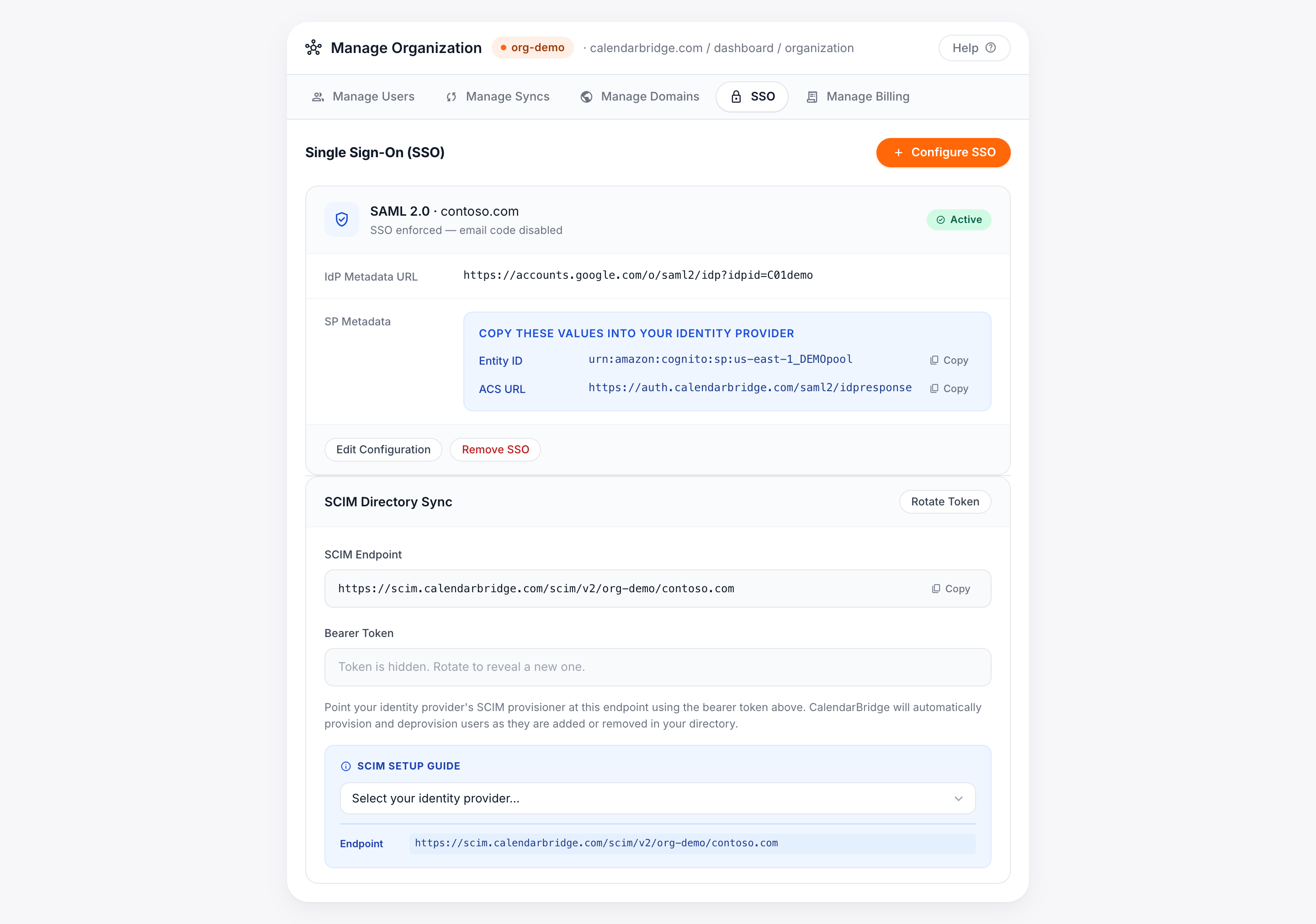
Configure CalendarBridge SSO
-
Open the SSO tab
Sign in to CalendarBridge as an organization administrator. Browse to Manage Organization > SSO, and then select Configure SSO.
-
Choose SAML and Microsoft Entra
For Protocol, select SAML 2.0. For Identity provider, select Azure AD / Microsoft Entra.
-
Select your domain
In Apply to Domains, select the domain your users sign in with, such as
contoso.com. -
Enter the Microsoft Entra metadata
Enter the App Federation Metadata Url in IdP Metadata URL, or select Upload XML File and upload the Federation Metadata XML.
-
Save the configuration
Select Save Configuration. The configuration status changes to Active when CalendarBridge accepts the metadata.
-
Optional: require SSO
After you confirm that SSO works, select Edit Configuration and turn on Require SSO — disable magic-link fallback for these domains. While enforcement is on, users on the selected domains must sign in through Microsoft Entra ID instead of with an emailed sign-in code.
Create CalendarBridge test user
CalendarBridge supports just-in-time user provisioning, so you don't need to create B.Simon in CalendarBridge in advance. When a user signs in through SSO for the first time, CalendarBridge creates the account from the email claim and adds the user to your organization with an organization seat.
Test SSO
-
Open My Apps
Sign in to My Apps with the Microsoft Entra test user.
-
Select the CalendarBridge tile
You're redirected to the CalendarBridge sign-in page at
https://app.calendarbridge.com/login. -
Sign in with SSO
Select Sign in with SSO, enter the test user's email address, and continue. If you turned on Require SSO, entering the email address on the standard sign-in form also redirects you.
-
Confirm you're signed in
Confirm that you're signed in to the CalendarBridge dashboard without another Microsoft Entra authentication prompt.
You can also start sign-in directly from app.calendarbridge.com/login without using My Apps.
Next steps
- Configuring Single Sign-On (SAML & OIDC) — other identity providers, OIDC, and troubleshooting.
- Configuring SCIM Directory Sync — automatically provision and deprovision users from Microsoft Entra ID.
- Contact CalendarBridge Support