Using CalendarBridge on iPhone and Android
The CalendarBridge mobile app includes the same features as the web app: your unified calendar, syncs, schedulers, and the AI Assistant. This guide covers how to install the app, log in, and handle your daily scheduling from your phone.
Install the app and sign in
Sign in with your current CalendarBridge credentials, and your connected accounts, syncs, and schedulers will appear immediately.
- Download CalendarBridge from the App Store (iPhone) or Google Play (Android).
- Open the app and sign in with Google, sign in with Microsoft, or enter your work email to use your organization's single sign-on. CalendarBridge sends SSO users to their company login screen.
- New users will see a brief walk-through. If you don't have an account yet, see Create your account.
For an overview and download badges, visit the CalendarBridge mobile app page.
Connect your calendars
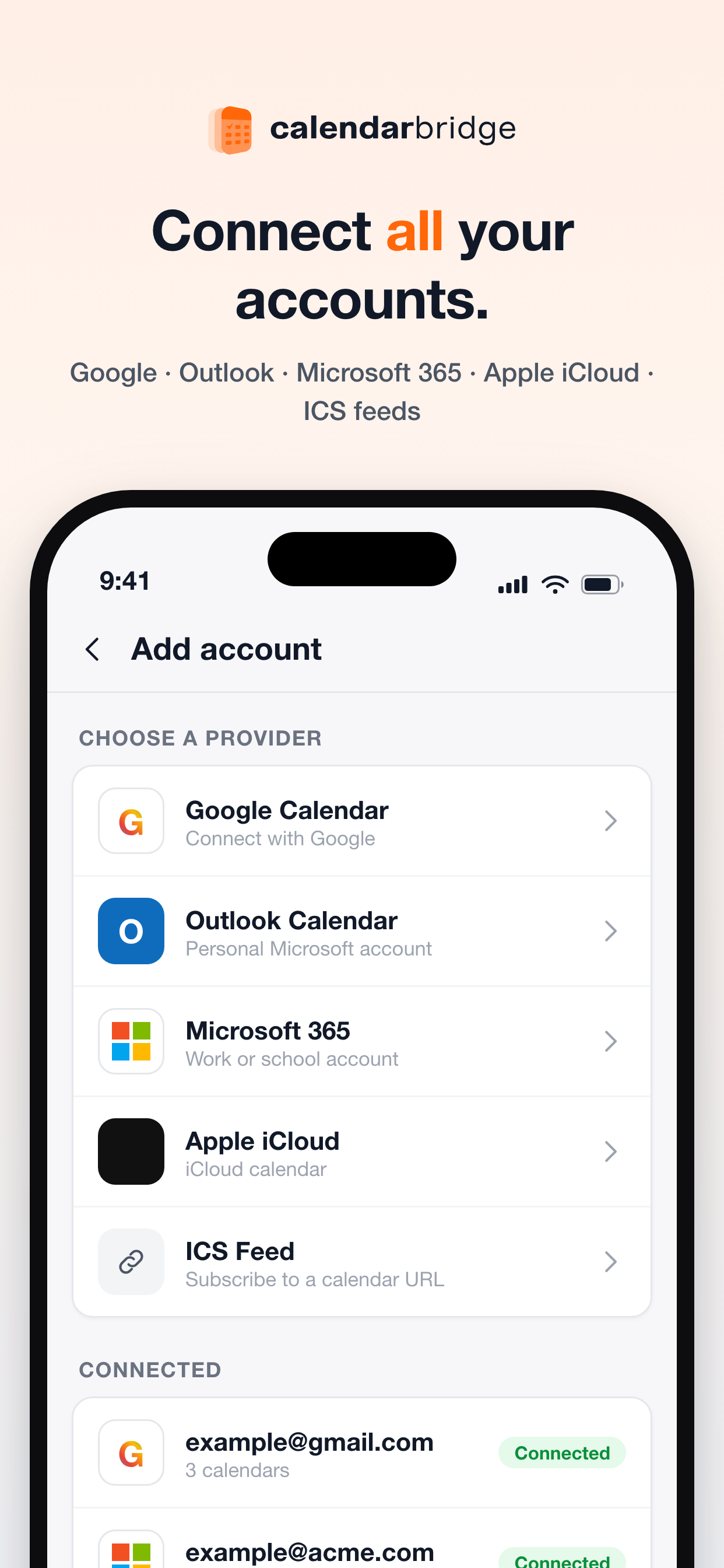
Open the Add account screen and choose an option under Choose a provider:
- Google Calendar: sign in with Google.
- Outlook Calendar: connect a personal Microsoft account.
- Microsoft 365: connect a work or school account.
- Apple iCloud: connect an iCloud calendar. You'll need an app-specific password, as outlined in Connecting Calendar Accounts.
- ICS Feed: add a calendar link. ICS feeds are view-only.
Your linked accounts show up under Connected on this screen, alongside calendar counts for each. To connect Fastmail, Zoho, Yahoo, AOL, or other CalDAV accounts, see Connecting CalDAV Calendar Accounts.
View all your calendars together
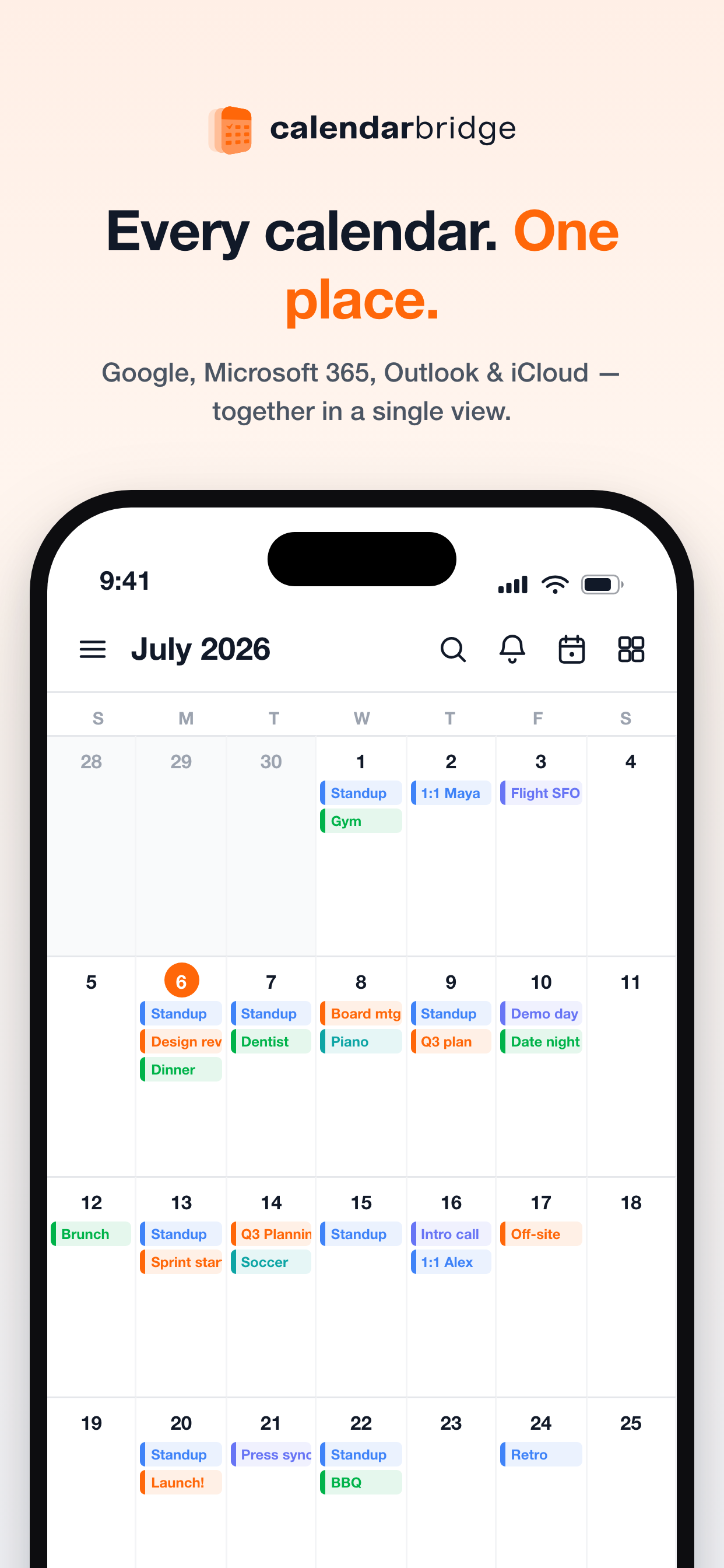
The calendar shows entries from all your accounts on one screen, color-coded by calendar. You can jump between day, 3-day, work week, week, or month views. The time grids display overlapping meetings side by side, list conference links, and show your current time.
Your view preferences (visible calendars, custom colors, week start days, time formatting, and ICS feeds) save directly to your CalendarBridge account. That keeps your settings in sync across your phone, tablet, and computer. For more on this view, read Unified calendar overview.
Create and edit events
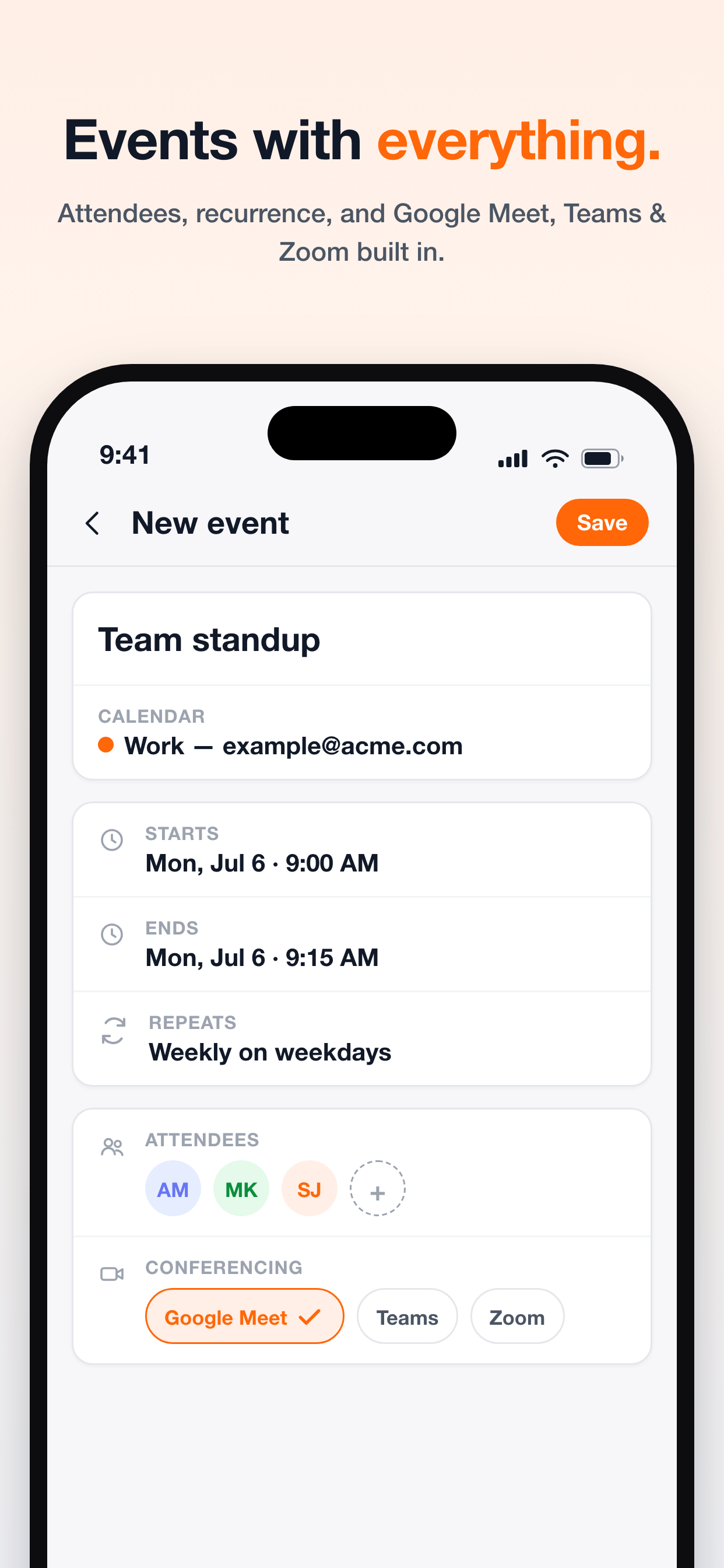
When you create an event, choose the right calendar, set your start and end times, configure repeat rules (like weekdays only), invite guests, and drop in a Google Meet, Microsoft Teams, or Zoom link. The event saves straight to the calendar you picked.
Set up and manage syncs
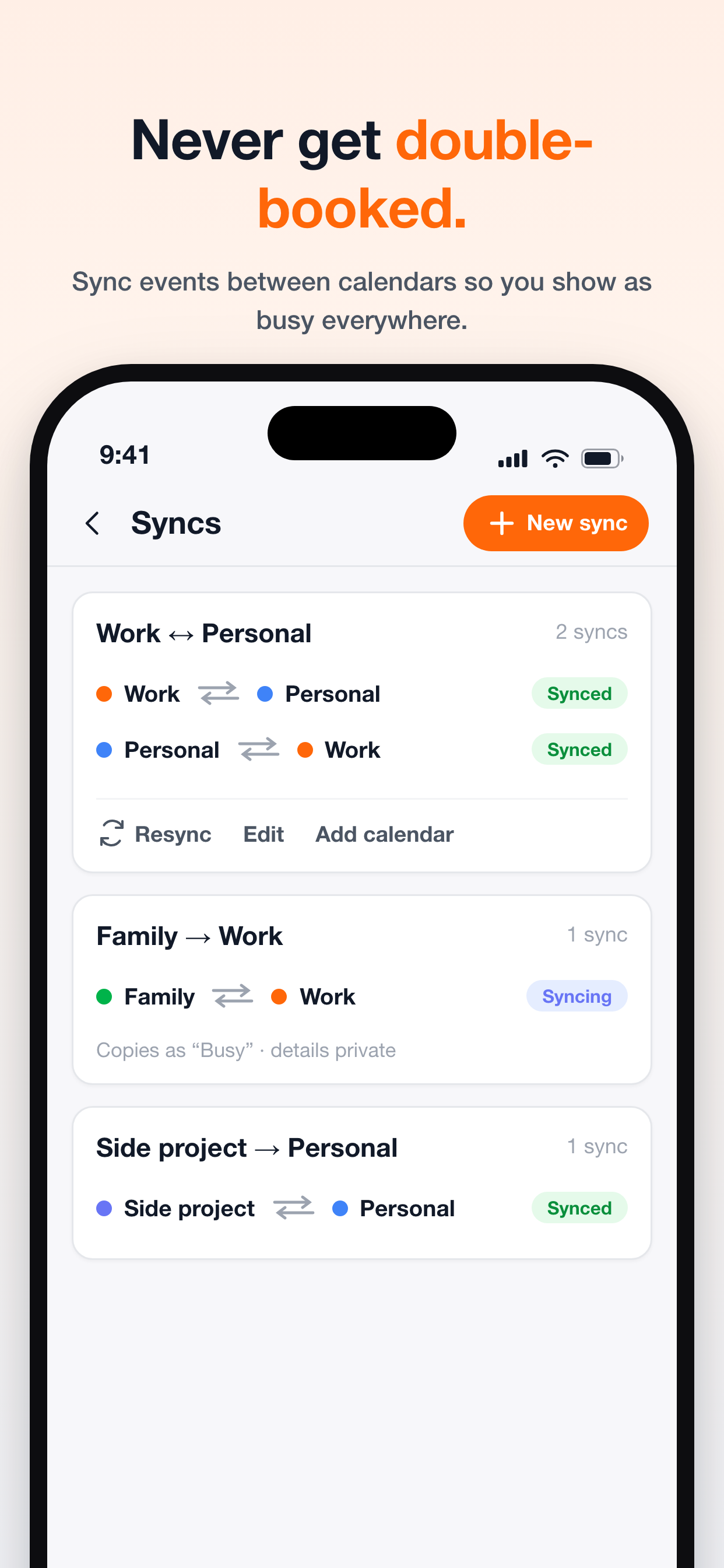
Go to Syncs to review your sync pairs and their status, marked as either Synced or Syncing.
- Tap New sync.
- Choose a source calendar and a destination calendar.
- Select the details to copy over. You can sync event titles, attendees, notes, locations, video links, reminders, or simply show "Busy" blocks to keep your details private.
- If you like, restrict the sync to specific weekdays, and pick one-way or two-way syncing.
To connect several calendars together, run the three-step batch sync wizard. For an active connection, tap Resync, Edit, or Add calendar. You can find more detail in Syncing overview and Set up a one-way sync.
Create and share booking links
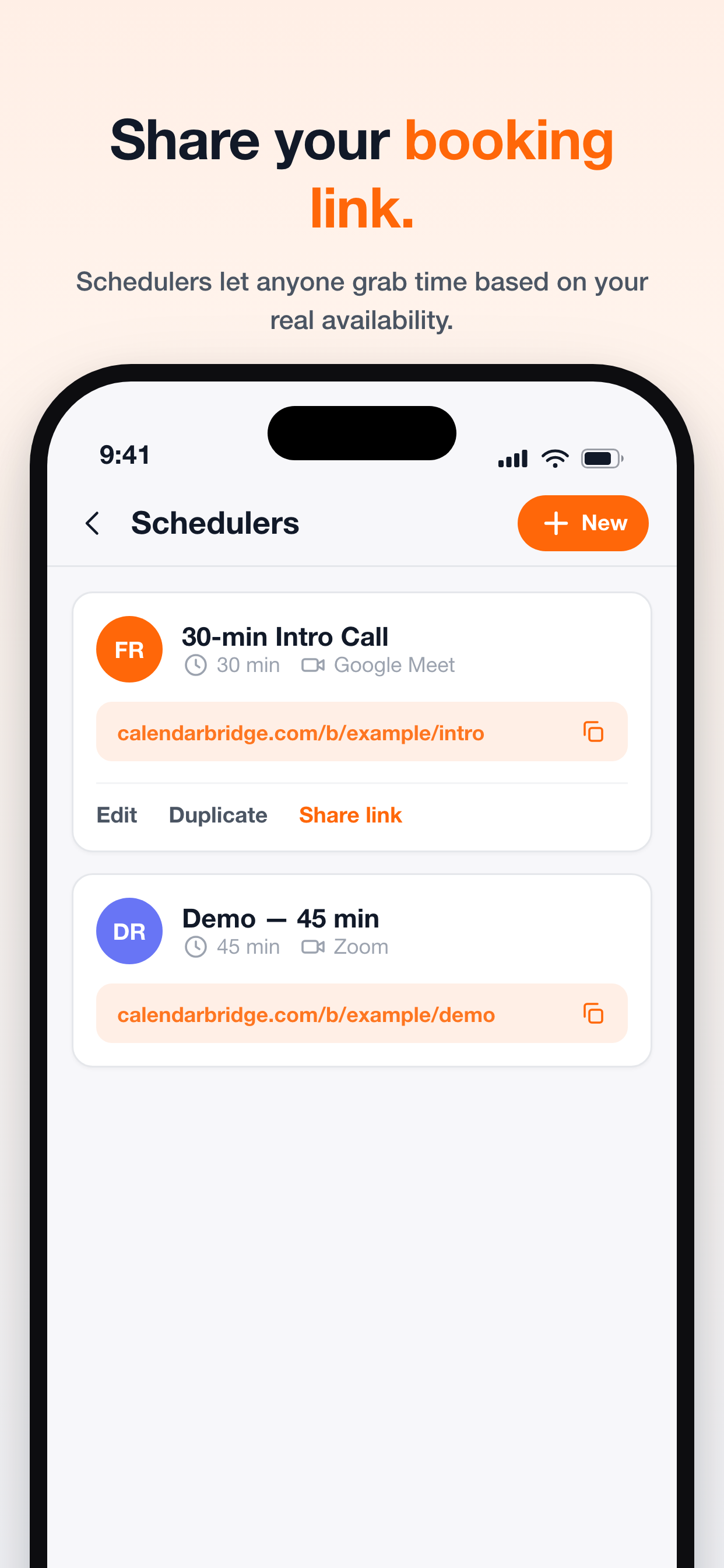
You can set up and adjust schedulers right from the app. Define your weekly availability, meeting lengths, buffers, and notice windows. You can also pick colors, upload a photo, and set a custom link. Copy or send the link straight from your phone. People booking time will only see openings when your calendars are actually free. Read Schedulers overview to see how every option works.
Ask the AI Assistant
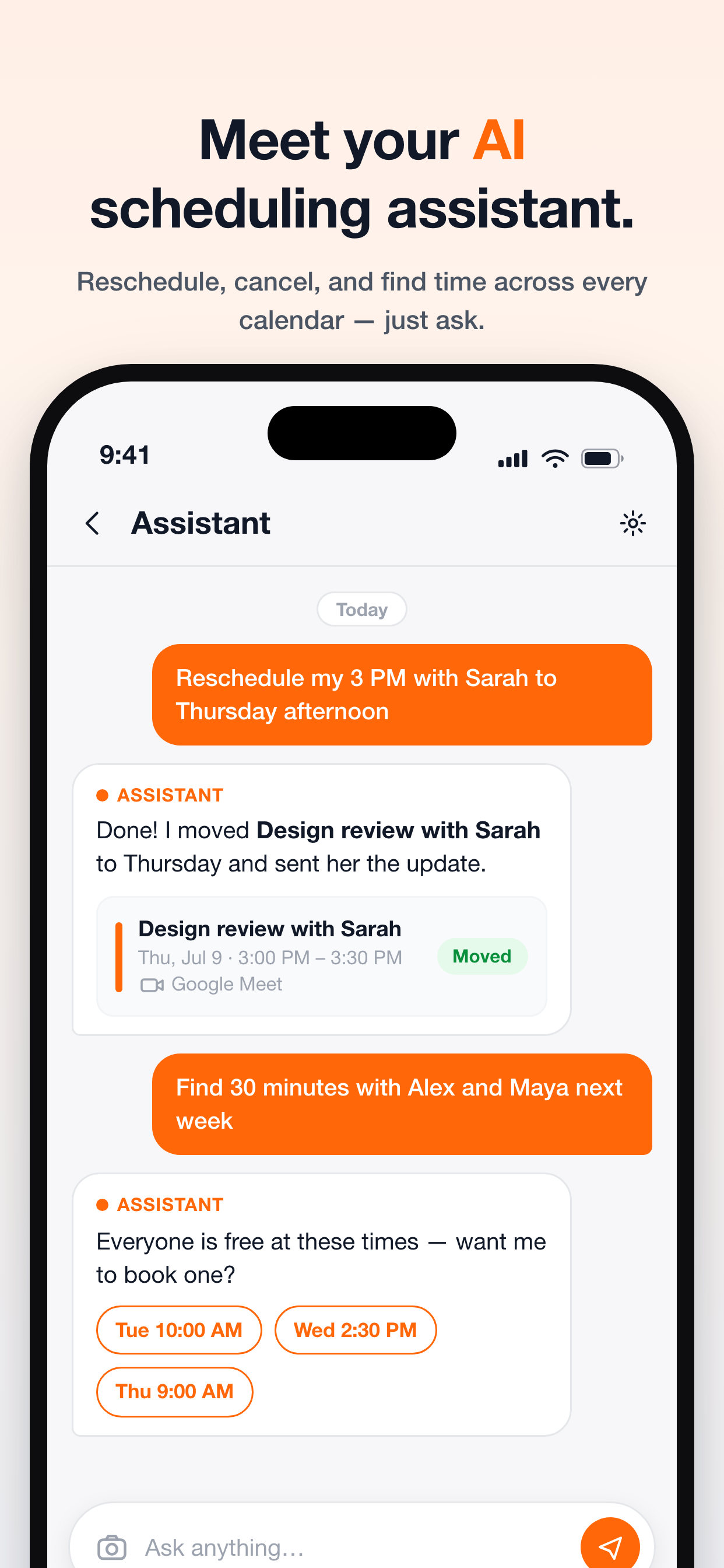
Type in a plain request, like "reschedule my 3 PM with Sarah to Thursday afternoon" or "find 30 minutes with Alex and Maya next week." The assistant reads across your connected calendars, reschedules meetings, alerts your guests, and suggests openings when everyone can meet. The AI Assistant comes with Premium and Pro plans. Read Compare plans for details.
Respond to invitations
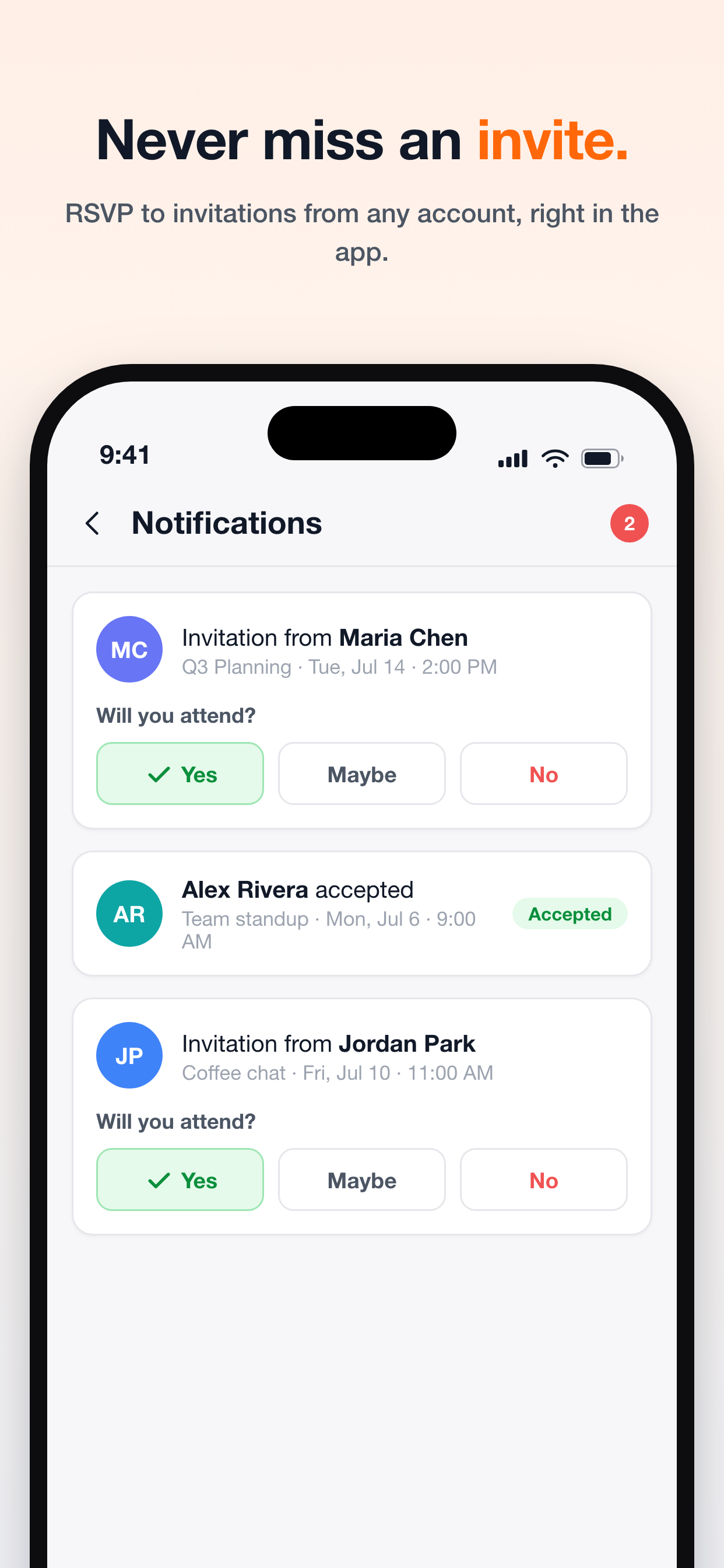
Invites from all your connected accounts feed into one notifications inbox. You can tap Yes, Maybe, or No inside the app, and see how guests have responded to your invitations.
Theme and language
The app automatically adapts to your phone's light or dark appearance. It supports 19 languages, including right-to-left Arabic. You can adjust your preferred language under the app settings.